Writing / programming
Superkey: Learn Omarchy Shortcuts by Doing
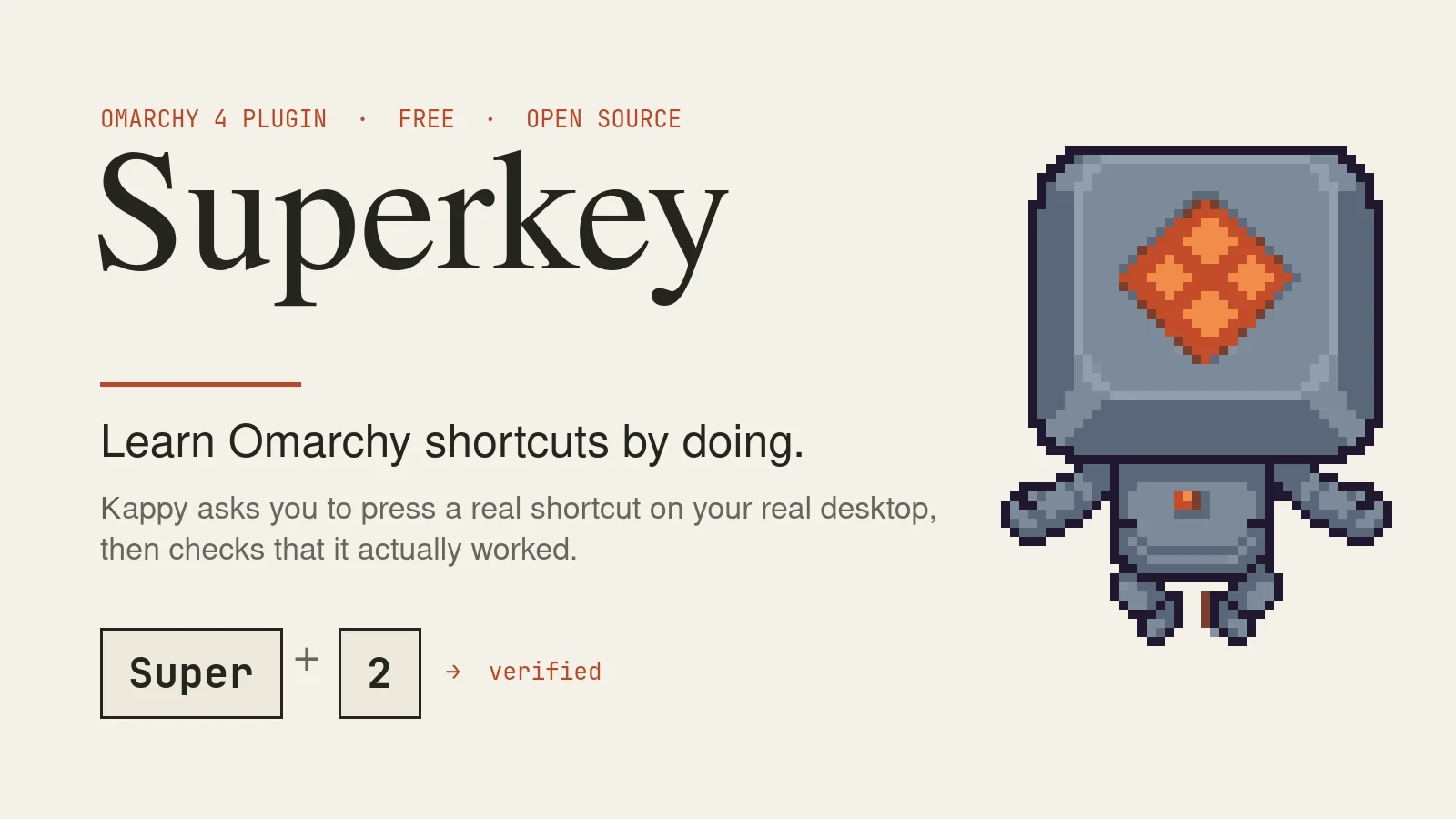
A free Omarchy 4 plugin. A small robot asks you to press a real shortcut on your real desktop, then checks that it actually worked. Ten lessons, seventy steps, each tied to a module of the free Omarchy course.

So here is the thing about keyboard shortcuts. You can read a cheat sheet ten times and still reach for the mouse.
That was the gap in my free Omarchy course. The course teaches every shortcut on the desktop. The cheat sheet lists them. The browser trainer drills them as flashcards. But none of that puts the shortcut in your hands on the real desktop, where the muscle memory has to live.
Superkey is the missing piece. It is a free plugin for the Omarchy 4 desktop. A small robot called Kappy sits in the corner of your screen, asks you to press a shortcut, and confirms that it actually worked before moving on.
What it does
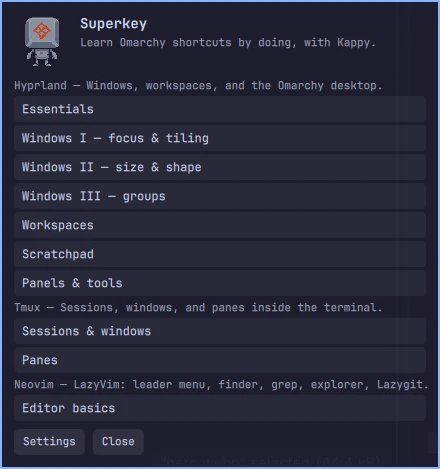
Ten lessons, seventy steps, three tracks:
- Hyprland — Essentials, Windows I to III, Workspaces, Scratchpad, Panels and tools
- Tmux — Sessions and windows, Panes
- Neovim (LazyVim) — Editor basics
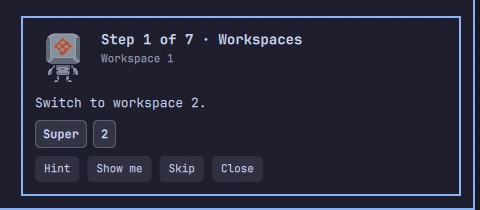
You pick a lesson. Kappy shows the keys. You press them on the real desktop. When Hyprland, tmux, or Neovim report the effect, the step is verified and the next one loads.
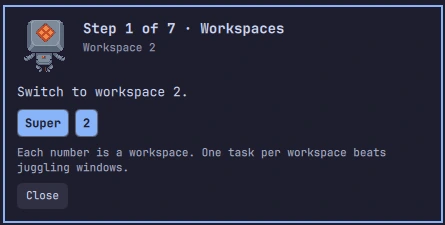
When it works, the keys turn blue and Kappy adds one line on why the shortcut matters.
Three buttons carry the rest. Hint rephrases the instruction. Show me performs the action for you, puts things back, and says “Now you.” Skip moves on without blocking completion. A few steps cannot be observed from the outside; Kappy says so and asks you to press Continue instead.
Progress is saved, so you can leave a lesson and come back.
Verified, not pretended
This is the part I care about most. Superkey never records keystrokes. It watches the effect.
Hyprland’s event stream and hyprctl snapshots tell it what happened to windows, workspaces, and panels. A tmux control-mode client reports sessions, windows, and panes. Neovim answers through nvim --remote-expr for pickers, the explorer, and Lazygit.
If something is not observable, the step is marked “confirmed by you” rather than “verified”. No videos, no quizzes, no pretending.
What it never does
A plugin that watches your desktop needs to earn trust. So, the list:
- It never edits your Hyprland, tmux, Neovim, or Omarchy configuration.
- It never closes, moves, floats, or fullscreens a window it did not open. Its own windows are titled Superkey practice.
- Tmux lessons run on a private server (
tmux -L superkey). Neovim lessons open a throwaway sample project. Your sessions and files are untouched. - It installs nothing else and never goes online.
- Between lessons it is a bar button. Nothing runs in the background.
Window lessons run on an empty workspace and return you to where you were.
Install
Requires Omarchy 4.0.4 or newer. Nothing else — Quickshell, Hyprland, tmux, and Neovim are already part of Omarchy.
omarchy plugin add https://github.com/smanookian/superkey.git
omarchy plugin enable stevinator.superkey
Omarchy installs every third-party plugin disabled so you can read the code first. The second line turns it on. An SK button appears in the bar.

Click it and Kappy shows the lesson list, grouped by track.
Update and remove the same way you would expect:
omarchy plugin update stevinator.superkey
omarchy plugin remove stevinator.superkey
Where it fits in the course
Every Superkey lesson links back to the module of the Omarchy course that teaches it. And the course points forward: Module 0 installs Superkey right after the verify script, and Modules 3, 5, 8, and 15 each end their relevant sections with a “Practice with Superkey” block naming the lesson to run.
Read a section, run the lesson, get it verified. That is the loop.
Where to find it
- Source, design notes, and the full lesson list: github.com/smanookian/superkey
- The course it belongs to: stevinator.com/courses/omarchy
MIT license. Lessons are plain JSON in lessons/, so if you want to add a track, you can.
If you try it and something turns out wrong on your machine, open an issue on the repo. I would rather hear about the odd case than not.
I hope to see you next time. Steve out. Tschau!