Capstone: Build and Prove Your Ultimate AI/Software-Development Workstation with Omarchy
In this chapter — 52 sections
- Capstone Overview
- Final Goal
- Capstone Scenario
- Capstone Requirements
- Part 1 — Verify the Base Omarchy System
- Part 2 — Verify Boot and Recovery
- Part 3 — Configure the Desktop
- Part 4 — Verify Display and Input
- Part 5 — Configure Defaults
- Part 6 — Build the Development Environment
- Part 7 — Create the Capstone Project
- Part 8 — Pin the Project Runtime
- Part 9 — Add Git and GitHub
- Part 10 — Add AGENTS.md
- Part 11 — Build a Tmux + AI Workflow
- Part 12 — Use the AI Agent Safely
- Capstone Development Task
- Add One Custom Keybinding
- Add One Automation or Hook
- Example Post-Update Hook
- Verify Hardware Controls
- Demonstrate One Runtime Toggle
- Demonstrate One Troubleshooting Exercise
- Demonstrate Recovery Knowledge
- Create the Dotfiles Repository
- Include Hyprland Config
- Include Omarchy Config
- Include Mise Config
- Create WORKSTATION.md
- Example Workstation Manifest
- Create bootstrap.sh
- Create verify.sh
- Push the Dotfiles Repository
- Secret Review
- Security Verification
- Maintenance Verification
- Rebuild Test
- Minimum Passing Criteria
- Strong Pass Criteria
- Expert-Level Capstone Criteria
- Capstone Submission Package
- Suggested Video Walkthrough
- Final Troubleshooting Challenge
- Final Recovery Challenge
- Final AI Challenge
- Final Security Challenge
- Final Architecture Challenge
- Capstone Checklist
- Final “You Can Now…” Summary
- Graduation Standard
- Final Course Architecture
- Final Deliverables
Capstone Overview
You have completed the full core curriculum.
Now you need to prove that the workstation is not only installed and customized, but genuinely usable as a professional development environment.
This capstone is the final practical assessment.
You will build, verify, and document a complete Omarchy-based AI/software-development workstation that demonstrates the major capabilities covered throughout the course.
The capstone is not about memorizing commands.
It is about showing that you can:
configure
operate
develop
automate
recover
reproduce
explain
the workstation as one coherent system.
Final Goal
By the end of this capstone, you will have:
- a fully configured Omarchy workstation;
- a working development project;
- Git/GitHub integration;
- project-local runtime management;
- a working Tmux development workspace;
- a configured AI coding agent;
- a project-level
AGENTS.md; - at least one useful custom keybinding;
- at least one useful automation/hook;
- verified hardware and display settings;
- a maintenance/recovery strategy;
- a version-controlled dotfiles repository;
- a documented workstation blueprint;
- evidence that you can rebuild the workstation.
The end result should answer:
If this machine disappeared tomorrow, could I rebuild the same development experience on another Omarchy system?
Capstone Scenario
Assume you have just received a clean machine.
Your task is to turn it into your personal AI/software-development workstation.
You are responsible for:
installation
configuration
development tooling
AI integration
system control
security
recovery
reproducibility
You may use the full handbook.
This is not a memory test.
It is a systems-engineering exercise.
Capstone Requirements
The capstone is divided into 12 parts.
You should complete each one and collect evidence.
Part 1 — Verify the Base Omarchy System
Confirm that the system is healthy.
Run:
omarchy versionuname -rsystemctl --failedsystemctl --user --failedCheck:
- Omarchy version;
- kernel;
- failed system services;
- failed user services.
You do not need a perfectly empty log history.
You need to understand whether the current machine is healthy enough to continue.
Part 2 — Verify Boot and Recovery
Identify:
firmware mode
bootloader
Secure Boot state
TPM state
Omarchy UKI
snapshot recovery path
Useful commands:
bootctl statusefibootmgrls -lh /boot/EFI/LinuxRecord:
UEFI:
Bootloader:
Secure Boot:
TPM:
UKI:
Snapshot access:
Do not change Secure Boot merely for the capstone.
Verification is sufficient.
Part 3 — Configure the Desktop
Configure and verify your personal Hyprland setup.
At minimum:
monitor
input
keybindings
look-and-feel
autostart
Relevant files:
~/.config/hypr/monitors.lua
~/.config/hypr/input.lua
~/.config/hypr/bindings.lua
~/.config/hypr/looknfeel.lua
~/.config/hypr/autostart.lua
Verify:
hyprctl configerrorsExpected:
no relevant configuration errorsPart 4 — Verify Display and Input
Inspect monitors:
hyprctl monitors allConfirm:
- correct output;
- resolution;
- refresh rate;
- scale;
- position.
If using a compact keyboard or custom input hardware:
wevand confirm important key events.
For the course workstation baseline, a real example was:
BenQ EX3203R
DP-2
2560x1440@144
scale 1
Your machine may differ.
Part 5 — Configure Defaults
Set and verify your preferred:
browser
terminal
editor
agent
Use the current Omarchy Defaults workflow.
Verify with current commands such as:
omarchy default browseromarchy default terminalomarchy default agentand the current editor default workflow.
Then verify launch behavior.
Example:
Super + Return
→ terminal

Super + Shift + Return
→ browser

Super + Shift + N
→ editor
Use the current hotkey map if your release differs.
Part 6 — Build the Development Environment
Configure your global development runtimes using mise.
At minimum:
Node
Python
Bun
or the equivalent tools relevant to your workflow.
Verify:
mise --versionmise ls --currentYou should be able to explain:
system runtime
vs
mise global runtime
vs
project runtime
Part 7 — Create the Capstone Project
Create:
mkdir -p ~/Projects/omarchy-capstone
cd ~/Projects/omarchy-capstone
Initialize Git:
git initCreate a simple project.
The project can be:
- Node app;
- Python app;
- Bun app;
- CLI tool;
- small web app;
- automation utility.
Keep the app itself simple.
The goal is to prove the workstation workflow, not build a startup.
Part 8 — Pin the Project Runtime
Create:
mise.tomlwith a project-specific runtime.
Example concept:
global Node
→ newer version

capstone project
→ intentionally different Node version
Verify:
mise ls --currentinside the project.
The project should clearly use its own declared environment.
Part 9 — Add Git and GitHub
Create your first commit:
git add .
git commit -m "feat: initialize Omarchy capstone project"
Verify GitHub authentication:
gh auth statusCreate a private GitHub repository:
gh repo create omarchy-capstone --private --source=. --remote=origin --pushVerify:
git remote -vThe project is now reproducible from a remote source.
Part 10 — Add AGENTS.md
Create:
AGENTS.mdInclude at least:
project purpose
runtime
important commands
testing command
coding rules
files/areas not to modify casually
Git expectations
Example structure:
## AGENTS.md

### Project

Simple capstone project for the Omarchy workstation course.

### Runtime

Use the versions declared in `mise.toml`.

### Commands

Install:
...

Run:
...

Test:
...

### Rules

- Keep changes small.
- Do not edit generated files.
- Run tests before finalizing.
- Review `git diff` before commit.
This is durable project context.
Part 11 — Build a Tmux + AI Workflow
Create a development workspace.
Use:
Tmux
+
editor
+
terminal
+
AI agent
Your layout may use:
tdl
tds
or a manual Tmux layout.
The exact helper is less important than the workflow.
You should be able to work with:
pane/window 1
→ editor

pane/window 2
→ AI agent

pane/window 3
→ terminal/tests
Verify:
tmux lsand confirm the workspace persists after detaching.
Part 12 — Use the AI Agent Safely
From inside:
~/Projects/omarchy-capstoneverify:
pwdThen launch your configured agent.
Ask it to:
inspect the project
explain what it sees
propose one small improvement
Do not let it modify anything initially.
Then approve a small implementation.
Afterward:
git statusgit diffVerify the actual changes yourself.
Run tests.
Commit only after review.
Capstone Development Task
Implement one small feature with the AI agent.
Examples:
add a CLI flag
add one API endpoint
add one validation rule
add a test suite
add logging
add a simple config loader
Requirements:
AI proposes
→ you review
→ AI implements
→ you test
→ Git verifies
→ you commit
This demonstrates the AI-native workflow.
Add One Custom Keybinding
Create one useful personal binding.
Examples:
launch project workspace
open Tmux workflow
open project terminal
launch internal utility
Place it in:
~/.config/hypr/bindings.luaVerify:
hyprctl configerrorsThen test the actual shortcut.
Document it.
Add One Automation or Hook
Create at least one useful automation.
Good capstone examples:
post-update
→ record current version

post-boot
→ log workstation start

custom helper
→ open project workspace
Current hook path:
~/.config/omarchy/hooks/Keep it:
- simple;
- non-destructive;
- understandable.
Example Post-Update Hook
Conceptually:
#!/usr/bin/env bash

mkdir -p "$HOME/.local/state/stevinator"

{
  date
  omarchy version
} >> "$HOME/.local/state/stevinator/updates.log"
The exact implementation may be adapted.
Do not add sudo unless truly necessary.
Verify Hardware Controls
Open and verify current panels:
Audio
Bluetooth
Network
Display
Confirm:
audio output
network connection
display mode
Bluetooth state
Know how to restart:
audio
Bluetooth
Wi-Fi
trackpad
without rebooting the whole machine.
Demonstrate One Runtime Toggle
Choose one:
Stay Awake
Night Light
Do Not Disturb
Bar
Use the current:
omarchy toggleinterface.
Workflow:
inspect
→ toggle
→ verify
→ restore
This proves you understand runtime state vs persistent config.
Demonstrate One Troubleshooting Exercise
Choose one harmless scenario.
Examples:
wrong monitor refresh rate
wrong project runtime
stale Tmux session
missing command
wrong default browser
Document:
Symptom
Layer
Evidence
Hypothesis
Test
Fix
Verification
Use the Module 23 debugging method.
Demonstrate Recovery Knowledge
You do not need to break the machine.
But you must be able to explain:
hardware glitch
→ restart subsystem

bad user config
→ Git restore / targeted refresh

bad update
→ snapshot rollback

lost project file
→ Git

lost personal data
→ backup
This is the recovery ownership model.
Create the Dotfiles Repository
Build or finalize a private dotfiles repository.
Suggested structure:
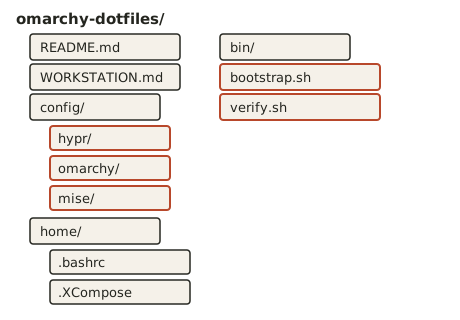
Do not copy blindly.
Preserve intentional config.
Include Hyprland Config
Include:
hyprland.lua
monitors.lua
input.lua
bindings.lua
looknfeel.lua
autostart.lua
where appropriate.
Separate machine-specific hardware config if needed.
Include Omarchy Config
Include intentional:
shell.json
hooks
menu extensions
themes
if used.
Do not copy private runtime state unnecessarily.
Include Mise Config
Preserve:
~/.config/mise/config.tomlif it represents your intentional global development setup.
Project-specific versions belong in each project’s:
mise.tomlCreate WORKSTATION.md
Your final workstation manifest should include:
Hardware
Boot
Omarchy
Defaults
Theme
Font
Display
Input
Development Tools
Mise
Git/GitHub
AI Agent
Tmux
Hooks
Security
Recovery
Rebuild
Do not include secrets.
Example Workstation Manifest
## Omarchy Workstation

### Hardware
- Desktop
- AMD CPU
- Radeon GPU
- 144 Hz monitor
- compact keyboard

### Boot
- UEFI
- Limine
- UKI
- TPM2
- Secure Boot state documented

### Defaults
- Browser: Chromium
- Terminal: Ghostty
- Editor: Neovim
- Agent: OMP

### Development
- Node via mise
- Python via mise
- Bun via mise

### Workflow
- Tmux
- Git
- GitHub
- AGENTS.md
- AI coding agent

### Recovery
- system snapshots
- dotfiles Git
- project Git
- personal-data backup
Create bootstrap.sh
Your bootstrap script does not need to be perfect.
It should encode enough of your setup to reduce rebuild effort.
Suggested responsibilities:
create config directories
apply dotfiles
install intentional tools
restore mise configuration
set defaults
verify key files
Do not embed credentials.
Create verify.sh
Your verification script should confirm the workstation’s important state.
Example checks:
omarchy versiongit --versiongh --versionmise --versionhyprctl configerrorshyprctl monitors allomarchy default browseromarchy default terminalomarchy default agentAdapt to current CLI behavior.
Push the Dotfiles Repository
Initialize and commit:
git add .
git diff --staged
Check carefully for secrets.
Then:
git commit -m "chore: capture Omarchy workstation"Create a private GitHub repo:
gh repo create omarchy-dotfiles --private --source=. --remote=origin --pushUse another name if needed.
Secret Review
Before pushing:
git grep -i "password"git grep -i "secret"git grep -i "token"git grep -i "api_key"These checks are imperfect.
They are still useful.
Also manually review:
git diff --stagedDo not commit:
- SSH private keys;
- API keys;
- passwords;
- Tailscale auth keys;
- Wi-Fi passwords;
- BitLocker recovery keys;
- browser cookies.
Security Verification
Record your security baseline.
At minimum:
LUKS:
Firewall:
SSHD:
Docker group:
Fingerprint:
FIDO2:
Secure Boot:
TPM:
MFA on GitHub:
Backup:
Not every feature must be enabled.
The requirement is that you understand your current state.
Maintenance Verification
Confirm you know:
omarchy updateand:
omarchy versionConfirm the system snapshot workflow.
Know where the update log lives:
/tmp/omarchy-update.logKnow how to inspect pending migrations:
omarchy-migrate --pendingDo not run destructive recovery actions just for demonstration.
Rebuild Test
The strongest capstone proof is:
rebuild in a VM or spare machineProcess:
1. install Omarchy
2. update Omarchy
3. clone dotfiles
4. run bootstrap
5. authenticate services
6. clone capstone project
7. run mise
8. run verify
9. launch Tmux
10. launch AI agent
Every undocumented manual fix becomes:
a documentation bugUpdate your repository after the test.
Minimum Passing Criteria
A passing capstone should demonstrate all of the following:
[ ] healthy Omarchy system
[ ] verified boot/recovery path
[ ] working Hyprland config
[ ] correct monitor/input setup
[ ] current defaults configured
[ ] mise-managed development runtimes
[ ] project using mise.toml
[ ] Git repository
[ ] private GitHub repository
[ ] AGENTS.md
[ ] Tmux workspace
[ ] working AI coding agent
[ ] one AI-assisted feature
[ ] Git review after AI changes
[ ] one custom keybinding
[ ] one automation/hook
[ ] hardware panels understood
[ ] one runtime toggle demonstrated
[ ] one troubleshooting scenario documented
[ ] dotfiles repository
[ ] WORKSTATION.md
[ ] bootstrap script
[ ] verification script
[ ] security baseline
[ ] maintenance/recovery understanding
Strong Pass Criteria
A strong capstone additionally demonstrates:
[ ] machine-specific config separated from portable config
[ ] bootstrap script is safe to rerun
[ ] verification catches real mismatches
[ ] Git commits are small and meaningful
[ ] no secrets in dotfiles/project repositories
[ ] recovery ownership is clearly documented
[ ] project builds/runs from a clean clone
[ ] VM/spare-machine rebuild attempted
Expert-Level Capstone Criteria
An expert-level implementation may additionally include:
[ ] automated workstation bootstrap
[ ] multiple machine profiles
[ ] unattended Omarchy base installation
[ ] reusable project bootstrap template
[ ] custom Tmux developer layout
[ ] custom shell/plugin integration
[ ] multi-worktree AI workflow
[ ] documented security threat model
[ ] automated workstation verification
[ ] disaster-recovery drill
These are optional.
Do not add complexity simply to score higher.
Capstone Submission Package
If this course is later turned into a formal paid course, the learner could submit:
1. screenshot/video walkthrough
2. public-safe WORKSTATION.md
3. capstone project's Git repository
4. sanitized dotfiles repository structure
5. troubleshooting worksheet
6. verification output
7. short explanation of rebuild strategy
No secrets should ever be submitted.
Suggested Video Walkthrough
A final learner walkthrough could follow this order:
1. boot/system overview
2. desktop and keybindings
3. hardware panels
4. terminal/Tmux
5. runtime environment
6. project
7. GitHub
8. AGENTS.md
9. AI agent
10. implementation + test
11. Git diff + commit
12. hook/customization
13. dotfiles
14. recovery
15. rebuild plan
Target:
10–20 minutesfor a concise demonstration.
Final Troubleshooting Challenge
Scenario:
The capstone project's dev command suddenly reports the wrong Node version.You should reason:
project layer
↓
mise
not:
kernel
Hyprland
Omarchy Shell
Inspect:
pwdmise ls --currentmise config lsbat mise.tomlwhich nodenode --versionThis is the level of architectural reasoning expected at the end of the course.
Final Recovery Challenge
Scenario:
You updated Omarchy and the machine no longer boots normally.Expected reasoning:
system update
↓
root/system layer
↓
pre-update snapshot
↓
Limine
↓
boot snapshot
↓
verify
↓
restore if appropriate
Not:
reinstall everything immediatelyFinal AI Challenge
Scenario:
The AI agent changed 14 files when you expected 2.Expected response:
git statusgit diffThen decide:
keep
edit
restore
Git is the recovery boundary.
Do not trust the agent’s summary over the actual diff.
Final Security Challenge
Scenario:
A project asks you to run:
curl https://some-random-domain/install.sh | sudo sh
Expected response:
stop
inspect
understand source
understand privileges
choose supported installation layer
Do not blindly execute.
Final Architecture Challenge
Explain this chain:
Super + Alt + Return
↓
keyboard event
↓
Wayland
↓
Hyprland binding
↓
terminal launch
↓
Tmux workflow
↓
project
↓
mise runtime
↓
AI agent
↓
Git-controlled changes
If you can explain each step:
you understand the workstation.Capstone Checklist
System
- Omarchy version verified
- kernel verified
- system services checked
- user services checked
Boot
- UEFI verified
- Limine verified
- UKI identified
- Secure Boot state documented
- TPM documented
- snapshot path understood
Desktop
- monitor configured
- refresh rate verified
- input configured
- custom keybinding added
- no Hyprland config errors
Defaults
- browser
- terminal
- editor
- agent
Development
- mise configured
- project created
- project
mise.toml - Git initialized
- GitHub repo created
-
AGENTS.md
Workflow
- Tmux
- editor
- agent
- tests
- Git diff
- commit
- push
Automation
- one hook or automation
- one runtime toggle demonstrated
Hardware
- audio
- network
- Bluetooth
- display
- subsystem restart knowledge
Security
- encryption
- firewall
- SSH state
- Docker privilege state
- secrets review
- MFA
Reproducibility
- dotfiles repo
- WORKSTATION.md
- bootstrap.sh
- verify.sh
- secure credentials kept separate
- rebuild plan
- optional VM rebuild
Recovery
- component restart
- config recovery
- Git recovery
- snapshot recovery
- backup recovery understood
Final “You Can Now…” Summary
You can now:
- install Omarchy from bare metal;
- configure it safely;
- understand the Linux concepts underneath it;
- master Hyprland;
- work productively in the terminal;
- use Tmux as a persistent development workspace;
- manage runtimes with mise;
- use Git and GitHub properly;
- integrate AI coding agents safely;
- customize keybindings, themes, shell, hooks, and plugins;
- operate audio, Bluetooth, network, and displays;
- control runtime state;
- manage defaults and XDG behavior;
- update Omarchy correctly;
- recover broken components;
- understand Limine/UKI/Secure Boot;
- harden the workstation;
- reproduce your environment;
- troubleshoot the system like a developer;
- explain the complete architecture.
Most importantly:
You can build the workstation again.
That is the difference between:
a customized Linux installationand:
a deliberately engineered development platformGraduation Standard
You have completed the course when you can say:
I understand what each major layer of my workstation does, I know where my configuration lives, I can reproduce my development environment, I can verify AI-generated changes, and I know how to recover when something breaks.
That is the goal of the Stevinator Omarchy workstation course.
Final Course Architecture
Install
↓
Understand
↓
Configure
↓
Operate
↓
Develop
↓
Integrate AI
↓
Automate
↓
Secure
↓
Maintain
↓
Recover
↓
Reproduce
↓
Troubleshoot
↓
Master
Final Deliverables
At the end of the capstone, you should have:
~/Projects/omarchy-capstone
~/Projects/omarchy-dotfiles
and both should be committed to Git.
Your dotfiles repo should contain:
README.md
WORKSTATION.md
bootstrap.sh
verify.sh
Your capstone project should contain:
README.md
AGENTS.md
mise.toml
source code
tests
Git history
These are the tangible artifacts proving the workstation is complete.