Module 02: Linux Concepts Developers Actually Need
In this module — 59 sections
- What You Will Learn
- 2.1 — Linux Is More Than the Kernel
- 2.2 — Kernel vs Userspace
- 2.3 — The Linux Filesystem Starts at /
- 2.4 — Your Home Directory
- 2.5 — Why /home Matters So Much
- 2.6 — Important Linux Directories
- 2.7 — Absolute and Relative Paths
- 2.8 — . and ..
- 2.9 — Hidden Files
- 2.10 — Files and Directories Are Case-Sensitive
- 2.11 — File Extensions Are Conventions
- 2.12 — Symbolic Links
- 2.13 — Users
- 2.14 — The Root User
- 2.15 — What sudo Does
- 2.16 — Ownership
- 2.17 — Permissions
- 2.18 — Processes
- 2.19 — Process IDs
- 2.20 — Closing a Window vs Killing a Process
- 2.21 — Services
- 2.22 — What Is systemd?
- 2.23 — System Services vs User Services
- 2.24 — Check a Service
- 2.25 — Why Omarchy Wrappers Matter
- 2.26 — Environment Variables
- 2.27 — Temporary Shell Variables
- 2.28 — Exported Environment Variables
- 2.29 — What Is $PATH?
- 2.30 — How the Shell Finds a Command
- 2.31 — type vs which
- 2.32 — Shell Configuration
- 2.33 — Commands Can Come From Different Places
- 2.34 — Package Management
- 2.35 — System Packages vs Developer Runtimes
- 2.36 — Three Installation Layers
- 2.37 — Why Mise Is Useful
- 2.38 — Services, Packages, and Commands Are Different Things
- 2.39 — A Simple Boot Model
- 2.40 — UEFI
- 2.41 — Limine
- 2.42 — What Is a UKI?
- 2.43 — systemd-stub
- 2.44 — Userspace Startup
- 2.45 — Wayland
- 2.46 — XWayland
- 2.47 — Hyprland Is the Compositor
- 2.48 — Practical Exercise: Filesystem Navigation
- 2.49 — Practical Exercise: Inspect Users and Permissions
- 2.50 — Practical Exercise: Understand Commands
- 2.51 — Practical Exercise: Inspect Environment Variables
- 2.52 — Practical Exercise: Check Process and Service Health
- 2.53 — Practical Exercise: Inspect the Boot Stack
- 2.54 — Practical Exercise: Inspect the Desktop Stack
- 2.55 — Common Conceptual Mistakes
- 2.56 — Checkpoint
- 2.57 — What You Can Now Do
- Module 2 Summary
About This Module
You now have:
- a working Omarchy installation;
- a basic understanding of how Omarchy is layered;
- a known-good workstation baseline.
Before we go deeper into the terminal, development tooling, AI agents, and system customization, you need a small amount of Linux foundation.
This is not a generic Linux administration course.
We are going to learn only the concepts that make the rest of the Omarchy workstation easier to understand.
The goal is not to memorize every directory under /, every systemd command, or every permission bit.
The goal is to understand enough that commands stop looking like magic.
By the end of this module, you should be able to look at something like:
systemctl --user statusor:
echo "$PATH"or:
ls -la ~/.configand understand what you are actually asking the system to do.
What You Will Learn
By the end of Module 2, you will understand:
- what the Linux kernel is;
- what “userspace” means;
- the most important Linux filesystem locations;
- what your home directory is;
- absolute and relative paths;
- files, directories, hidden files, and symlinks;
- users and groups;
- permissions and ownership;
- what
sudoactually does; - processes and services;
- system-level vs user-level services;
- what
systemddoes; - what an environment variable is;
- what
$PATHis; - how the shell finds commands;
- the difference between system packages and development runtimes;
- why Omarchy uses both pacman and mise;
- what UEFI, Limine, UKI, and the kernel do during boot;
- how Wayland and Hyprland fit into the desktop stack.
2.1 — Linux Is More Than the Kernel
People commonly use the word Linux to refer to an entire operating system.
Technically, Linux is the kernel.
The system you use contains many layers:
Hardware
   ↓
Linux kernel
   ↓
system libraries and system services
   ↓
shell + tools
   ↓
Hyprland + Omarchy Shell
   ↓
applications
The kernel is responsible for core responsibilities such as:
- CPU scheduling;
- memory management;
- hardware/device access;
- filesystems;
- networking;
- process isolation.
Most programs you interact with do not talk directly to hardware.
They ask the operating system to do things through the kernel.
2.2 — Kernel vs Userspace
This distinction will appear frequently in Linux documentation.
Kernel Space
The kernel runs with very high privileges.
It controls things such as:
- hardware;
- memory;
- process scheduling;
- filesystems;
- drivers.
Userspace
Applications and most services run in userspace.
Examples include:
- Ghostty;
- Chromium;
- Neovim;
- Git;
- Hyprland;
- Omarchy Shell;
- your coding agent.
Simplified:
Userspace
────────────────────────
Ghostty
Chromium
Hyprland
Git
AI agent
system services
────────────────────────
Kernel
────────────────────────
CPU
RAM
GPU
SSD
USB
Network hardware
This matters when troubleshooting.
A problem might be:
- hardware;
- kernel/driver;
- system service;
- desktop configuration;
- application-specific.
Those are very different categories.
2.3 — The Linux Filesystem Starts at /
On Windows, you are familiar with drive letters:
C:\
D:\
E:\
Linux uses one unified filesystem tree.
It begins at:
/This is called the root directory.
Everything exists somewhere underneath it.
Example:
/
├── boot
├── dev
├── etc
├── home
├── proc
├── run
├── sys
├── tmp
├── usr
└── var
You do not need to memorize all of these.
We will focus on the ones developers encounter constantly.
2.4 — Your Home Directory
Each normal user has a home directory.
Usually:
/home/USERNAMEFor example:
/home/alexLinux shells provide a shortcut for your home directory:
~So:
~/.configmeans:
/home/YOUR_USERNAME/.configCheck yours:
echo "$HOME"Then:
cd ~
pwd
2.5 — Why /home Matters So Much
Your home directory normally contains:
- documents;
- downloads;
- projects;
- application state;
- personal configuration;
- SSH keys;
- Git configuration;
- shell configuration.
Examples:
~/Projects
~/.config
~/.ssh
~/.bashrc
~/.gitconfig
This is also why the snapshot lesson from Module 0 matters:
Omarchy system snapshots restore the system root state, but not your personal
/homedata.
Your projects and personal files require a separate backup strategy.
2.6 — Important Linux Directories
You do not need every Filesystem Hierarchy Standard detail.
For this course, understand these.
/home
User files and personal configuration.
Example:
/home/alex/Projects/etc
System-wide configuration.
Examples might include:
/etc/hosts
/etc/pacman.conf
/etc/systemd/
Files here normally affect the whole machine.
Editing them often requires elevated privileges.
/usr
Installed system software and shared data.
Omarchy itself places package-owned files under:
/usr/share/omarchyAs covered in Module 1:
These are Omarchy-owned files, not your personal configuration.
/var
Variable system data.
Common examples include:
- logs;
- package caches;
- databases;
- service state.
/boot
Boot-related files.
On your Omarchy system this may contain things such as:
- EFI data;
- Unified Kernel Images;
- bootloader-related files.
We will explore boot architecture later.
/tmp
Temporary files.
Applications can use this location for short-lived data.
Do not use /tmp as permanent storage.
2.7 — Absolute and Relative Paths
An absolute path begins from /.
Example:
/home/alex/Projects/my-appA relative path begins from your current directory.
If you are currently in:
/home/alexthen:
Projects/my-apprefers to:
/home/alex/Projects/my-appCheck Your Current Directory
pwdpwd means:
print working directory
Move Around
cd ~/ProjectsThen:
pwdMove up one directory:
cd ..Return home:
cd ~or simply:
cd2.8 — . and ..
Two special directory references appear everywhere.
.means:
current directory
..means:
parent directory
Example:
cd ..moves one level up.
Example:
./script.shmeans:
run
script.shfrom the current directory
You will see ./ frequently in development tooling.
2.9 — Hidden Files
On Linux, filenames beginning with a dot are normally hidden.
Examples:
.config
.ssh
.bashrc
.git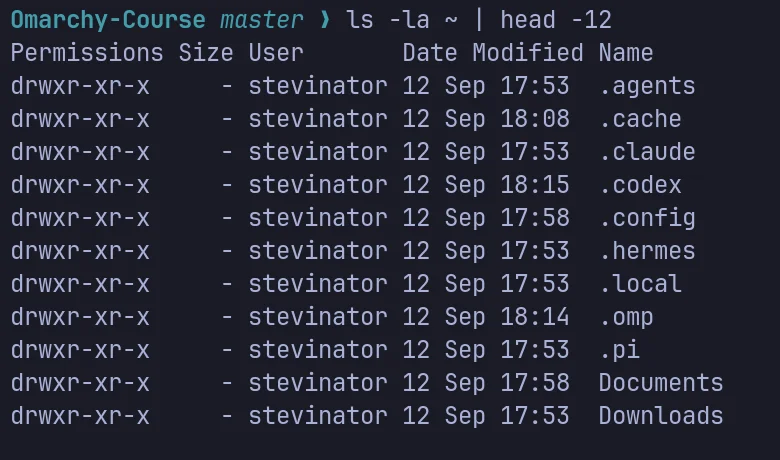
This is why they are often called dotfiles.
A normal:
lsmay not show them.
Use:
ls -lato include hidden files.
Later, Omarchy’s shell aliases and tools will make directory listings more pleasant.
2.10 — Files and Directories Are Case-Sensitive
Linux filesystems are usually case-sensitive.
These can all be different files:
README.md
readme.md
Readme.md
Similarly:
Projectsand:
projectscan be different directories.
This is a common source of confusion for people coming from Windows or default macOS filesystems.
2.11 — File Extensions Are Conventions
Linux generally does not require a filename extension to determine whether something is executable.
A command might simply be named:
omarchyrather than:
omarchy.exeFile extensions are still useful conventions:
.md
.toml
.json
.lua
.sh
.ts
.py
but the system does not rely on them the same way Windows often does.
2.12 — Symbolic Links
Linux frequently uses symbolic links, or symlinks.
A symlink is a filesystem entry that points somewhere else.
Conceptually:
~/.local/bin/tool
        ↓
real executable somewhere else
Inspect a path with:
ls -l PATHA symlink appears similar to:
tool -> /some/other/location/toolYou will encounter symlinks in:
- development tools;
- mise-managed executables;
- configuration management;
- dotfiles setups.
You do not need to create any yet.
2.13 — Users
Linux is a multi-user operating system.
Even if you are the only person using the workstation, the system still distinguishes:
- your normal user;
- the
rootuser; - service users.
Check your current username:
whoamiCheck your numeric user and group information:
id2.14 — The Root User
The root account has extremely broad control over the machine.
Root can:
- change system files;
- install system packages;
- modify users;
- change permissions;
- stop critical services;
- erase system data.
That is why you should not run everything as root.
Your everyday development work should happen as your normal user.
2.15 — What sudo Does
sudo allows an authorized user to execute a command with elevated privileges.
Example:
sudo some-commandThis does not mean:
“make command work”
It means:
“run this command with elevated privileges”
That distinction is extremely important.
Bad Habit
A command fails:
Permission deniedand the immediate response is:
sudo ...That can turn a harmless problem into a system-level mistake.
Instead ask:
Should this operation actually require root?
For example, editing your own file:
~/.config/hypr/bindings.luashould normally not require sudo.
If it does, ownership or some other problem may be wrong.
2.16 — Ownership
Files have an owner and a group.
Inspect:
ls -l ~/.bashrcYou may see something similar to:
-rw-r--r-- 1 alex alex ...The relevant parts are:
alex alexmeaning:
owner groupYour own configuration should normally belong to your user.
2.17 — Permissions
You will often see permission strings like:
-rwxr-xr-xThe three primary permission types are:
r = read
w = write
x = execute
They are grouped for:
owner
group
others
Example:
rwx r-x r-xmeans:
owner  → read/write/execute
group  → read/execute
others → read/execute
You do not need to calculate octal permissions yet.
The main idea is:
Linux explicitly tracks who may read, write, and execute files.
2.18 — Processes
A process is a running program.
Examples:
- Chromium process;
- Ghostty process;
- Hyprland process;
- Omarchy shell process;
- coding agent process.
Inspect running processes with tools such as:
psbut Omarchy also provides a much nicer interactive system monitor.
Press:
Super + Ctrl + Tto open btop.
2.19 — Process IDs
Each process has a numeric process ID:
PIDYou saw this earlier when inspecting a Hyprland window.
Example:
pid: 2913This allows the operating system and diagnostic tools to refer to one specific running process.
2.20 — Closing a Window vs Killing a Process
Normally, close applications using the desktop.
For example:
Super + WBut sometimes a process becomes stuck.
Linux provides commands such as:
kill PIDand stronger signals when necessary.
Omarchy often provides a better component-specific restart mechanism.
Example:
omarchy restart app <application-name>Later we will learn when to:
close
restart
kill
reboot
These are not the same thing.
2.21 — Services
Some programs are intended to run in the background.
These are commonly managed as services.
Examples might include:
- networking;
- Bluetooth;
- audio components;
- SSH server;
- background system tasks.
On modern Arch Linux, many services are managed using systemd.
2.22 — What Is systemd?
systemd is the system and service manager used by Arch Linux and therefore by Omarchy.
Among other things, it helps:
- start system services;
- track service state;
- restart services;
- manage dependencies;
- collect journal logs;
- manage user services.
You do not need to become a systemd administrator.
You need enough to inspect system health.
2.23 — System Services vs User Services
There are two important scopes.
System-Level Services
These affect the machine.
Inspect failed system services:
systemctl --failedUser-Level Services
These run for your user session.
Inspect failed user services:
systemctl --user --failedThis distinction is especially important on a desktop.
A broken user-session service may cause desktop problems even when:
systemctl --failedlooks perfectly clean.
2.24 — Check a Service
Generic systemd syntax:
systemctl status SERVICEFor a user service:
systemctl --user status SERVICEDo not guess service names if you do not know them.
Use Omarchy’s higher-level restart commands first when they exist.
For example:
omarchy restart bluetoothis often a better first recovery step than manually manipulating every Bluetooth-related systemd unit.
2.25 — Why Omarchy Wrappers Matter
This pattern appears throughout the course.
Underlying Linux tools may exist:
systemctl
hyprctl
pacman
NetworkManager tools
PipeWire tools
but Omarchy may expose a higher-level command such as:
omarchy restart audioor:
omarchy network status --verboseThe Omarchy command can encode knowledge about how Omarchy expects its own system to behave.
So our preferred order is:
Omarchy command
        ↓
underlying Linux tool if needed
        ↓
manual low-level troubleshooting
2.26 — Environment Variables
An environment variable is a named value made available to commands and processes.
Example:
echo "$HOME"HOME contains your home directory.
Other common examples include:
PATH
SHELL
EDITOR
LANG
Print your shell:
echo "$SHELL"Print your language/locale:
echo "$LANG"2.27 — Temporary Shell Variables
You can define a shell variable:
NAME="Stevinator"Then:
echo "$NAME"This exists in the current shell.
When that shell closes, the variable normally disappears unless it is defined through persistent shell configuration.
2.28 — Exported Environment Variables
To make a value available to child processes:
export EXAMPLE="hello"Check:
echo "$EXAMPLE"You will later use environment variables for things such as:
- development configuration;
- API endpoints;
- runtime behavior;
- application configuration.
Never casually place secrets into files that you intend to commit to Git.
2.29 — What Is $PATH?
PATH is one of the most important environment variables for developers.
Print it:
echo "$PATH"It contains a list of directories separated by colons.
Conceptually:
/home/alex/.local/bin
/usr/local/bin
/usr/bin
...
When you type:
gitthe shell searches those directories to find an executable named git.
2.30 — How the Shell Finds a Command
Suppose you type:
pythonThe shell needs to decide what python means.
It might be:
- an alias;
- a shell function;
- a builtin;
- an executable found through
$PATH.
This is why:
type pythonis extremely useful.
Try:
type git
type python
type omarchy
2.31 — type vs which
Many tutorials use:
which pythonThis can be useful, but:
type pythonis generally better for understanding what the current shell will actually execute.
For example, type can tell you whether something is:
- an alias;
- a function;
- a builtin;
- a file.
Try:
type lsOn Omarchy, you may discover that commands you thought were raw system tools are actually aliases to more modern alternatives.
2.32 — Shell Configuration
Your Bash configuration lives primarily in:
~/.bashrcOmarchy loads its shell defaults and allows your own additions to live there.
Later we will use it for:
- aliases;
- exports;
- functions.
The key principle is the same as with Hyprland:
Add your own configuration in your own files rather than editing Omarchy’s package-owned defaults.
2.33 — Commands Can Come From Different Places
This becomes important in a development workstation.
A command might come from:
- an Arch package;
- an Omarchy package;
- an AUR package;
- a mise-managed runtime;
- a project-local dependency;
- a shell alias;
- a shell function;
- a user script.
This is another reason type is valuable.
Example:
type nodemight reveal a mise-managed executable rather than /usr/bin/node.
That matters when diagnosing version problems.
2.34 — Package Management
Arch Linux uses pacman for its official package repositories.
Omarchy is itself package-backed.
Current Omarchy Quattro updates are designed around:
omarchy updaterather than having users casually bypass the Omarchy update pipeline with raw:
sudo pacman -SyuThe current Omarchy update architecture explicitly treats omarchy update as the blessed update path because it coordinates Omarchy package updates, migrations, snapshots, hooks, and restart checks.
2.35 — System Packages vs Developer Runtimes
This distinction is extremely important.
Imagine you need Python for:
the operating systemand a completely different Python version for:
your projectChanging the system version to satisfy a project can cause problems.
Therefore:
system runtime
        ≠
project runtime
Omarchy uses mise for the majority of supported development environments.
The current official development tools documentation describes mise as the tool used to install and run multiple versions of programming languages on the same machine.
2.36 — Three Installation Layers
We introduced this in Module 0.
Now understand the reasoning.
Layer 1 — System Software
Omarchy/package-management layer.
Examples:
- desktop applications;
- Linux utilities;
- system dependencies.
Relevant Omarchy interface:
omarchy pkgLayer 2 — Omarchy-Integrated Installers
Omarchy also provides curated installation flows.
Relevant interface:
omarchy installThese can include:
- editors;
- browsers;
- development environments;
- other integrated tools.
Layer 3 — Developer Runtimes and CLIs
For many developer runtimes:
miseExamples:
- Node;
- Python;
- Bun;
- Ruby;
- Go;
- Rust;
- Java;
- other supported environments.
2.37 — Why Mise Is Useful
Suppose your machine has:
global Node → 26but one project needs:
Node → 24Mise can select a different version for that project.
Conceptually:
Machine default
Node 26

Project A
mise.toml
Node 24

Project B
mise.toml
Node 26
This keeps the operating system and individual projects from fighting over one global runtime.
We will configure this properly in the development-environment module.
2.38 — Services, Packages, and Commands Are Different Things
A useful mental model:
Package
→ installs files

Executable
→ a command you can run

Service
→ a background process managed by the system

Configuration
→ controls behavior
One package can install:
- several executables;
- one or more services;
- configuration files.
Do not assume package name, service name, and command name are identical.
2.39 — A Simple Boot Model
You already saw this in Module 0.
Now let’s understand the pieces slightly better.
A current standard Omarchy system can conceptually boot like:
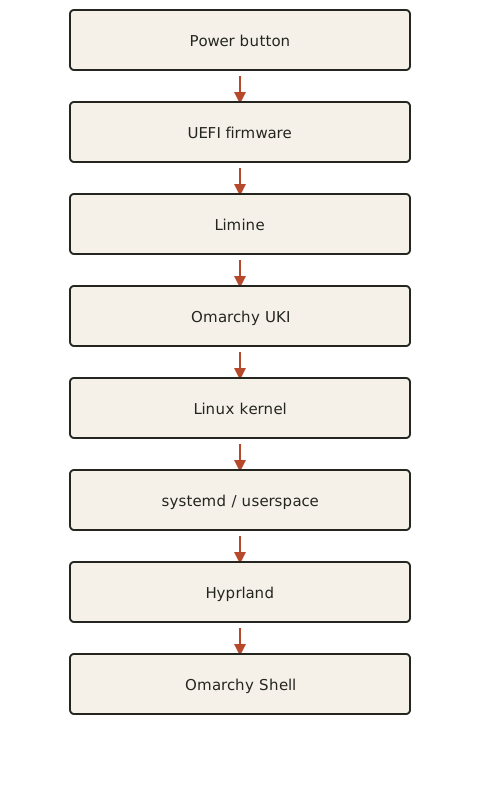
This model is intentionally simplified.
2.40 — UEFI
UEFI is motherboard/laptop firmware.
It:
- initializes hardware;
- maintains boot entries;
- selects boot targets;
- starts the next stage of the boot process.
UEFI exists before Linux starts.
2.41 — Limine
Limine is the default bootloader used on current Omarchy installations.
Its job is to help select and launch the bootable operating-system image.
Omarchy also integrates its snapshot recovery workflow with Limine.
If Direct Boot is configured, firmware can instead launch the Omarchy EFI image directly, bypassing the normal Limine menu.
We will cover that trade-off later.
2.42 — What Is a UKI?
UKI means:
Unified Kernel Image
A UKI packages several pieces needed for boot into one EFI executable.
You may see a path similar to:
/boot/EFI/Linux/omarchy_linux.efiA simplified mental model is:
UKI
├── kernel
├── initrd
├── kernel command line
└── boot metadata
The exact contents and boot process are deeper than we need here.
The important point:
The firmware/bootloader can launch a single signed-style EFI image that contains the material needed to start Linux.
2.43 — systemd-stub
On a current Omarchy UKI system, tools such as:
bootctl statusmay report:
systemd-stubsystemd-stub is the EFI stub used in the UKI boot flow.
You do not need to configure it manually for normal Omarchy use.
2.44 — Userspace Startup
Once the kernel has started and prepared the machine, userspace starts.
This includes:
- systemd;
- system services;
- login/session infrastructure;
- networking;
- audio;
- desktop session;
- Hyprland;
- Omarchy Shell.
This is why a system can:
boot successfullywhile still having:
one broken desktop serviceThe kernel booted, but a later userspace component failed.
2.45 — Wayland
Wayland is the modern display protocol used by Hyprland.
A simplified model:
Application
    ↓
Wayland
    ↓
Hyprland compositor
    ↓
GPU / display
Hyprland decides:
- where the window goes;
- how large it is;
- what workspace it belongs to;
- which monitor shows it;
- whether it floats or tiles.
2.46 — XWayland
Some older applications were designed for X11 rather than native Wayland.
XWayland provides compatibility for many of those applications.
When inspecting a Hyprland window:
hyprctl activewindowyou may see:
xwayland: 0or:
xwayland: 1Conceptually:
0 → native Wayland window
1 → XWayland compatibility window
This can matter later when troubleshooting application behavior.
2.47 — Hyprland Is the Compositor
On Omarchy:
Hyprlandis responsible for compositor/window-management behavior.
Examples:
- workspaces;
- tiling;
- monitor configuration;
- input rules;
- window rules;
- focus.
The Omarchy shell is layered around this.
This distinction matters when deciding which config to inspect.
Example:
window always opens on wrong workspace
→ probably Hyprland/window rule

Wi-Fi panel does not open
→ probably Omarchy Shell/plugin/system integration
2.48 — Practical Exercise: Filesystem Navigation
Run:
cd ~
pwd
Then:
lsThen:
ls -laMove into your configuration:
cd ~/.config
pwd
Move up:
cd ..
pwd
Return home:
cd2.49 — Practical Exercise: Inspect Users and Permissions
Run:
whoamiThen:
idInspect your Bash config:
ls -l ~/.bashrcAnswer:
- who owns the file?
- what group owns it?
- can your user write to it?
2.50 — Practical Exercise: Understand Commands
Run:
type lsThen:
type gitThen:
type pythonThen:
type omarchyCompare with:
which git
which python
Do the results tell you the same story?
2.51 — Practical Exercise: Inspect Environment Variables
Run:
echo "$HOME"Then:
echo "$SHELL"Then:
echo "$PATH"The PATH output may be long.
That is normal.
Look for locations such as:
~/.local/bin
/usr/bin
and possibly mise-managed paths.
2.52 — Practical Exercise: Check Process and Service Health
Open:
Super + Ctrl + T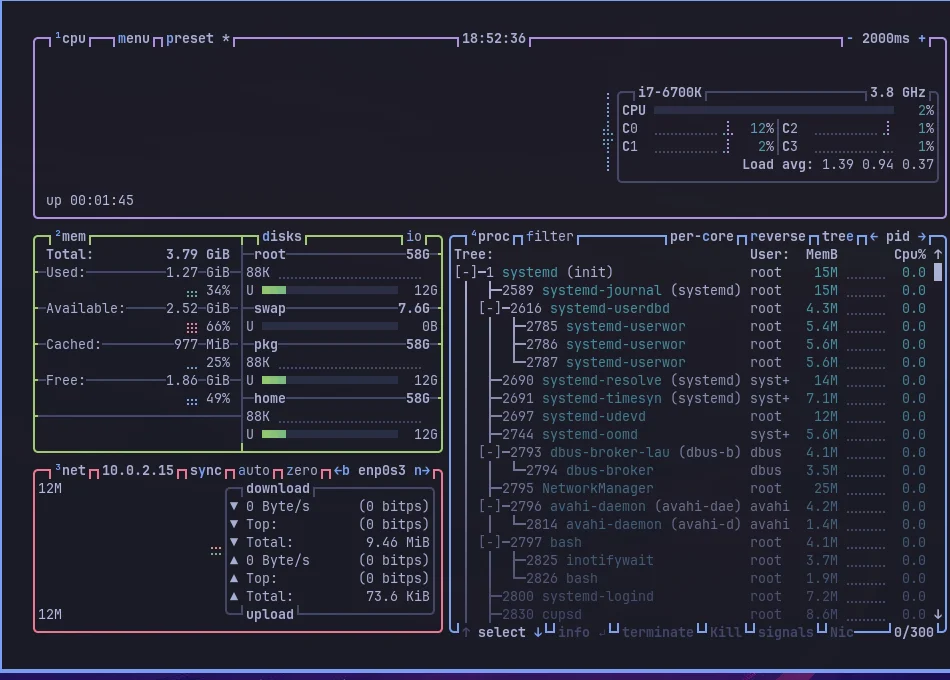
and look at the process list in btop.
Then from a terminal:
systemctl --failedand:
systemctl --user --failedThis gives you three different views:
btop
→ running processes and system resources

systemctl --failed
→ failed machine-level services

systemctl --user --failed
→ failed user-session services
2.53 — Practical Exercise: Inspect the Boot Stack
Run:
bootctl status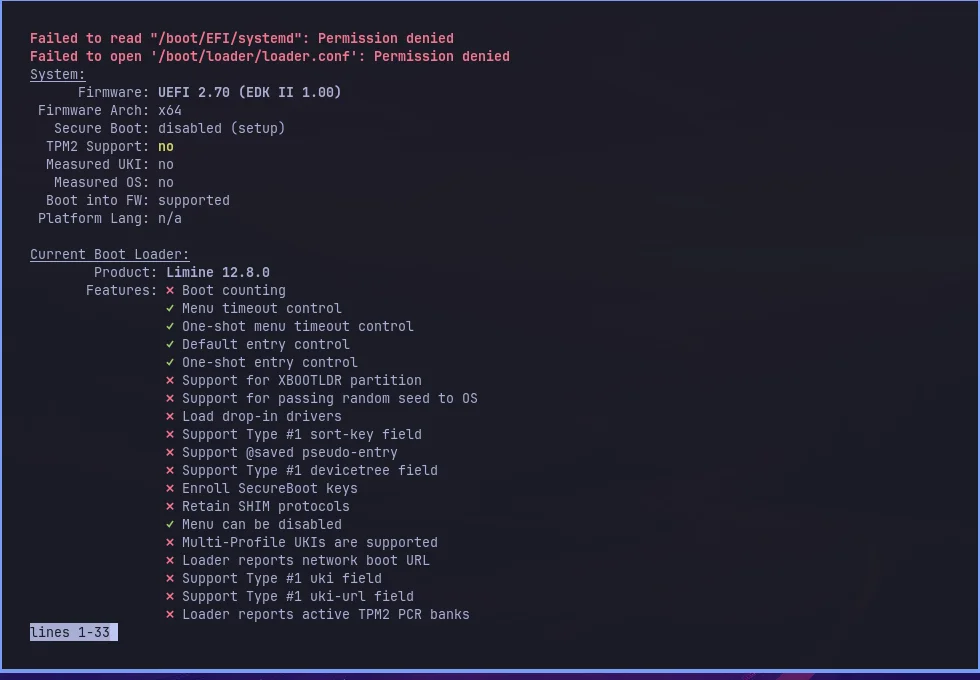
Do not worry about every field.
Try to identify:
- firmware type;
- Secure Boot state;
- current bootloader;
- current boot entry;
- current EFI image or UKI.
The purpose is to connect the theoretical boot diagram to your actual machine.
2.54 — Practical Exercise: Inspect the Desktop Stack
Run:
hyprctl activewindowwhile a terminal is focused.
Find:
class
title
workspace
monitor
pid
xwayland
You have now connected several Linux concepts:
application
→ process
→ PID
→ Wayland window
→ Hyprland workspace
→ monitor
2.55 — Common Conceptual Mistakes
These will be covered in more depth in the troubleshooting module.
Mistake 1 — Thinking / Means Your Home Folder
It does not.
/
→ root of the entire filesystem

~
→ your home directory
Mistake 2 — Using sudo Whenever Something Fails
sudo is privilege elevation, not a repair command.
Mistake 3 — Editing User Files With sudo
Your personal config under:
~/.configshould normally belong to your user.
Using sudo carelessly can create root-owned files inside your home directory.
Mistake 4 — Treating a Service and a Process as the Same Thing
A service is a managed background component.
A process is a running instance of a program.
Mistake 5 — Thinking command not found Means the Package Is Broken
Possible causes include:
- tool not installed;
- PATH problem;
- wrong command name;
- runtime not active;
- shell function/alias confusion.
Use:
type COMMANDand inspect your environment.
Mistake 6 — Installing Project Runtimes Into the System Layer
Prefer mise for supported developer runtimes.
Mistake 7 — Assuming Every Desktop Problem Is Hyprland
The issue may instead live in:
- Omarchy Shell;
- a user service;
- audio/network stack;
- application;
- configuration.
2.56 — Checkpoint
Before moving on, you should be able to answer yes to the following.
Filesystem
- I know that
/is the filesystem root. - I know that
~means my home directory. - I know what
/etc,/usr,/var,/boot, and/homeare broadly used for. - I understand absolute vs relative paths.
- I understand
.and... - I know why
.configis called a dotfile directory.
Users and Permissions
- I know my current username.
- I know what the root user is.
- I understand that
sudoelevates privileges. - I know that files have owners, groups, and permissions.
- I know that my personal config normally should not require
sudo.
Processes and Services
- I know what a process is.
- I know what a PID is.
- I understand what a service is.
- I know the difference between system and user services.
- I can check failed services.
Environment
- I understand what an environment variable is.
- I understand what
$PATHdoes. - I know how to inspect a command with
type. - I know why
typemay be more informative thanwhich.
Development
- I understand the difference between system packages and development runtimes.
- I understand why Omarchy uses mise.
- I know that different projects can use different runtime versions.
Boot and Desktop
- I can explain the basic UEFI → Limine → UKI → kernel → userspace flow.
- I know that Hyprland is the Wayland compositor.
- I understand that the Omarchy shell and Hyprland are different layers.
- I know what XWayland is at a high level.
2.57 — What You Can Now Do
After completing Module 2, you can now:
- navigate the Linux filesystem with confidence;
- understand paths used throughout the handbook;
- inspect hidden configuration;
- understand why personal config belongs in your home directory;
- avoid unnecessary
sudo; - recognize file ownership and basic permissions;
- distinguish processes from services;
- check machine-level and user-level service health;
- understand environment variables;
- understand how the shell resolves commands;
- identify where a command comes from;
- understand why system packages and project runtimes should be treated differently;
- explain the basic boot chain;
- understand where Hyprland fits into the desktop;
- reason about system problems by layer instead of treating Linux as one giant black box.
Module 2 Summary
The core filesystem model:
/
├── boot   → boot files
├── etc    → system configuration
├── home   → user files
├── usr    → installed/shared system software
└── var    → changing system data
Your personal workspace:
~
├── .config
├── .bashrc
├── .ssh
└── Projects
Privilege model:
normal user
→ everyday work

sudo/root
→ deliberate system-level changes
Runtime model:
package
→ installs software

process
→ running program

service
→ managed background program

config
→ controls behavior
Developer environment model:
system packages
        ≠
project runtimes

Omarchy / pacman
        +
mise
Boot model:
UEFI
 ↓
Limine
 ↓
UKI
 ↓
Linux kernel
 ↓
systemd / userspace
 ↓
Hyprland
 ↓
Omarchy Shell
Desktop model:
Application
 ↓
Wayland / XWayland
 ↓
Hyprland
 ↓
Display
The most important lesson:
Linux becomes much easier when you identify which layer you are actually interacting with.