Module 12: Custom Keybindings on Omarchy
In this module — 67 sections
- What You Will Learn
- 12.1 — Where Your Keybindings Live
- 12.2 — Do Not Edit Default Binding Files
- 12.3 — The Effective Binding Model
- 12.4 — Discover Before You Customize
- 12.5 — Why Discovery Comes First
- 12.6 — Search the Binding List
- 12.7 — Important Syntax Detail: Display Format vs Lua Format
- 12.8 — Adding a New Binding with o.bind
- 12.9 — Real Course Example: Tmux Shortcut
- 12.10 — Use a Clear Description
- 12.11 — Bind a Normal Command
- 12.12 — Prefer Omarchy Helpers for Omarchy Actions
- 12.13 — Replace a Binding with o.rebind
- 12.14 — When to Use o.rebind
- 12.15 — Remove a Shortcut with hl.unbind
- 12.16 — bind, rebind, or unbind?
- 12.17 — Do Not Disable Omarchy’s Entire Shortcut System Too Early
- 12.18 — A Good Personal Shortcut Strategy
- 12.19 — Avoid Modifier Soup
- 12.20 — Keyboard Layout Matters
- 12.21 — Compact Keyboards Add Another Layer
- 12.22 — Use wev to See What the System Receives
- 12.23 — Real Course Example: Print Screen
- 12.24 — Test the Key Before Editing the Config
- 12.25 — Physical Key Codes
- 12.26 — Press vs Release Actions
- 12.27 — Mouse Bindings
- 12.28 — Bindings Can Trigger Scripts
- 12.29 — Keep Complex Logic Out of bindings.lua
- 12.30 — Example: Project Launcher Pattern
- 12.31 — Use Absolute/Resolvable Commands
- 12.32 — Shell Aliases Are Not Always Safe Binding Targets
- 12.33 — Environment Differences Matter
- 12.34 — Working Directory Assumptions
- 12.35 — Reload and Validate After Editing
- 12.36 — One Binding at a Time
- 12.37 — Binding Does Nothing: Diagnostic Sequence
- 12.38 — Step 1: Check Config Errors
- 12.39 — Step 2: Verify the Key Event
- 12.40 — Step 3: Check for Conflicts
- 12.41 — Step 4: Verify the Command
- 12.42 — Step 5: Run It Manually
- 12.43 — Step 6: Check Environment Assumptions
- 12.44 — Use Descriptions as Documentation
- 12.45 — Group Personal Bindings by Purpose
- 12.46 — Comment Why, Not What
- 12.47 — Do Not Recreate Existing Omarchy Actions Manually
- 12.48 — Build Personal Shortcuts Around Real Friction
- 12.49 — Version-Aware Keybinding Maintenance
- 12.50 — Keybinding Migration Between Omarchy Generations
- 12.51 — Verify What Is Actually Loaded
- 12.52 — Recovery: Syntax Error in bindings.lua
- 12.53 — Recovery: Use Git if Your Dotfiles Are Versioned
- 12.54 — Recovery: Do Not Jump Straight to Config Reset
- 12.55 — Practical Exercise: Inspect Your Current Binding Map
- 12.56 — Practical Exercise: Inspect bindings.lua
- 12.57 — Practical Exercise: Add a Safe Custom Binding
- 12.58 — Practical Exercise: Replace a Binding
- 12.59 — Practical Exercise: Disable a Binding
- 12.60 — Practical Exercise: Debug a Keyboard Key with wev
- 12.61 — Practical Exercise: Create a Real Developer Shortcut
- 12.62 — Practical Exercise: Validate the Full Chain
- 12.63 — Common Keybinding Mistakes
- 12.64 — Checkpoint
- 12.65 — What You Can Now Do
- Module 12 Summary
About This Module
You already know how to use Omarchy’s keyboard-first workflow.
Now you are going to make that workflow yours.
This is one of the best parts of Omarchy.
You can add shortcuts for:
- applications;
- terminal workflows;
- scripts;
- AI tools;
- workspace actions;
- personal utilities;
without replacing Omarchy’s whole Hyprland configuration.
Current Omarchy 4 / Quattro uses:
~/.config/hypr/bindings.luafor your own bindings and overrides.
The current official Omarchy dotfiles documentation also provides a clean distinction between three actions:
o.bind(...)
→ add a new binding

o.rebind(...)
→ replace an existing binding

hl.unbind(...)
→ remove a binding
That gives us a simple and upgrade-friendly customization model.
This module is intentionally practical.
The goal is not to teach every Hyprland binding feature.
The goal is:
Create reliable shortcuts, avoid collisions, debug keyboard problems correctly, and preserve Omarchy’s defaults.
What You Will Learn
By the end of Module 12, you will understand:
- where personal Omarchy keybindings live;
- how current Omarchy keybindings are discovered;
- how to check whether a key combination is already used;
- how to add a new shortcut;
- how to replace a default shortcut;
- how to disable a shortcut;
- the difference between
o.bind,o.rebind, andhl.unbind; - why printed shortcut notation and Lua notation may differ;
- how to verify actual key events with
wev; - how compact keyboards and Fn layers can cause false troubleshooting signals;
- how to bind commands and Omarchy actions;
- how to test bindings safely;
- how to diagnose a binding that does nothing;
- how to recover from a broken
bindings.lua; - how to design a personal shortcut system that remains understandable.
12.1 — Where Your Keybindings Live
Current official Omarchy documentation identifies:
~/.config/hypr/bindings.luaas the file for:
your own keybindings and overrides of the defaults.
Open it:
nvim ~/.config/hypr/bindings.luaor through Omarchy:
Super + Space
→ Setup
→ Keybindings
Using the Omarchy Setup path is convenient because Omarchy can handle relevant reload behavior after you exit the editor.
12.2 — Do Not Edit Default Binding Files
Omarchy’s default bindings live under its package-owned configuration.
Conceptually:
/usr/share/omarchy/...Those files belong to Omarchy.
They are useful to:
read
search
understand
but not for normal personal customization.
Your changes belong in:
~/.config/hypr/bindings.lua12.3 — The Effective Binding Model
Think of the final binding set like this:
Omarchy default bindings
        ↓
your removals
        ↓
your replacements
        ↓
your additions
        ↓
effective keyboard map
This lets you preserve the majority of Omarchy’s defaults while changing only the parts that matter to you.
12.4 — Discover Before You Customize
Before adding or replacing anything, first inspect the current binding map.
The current official Omarchy hotkey documentation recommends:
Super + Kfor the main keyboard-binding view.
This is the fastest visual method.
You can also use the CLI:
omarchy menu keybindingsCurrent versions may also expose a printable form:
omarchy menu keybindings --printCheck current syntax with:
omarchy menu keybindings --help12.5 — Why Discovery Comes First
Suppose you want:
Super + Shift + Dfor a custom development command.
You add it.
But Omarchy already uses that key combination.
Now one of three things may happen:
- your binding replaces/conflicts with the old behavior;
- both definitions exist in an unexpected way;
- behavior becomes version-dependent or confusing.
Better:
1. search current bindings
2. identify existing action
3. decide whether to add, replace, or choose another key
12.6 — Search the Binding List
Use:
Super + Kand search by:
- key combination;
- application;
- action name.
From the terminal, you can also inspect the printed list.
Example:
omarchy menu keybindings --print | grep -i terminalor:
omarchy menu keybindings --print | grep -i tmux12.7 — Important Syntax Detail: Display Format vs Lua Format
Current Omarchy 4 users should be aware of a subtle issue.
The printable keybinding list may display combinations like:
SUPER SHIFT + Swhile the Lua binding APIs expect the style:
SUPER + SHIFT + SDo not blindly paste the printed visual form into:
o.bind(...)or:
hl.unbind(...)Use the Lua syntax expected by the current configuration:
MODIFIER + MODIFIER + KEYExample:
SUPER + SHIFT + SThis is a valuable “verify, don’t assume” lesson.
12.8 — Adding a New Binding with o.bind
Current official Omarchy documentation recommends:
o.bind(...)to add a binding.
Conceptual example:
o.bind("SUPER + ALT + RETURN", "Tmux", { omarchy = "terminal-tmux" })This structure means:
key combination
description
action
12.9 — Real Course Example: Tmux Shortcut
The workstation used while developing this course contains this personal binding:
o.bind("SUPER + ALT + RETURN", "Tmux", { omarchy = "terminal-tmux" })The intention is simple:
Super + Alt + Return
→ launch the Omarchy Tmux terminal
This is a good custom-binding example because:
- the action has a clear purpose;
- the description is readable;
- it uses the Omarchy helper layer;
- it belongs in the user config.
12.10 — Use a Clear Description
Bad:
o.bind("SUPER + ALT + X", "Thing", "some-command")Better:
o.bind("SUPER + ALT + X", "Open project dashboard", "project-dashboard")Descriptions matter because they can appear in keybinding discovery.
Your shortcut file should be understandable six months later.
12.11 — Bind a Normal Command
A binding can launch a command.
Conceptual example:
o.bind("SUPER + ALT + B", "Open btop", "btop")For terminal applications, whether the command needs a terminal wrapper depends on how the action is launched.
Prefer current Omarchy launch helpers when a built-in integration exists.
12.12 — Prefer Omarchy Helpers for Omarchy Actions
If Omarchy already has a high-level command/helper for the behavior, prefer that over reproducing low-level internals.
Example concept:
launch terminal
→ use Omarchy terminal helper

restart audio
→ use Omarchy restart helper

open configured editor
→ use Omarchy default/editor integration
This reduces coupling to implementation details.
12.13 — Replace a Binding with o.rebind
Current official Omarchy dotfiles documentation provides:
o.rebind(...)for replacing an existing shortcut.
Example from the current official documentation:
o.rebind("SUPER + SHIFT + O", "Joplin", "joplin-desktop")The current docs explain that o.rebind removes the existing binding first, then adds the replacement.
This is cleaner than manually unbinding and rebinding when a direct replacement is your intent.
12.14 — When to Use o.rebind
Use o.rebind when:
same shortcut
→ different action
Example:
Super + Shift + O

Old:
→ Obsidian

New:
→ Joplin
That is a replacement.
12.15 — Remove a Shortcut with hl.unbind
Current official Omarchy documentation uses:
hl.unbind(...)to remove a binding without replacing it.
Example:
hl.unbind("SUPER + SHIFT + O")Use this when you want:
shortcut
→ nothing
rather than:
shortcut
→ new action
12.16 — bind, rebind, or unbind?
Use this decision tree:
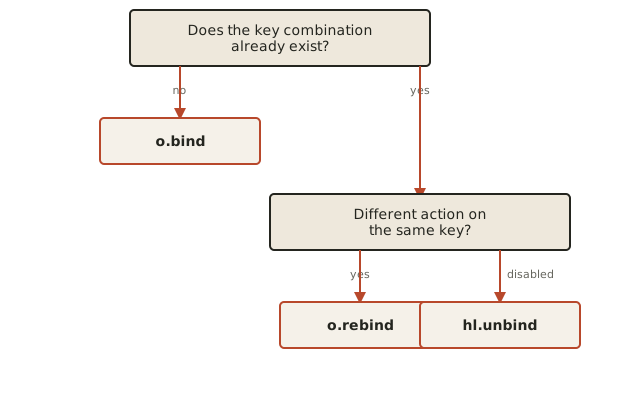
This keeps intent explicit.
12.17 — Do Not Disable Omarchy’s Entire Shortcut System Too Early
The current Omarchy Hyprland template includes advanced flags that can disable:
- all default Omarchy bindings;
- preinstalled app/web-app bindings.
These are advanced customization options.
For this course:
Keep the default binding system and override individual shortcuts.
Why?
Because Omarchy’s keyboard-driven workflow is one of its strongest integrations.
Replacing everything immediately creates unnecessary maintenance.
12.18 — A Good Personal Shortcut Strategy
A useful approach is to preserve categories.
For example:
Super
→ window/workspace management

Super + Shift
→ applications

Super + Ctrl
→ system panels/actions

Super + Alt
→ custom/developer workflows
You do not have to follow this exactly.
But a consistent mental system is much better than random shortcuts.
12.19 — Avoid Modifier Soup
Technically, you can create shortcuts like:
Super + Ctrl + Shift + Alt + PBut that does not make them good.
A good shortcut should be:
- physically comfortable;
- easy to remember;
- unlikely to conflict;
- semantically related to the action.
Reserve complex chords for infrequent or risky actions.
12.20 — Keyboard Layout Matters
A shortcut that feels natural on:
US ANSImay be awkward on:
German ISOor another layout.
Symbols can move.
Some keys require:
- Shift;
- AltGr;
- Fn.
Therefore shortcut design should match the learner’s real keyboard.
12.21 — Compact Keyboards Add Another Layer
The course workstation uses a compact 75% keyboard.
On compact keyboards, functions such as:
- Print Screen;
- Home;
- End;
- Insert;
- media controls;
may live behind:
Fn layersThe operating system does not necessarily see the label printed on the key.
It sees the event produced after the keyboard firmware/Fn layer processes it.
12.22 — Use wev to See What the System Receives
When a shortcut should work but does not:
wevPress the key combination.
wev shows Wayland input events.
You can inspect:
- key code;
- key symbol;
- modifiers;
- press/release behavior.
This separates:
physical keyboard / firmware issuefrom:
Hyprland binding issue12.23 — Real Course Example: Print Screen
The course workstation’s compact keyboard did not have a normal dedicated Print Screen key.
The Fn layer had to be configured so that the operating system actually received:
PrintOnly then could the Omarchy screenshot binding work as expected.
That was not a Hyprland problem.
It was an input-event problem.
This distinction is extremely important.
12.24 — Test the Key Before Editing the Config
If a shortcut involving an unusual key fails:
1. run wev
2. press the key
3. confirm the system receives what you expect
4. only then inspect Hyprland bindings
This avoids wasting time editing a correct configuration.
12.25 — Physical Key Codes
Hyprland can also work with physical key codes.
You may see syntax such as:
code:113in advanced configurations.
This can be useful when:
- layouts differ;
- symbolic names are unreliable;
- you intentionally want a physical-key mapping.
But it is more advanced and less readable.
Prefer named keys when they work reliably.
12.26 — Press vs Release Actions
Some bindings may execute:
when key is pressedwhile others can execute:
when key is releasedCurrent Omarchy Lua bindings can support binding options for behavior such as release actions.
This can be useful for tools such as:
- dictation;
- push-to-talk;
- temporary overlays.
Do not use advanced binding options until you have a real use case.
12.27 — Mouse Bindings
Hyprland also supports mouse events.
Current Omarchy already uses combinations such as:
Super + mouse wheelfor workspace movement.
Advanced personal mappings can use mouse buttons or scroll directions.
Again:
First inspect existing bindings.
Do not create collisions with Omarchy’s current defaults.
12.28 — Bindings Can Trigger Scripts
A powerful pattern is:
keybinding
→ personal script
→ multi-step behavior
Example:
Super + Alt + P
→ ~/.local/bin/open-project
The script could:
- choose a project;
- open a workspace;
- start Tmux;
- launch your editor.
This becomes especially useful later when we cover automation.
12.29 — Keep Complex Logic Out of bindings.lua
If a binding requires many shell operations, prefer:
bindings.lua
→ call script
instead of embedding a huge command string.
Why?
Scripts are easier to:
- test;
- version;
- debug;
- reuse.
Keep bindings.lua focused on:
key → action12.30 — Example: Project Launcher Pattern
Conceptually:
o.bind(
  "SUPER + ALT + P",
  "Open project workspace",
  "~/.local/bin/open-project-workspace"
)
Then put the real logic in:
~/.local/bin/open-project-workspaceThis is a clean separation of responsibilities.
12.31 — Use Absolute/Resolvable Commands
If a binding runs:
my-scriptmake sure the command is actually available in the environment Hyprland uses.
Check:
type my-scriptand:
command -v my-scriptA command that works only because of an interactive Bash alias may not behave the same when launched from Hyprland.
This is a subtle but important distinction.
12.32 — Shell Aliases Are Not Always Safe Binding Targets
Suppose:
alias proj='cd ~/Projects/project'works in Bash.
That does not mean Hyprland can launch:
projas a normal executable.
Aliases belong to the interactive shell.
For bindings, prefer:
- real executables;
- scripts;
- Omarchy launch helpers.
12.33 — Environment Differences Matter
A process launched from Hyprland may not inherit exactly the same environment as your interactive terminal.
If a binding command works manually but fails from the shortcut:
check:
- executable path;
- required environment variables;
- shell-only functions;
- current working directory assumptions.
Do not immediately blame Hyprland.
12.34 — Working Directory Assumptions
A keyboard shortcut should generally not assume:
current terminal directorybecause Hyprland is launching the action globally.
If the action requires a specific folder, make the script explicitly choose it.
Example:
cd "$HOME/Projects/my-project" || exit 1inside the script.
12.35 — Reload and Validate After Editing
After changing:
~/.config/hypr/bindings.luacheck:
hyprctl configerrorsIf errors appear:
fix them before continuingIf you opened the file through Omarchy Setup, the required reload may happen automatically when the editor exits.
12.36 — One Binding at a Time
Do not add ten shortcuts and then test.
Use:
add one
↓
save
↓
check configerrors
↓
test
↓
continue
This is faster than debugging a batch of changes.
12.37 — Binding Does Nothing: Diagnostic Sequence
If a new shortcut does nothing:
1. hyprctl configerrors
2. confirm key exists with wev
3. check current binding map
4. verify the command exists
5. run the command manually
6. inspect whether the action needs a terminal/environment
This sequence solves most binding problems.
12.38 — Step 1: Check Config Errors
Run:
hyprctl configerrorsIf you see a Lua/config error, fix that first.
A broken config means the shortcut may never have loaded.
12.39 — Step 2: Verify the Key Event
Run:
wevPress the exact combination.
Confirm:
- expected key;
- expected modifiers.
If the keyboard does not emit the expected event, changing bindings.lua will not fix the physical/input-layer issue.
12.40 — Step 3: Check for Conflicts
Open:
Super + KSearch the shortcut.
Or:
omarchy menu keybindings --printConfirm whether the combination is already used.
12.41 — Step 4: Verify the Command
Run:
type COMMANDThen:
command -v COMMANDIf nothing resolves, the binding cannot launch it.
12.42 — Step 5: Run It Manually
Run the action from a normal terminal.
If the command itself fails:
the binding is not the root problemFix the command first.
12.43 — Step 6: Check Environment Assumptions
If it works manually but not as a binding, ask:
- Is it an alias?
- Does it depend on
.bashrc? - Does it expect a terminal?
- Does it expect a current working directory?
- Does it need a graphical environment variable?
- Does it need a script wrapper?
This is where many “Hyprland shortcut bugs” actually come from.
12.44 — Use Descriptions as Documentation
Good bindings.lua:
o.bind("SUPER + ALT + P", "Project launcher", "open-project-workspace")
o.bind("SUPER + ALT + RETURN", "Tmux", { omarchy = "terminal-tmux" })
This is self-documenting.
Bad:
o.bind("SUPER + ALT + P", "X", "foo")
o.bind("SUPER + ALT + RETURN", "Y", "bar")
Descriptions are part of maintainability.
12.45 — Group Personal Bindings by Purpose
A clean file can be organized conceptually like:
-- Development
...

-- Applications
...

-- System utilities
...

-- Personal scripts
...
Keep the structure simple.
The goal is to make future edits easy.
12.46 — Comment Why, Not What
Bad comment:
-- Bind Super Alt P
o.bind("SUPER + ALT + P", ...)
The code already says that.
Better:
-- Keep project launchers under Super+Alt to avoid collisions with Omarchy app bindings.Comments should explain intent.
12.47 — Do Not Recreate Existing Omarchy Actions Manually
If Omarchy already has:
Super + Ctrl + A
→ audio
do not write a custom low-level PipeWire script just to duplicate it unless you have a specific reason.
Reuse the integrated Omarchy action where possible.
This keeps the workstation easier to update.
12.48 — Build Personal Shortcuts Around Real Friction
Good reason:
I open my Tmux project workspace 30 times per day.Good reason:
My keyboard lacks a convenient key for this important action.Weak reason:
I want 40 custom shortcuts because a dotfiles screenshot looked cool.Every custom shortcut creates:
- something to remember;
- something to maintain;
- something that can conflict later.
12.49 — Version-Aware Keybinding Maintenance
Omarchy’s default keybindings can change between releases.
After a major update:
custom shortcut suddenly behaves differentlycheck:
Super + Kand:
omarchy menu keybindings --printbefore assuming your config broke.
A new default may now use your chosen chord.
12.50 — Keybinding Migration Between Omarchy Generations
Omarchy 4 / Quattro moved the active personal Hyprland configuration to Lua.
If you come from an older Omarchy setup, a file such as:
~/.config/hypr/bindings.confmay still exist on disk but may no longer be the active personal bindings file.
Current configuration uses:
~/.config/hypr/bindings.luaThis is a critical migration lesson.
A preserved file is not necessarily a loaded file.
12.51 — Verify What Is Actually Loaded
Inspect:
bat ~/.config/hypr/hyprland.luaLook for:
require("hypr.bindings")That confirms the current Lua binding module is part of the load chain.
Do not infer active config solely from filenames that happen to exist.
12.52 — Recovery: Syntax Error in bindings.lua
If a binding edit breaks config:
hyprctl configerrorsThen reopen:
nvim ~/.config/hypr/bindings.luaUndo the last edit.
Save.
Re-check:
hyprctl configerrorsThis is the correct first recovery action.
12.53 — Recovery: Use Git if Your Dotfiles Are Versioned
Later in the course, your personal config will live in Git.
Then recovery can be as simple as:
git diffand:
git restore bindings.luaor reverting the specific commit.
This is one reason dotfile version control is valuable.
12.54 — Recovery: Do Not Jump Straight to Config Reset
Do not start with:
omarchy refresh hyprlandfor one broken keybinding.
That is a broad reset of personal Hyprland configuration.
Also do not start with:
omarchy reinstall configsfor a single mistake.
Use the smallest repair.
12.55 — Practical Exercise: Inspect Your Current Binding Map
Press:
Super + KSearch for:
TerminalThen:
TmuxThen:
CaptureThen:
ClipboardThe goal is to become comfortable discovering current bindings rather than memorizing a static sheet.
12.56 — Practical Exercise: Inspect bindings.lua
Run:
bat ~/.config/hypr/bindings.luaIdentify any existing personal changes.
Do not edit yet.
12.57 — Practical Exercise: Add a Safe Custom Binding
Choose an unused key combination.
For example, if verified free on your system:
Super + Alt + BBind a harmless action such as launching the activity monitor or another known command.
Example structure:
o.bind("SUPER + ALT + B", "Activity monitor", "btop")If the command needs a terminal wrapper on your current system, use an appropriate Omarchy terminal-launch method instead of assuming raw btop will open graphically.
Test one change only.
12.58 — Practical Exercise: Replace a Binding
Choose a default application binding you do not use.
Verify it first with:
Super + KThen replace it using:
o.rebind("KEY COMBINATION", "New description", "new-command")Save.
Check:
hyprctl configerrorsTest.
If you do not want to keep the change, restore the original afterward.
12.59 — Practical Exercise: Disable a Binding
Choose a non-essential binding.
Verify it.
Then:
hl.unbind("KEY COMBINATION")Save.
Check:
hyprctl configerrorsTest that the action is gone.
Restore afterward if the change was only for practice.
12.60 — Practical Exercise: Debug a Keyboard Key with wev
Run:
wevPress:
Super
Shift
Alt
Return
and another unusual key on your keyboard.
Observe:
- modifier state;
- key symbol;
- press/release.
This will make future keyboard debugging dramatically easier.
12.61 — Practical Exercise: Create a Real Developer Shortcut
Create one shortcut you will actually use.
Recommended course example:
Super + Alt + Return
→ Tmux terminal
If your current Omarchy version already provides it, do not duplicate it.
Instead choose another real need.
Examples:
project picker
notes
log viewer
AI workspace
custom development script
The important part is that the shortcut solves a real repeated action.
12.62 — Practical Exercise: Validate the Full Chain
For your new binding:
1. verify key event with wev if necessary
2. verify no collision
3. verify command with type
4. add binding
5. hyprctl configerrors
6. execute shortcut
7. verify expected result
This is the professional binding workflow.
12.63 — Common Keybinding Mistakes
Mistake 1 — Editing the Wrong File
Current Omarchy 4 personal binding file:
~/.config/hypr/bindings.luaMistake 2 — Copying Printed Key Syntax Directly
The printed keybinding list may format modifiers differently from Lua.
Lua example:
SUPER + SHIFT + SMistake 3 — Adding a Binding Without Checking Existing Shortcuts
Use:
Super + Kfirst.
Mistake 4 — Assuming the Physical Key Sends What Its Label Says
Use:
wevMistake 5 — Binding an Interactive Shell Alias
A Hyprland launch is not the same as an interactive Bash prompt.
Use real commands/scripts.
Mistake 6 — Using a Command That Needs a Terminal Without Launching a Terminal
Terminal applications need a terminal context.
Mistake 7 — Putting Complex Shell Logic Directly in bindings.lua
Call a script instead.
Mistake 8 — Adding Many Shortcuts at Once
Test incrementally.
Mistake 9 — Disabling All Omarchy Defaults Too Early
Override individual bindings first.
Mistake 10 — Resetting All Hyprland Config for One Binding Error
Fix the specific file first.
12.64 — Checkpoint
Before moving on, you should be able to answer yes to the following.
Discovery
- I know how to open the keybinding browser with
Super + K. - I know how to inspect bindings from the CLI.
- I understand that displayed shortcut syntax may differ from Lua syntax.
Configuration
- I know that personal bindings live in
~/.config/hypr/bindings.lua. - I understand
o.bind. - I understand
o.rebind. - I understand
hl.unbind. - I know how to choose between them.
Debugging
- I can use
hyprctl configerrors. - I can use
wev. - I can verify a command with
type. - I can run the target command manually before blaming the binding.
- I understand shell-environment differences.
Design
- I avoid random shortcut collisions.
- I use meaningful descriptions.
- I keep complex logic in scripts.
- I create shortcuts based on real repeated friction.
Recovery
- I know how to undo a broken Lua edit.
- I understand that old
.conffiles may exist without being loaded. - I do not use broad config resets as the first recovery step.
12.65 — What You Can Now Do
After completing Module 12, you can now:
- inspect the live Omarchy keybinding system;
- add personal bindings safely;
- replace default application shortcuts cleanly;
- disable unwanted shortcuts;
- diagnose keyboard-event problems;
- distinguish hardware/Fn-layer problems from Hyprland problems;
- launch scripts and development tools through personal shortcuts;
- avoid shell-alias and PATH pitfalls;
- maintain a readable personal shortcut system;
- recover from binding errors without resetting your workstation.
Most importantly:
You can now turn Omarchy’s keyboard-first design into a keyboard workflow tailored to the way you actually work.
Module 12 Summary
Personal binding file:
~/.config/hypr/bindings.luaDiscovery:
Super + KCLI:
omarchy menu keybindingsCurrent helper model:
o.bind(...)addo.rebind(...)replacehl.unbind(...)removeImportant syntax:
Lua:
SUPER + SHIFT + S
Input verification:
wevConfig verification:
hyprctl configerrorsCommand verification:
type COMMAND
command -v COMMAND
Recommended troubleshooting flow:
config errors
↓
actual key event
↓
binding collision
↓
command availability
↓
manual command test
↓
environment/terminal assumptions
And the most important rule:
A keybinding is a chain: physical key → input event → Hyprland binding → command/action. Debug the chain in that order.