Module 13: Themes, Fonts, Backgrounds, and Visual Design on Omarchy
In this module — 63 sections
- What You Will Learn
- 13.1 — Omarchy Themes Are System Themes
- 13.2 — The Current Theme Selector
- 13.3 — Current Built-In Themes
- 13.4 — Discover Themes Through the CLI
- 13.5 — Our Stevinator Baseline
- 13.6 — Theme Selection Is More Than Appearance
- 13.7 — Dark vs Light Themes
- 13.8 — Change the Background
- 13.9 — Themes and Backgrounds Are Separate
- 13.10 — Personal Background Location
- 13.11 — Add a Personal Background Through the Menu
- 13.12 — Use Reasonable Background Images
- 13.13 — Fonts
- 13.14 — Why Nerd Fonts Matter
- 13.15 — Change the Font
- 13.16 — Discover Fonts Through the CLI
- 13.17 — Install Additional Fonts
- 13.18 — Our Stevinator Font Baseline
- 13.19 — How to Choose a Coding Font
- 13.20 — Ligatures
- 13.21 — Font Size vs Monitor Scaling
- 13.22 — Omarchy Text Size
- 13.23 — When to Change Scale Instead
- 13.24 — Avoid Solving the Same Problem in Three Places
- 13.25 — Theme Files
- 13.26 — Inspect the Built-In Themes
- 13.27 — colors.toml
- 13.28 — Semantic Theme Colors
- 13.29 — Create a Custom Theme
- 13.30 — User Themes Automatically Appear in the Theme Menu
- 13.31 — Aether
- 13.32 — Light Theme Declaration
- 13.33 — Icon Themes
- 13.34 — Unlock Visuals
- 13.35 — Theme Safety
- 13.36 — Why Theme Safety Matters
- 13.37 — Third-Party Themes Still Require Judgment
- 13.38 — Custom Theme Templates for Unsupported Apps
- 13.39 — Theme Template Variables
- 13.40 — Why Templates Are Powerful
- 13.41 — Do Not Template Everything
- 13.42 — Machine-Level Shell Overrides
- 13.43 — Theme vs Personal Override
- 13.44 — Consistency Across Development Tools
- 13.45 — Check Contrast in the Terminal
- 13.46 — Check Contrast in Git Diffs
- 13.47 — Check Neovim
- 13.48 — Check btop
- 13.49 — Check the Omarchy Shell
- 13.50 — Practical Exercise: Compare Three Themes
- 13.51 — Practical Exercise: Choose a Final Baseline
- 13.52 — Practical Exercise: Change the Background Only
- 13.53 — Practical Exercise: Inspect Fonts
- 13.54 — Practical Exercise: Font Readability Test
- 13.55 — Practical Exercise: Inspect Theme Structure
- 13.56 — Practical Exercise: Create a Test Theme Copy
- 13.57 — Practical Exercise: Add a Background
- 13.58 — Practical Exercise: Inspect Theme Integration
- 13.59 — Common Visual Customization Mistakes
- 13.60 — Checkpoint
- 13.61 — What You Can Now Do
- Module 13 Summary
About This Module
You now know how to customize how Omarchy behaves.
This module is about customizing how Omarchy looks.
Current Omarchy 4 / Quattro has a coordinated theming system that can style far more than just the wallpaper.
A theme can affect:
- the Omarchy Shell;
- Hyprland;
- terminal applications;
- Neovim;
- btop;
- Chromium;
- supported editors;
- notifications;
- menus;
- lock screen;
- background choices;
- icon presentation;
- unlock visuals.
This is one of Omarchy’s strongest qualities.
Instead of theming each application independently, Omarchy provides a central visual layer.
The goal of this module is not to spend hours chasing perfect RGB values.
The goal is:
Build a consistent, readable, professional development environment without breaking the system or creating theme-maintenance debt.
What You Will Learn
By the end of Module 13, you will understand:
- how Omarchy themes work at a high level;
- how to switch themes;
- how to switch backgrounds;
- how fonts are integrated across the workstation;
- why Nerd Fonts matter;
- how to install additional supported fonts;
- how to choose a coding font;
- how text size and monitor scaling differ;
- where user backgrounds live;
- where user themes live;
- where Omarchy’s built-in themes live;
- how
colors.tomldrives theme generation; - how custom themes work;
- how Omarchy themes unsupported applications with templates;
- how current Omarchy treats third-party theme code safely;
- how to create a coherent visual baseline for development.
13.1 — Omarchy Themes Are System Themes
A normal desktop theme may only change:
window colors
+
wallpaper
Current Omarchy themes are broader.
The current official manual states that a theme can style:
- desktop;
- terminal;
- Neovim;
- btop;
- Chromium;
- Omarchy top bar;
- Omarchy menu;
- notifications;
- OSD;
- lock screen.
This means theme changes are intended to feel system-wide.
13.2 — The Current Theme Selector
Current official shortcut:
Super + Ctrl + Shift + SpaceThis opens the theme picker.
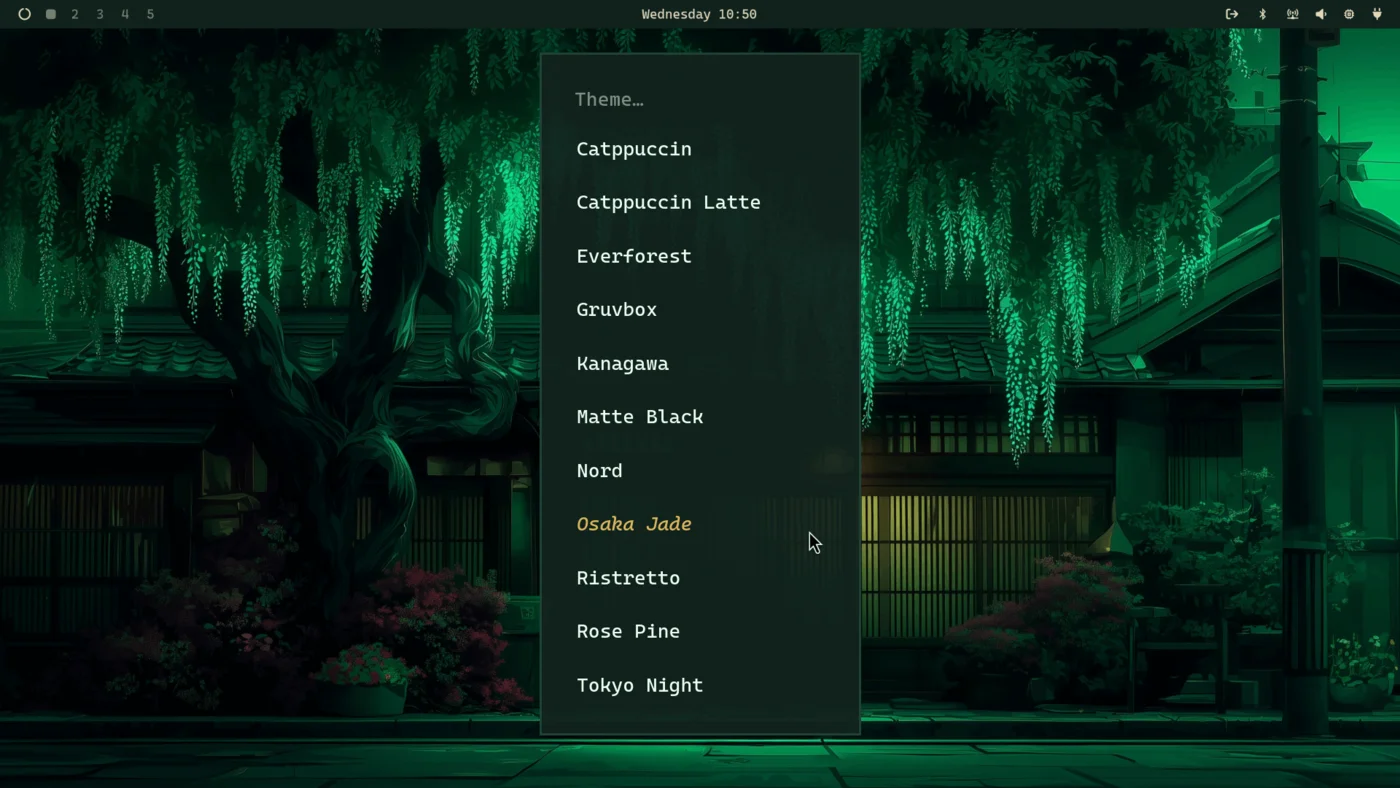
You can also use:
Super + Space
→ Style
→ Theme
The current official Omarchy manual describes a visual, filterable theme selector.
13.3 — Current Built-In Themes
The exact theme list can evolve.
Current Omarchy documentation includes themes such as:
Tokyo Night
Catppuccin
Lumon
Ethereal
Everforest
Gruvbox
Miasma
Hackerman
Osaka Jade
Kanagawa
Nord
Matte Black
Vantablack
Ristretto
Retro 82
Flexoki Light
Rose Pine
Catppuccin Latte
White
and newer releases may add more.
Do not memorize the static list.
Inspect the current system instead.
13.4 — Discover Themes Through the CLI
Current official Omarchy CLI documentation includes:
omarchy theme listto list available themes.
And:
omarchy theme set <name>to apply a theme.
Example:
omarchy theme listThen:
omarchy theme set catppuccinUse the exact installed theme name returned by your system.
13.5 — Our Stevinator Baseline
The workstation used while developing this course currently uses:
Catppuccinas its theme.
That is a preference.
It is not a course requirement.
Choose a theme that gives you:
- good contrast;
- readable code;
- comfortable long-session use;
- consistent UI.
13.6 — Theme Selection Is More Than Appearance
The wrong visual setup can create real development friction.
Examples:
low contrast
→ harder code scanning

tiny text
→ eye strain

high-saturation UI everywhere
→ distraction

poor foreground/background pairing
→ terminal readability problems
A developer workstation should optimize for:
readability
+
consistency
+
low friction
before novelty.
13.7 — Dark vs Light Themes
There is no universal winner.
Dark themes may be comfortable:
- in low-light environments;
- for long terminal sessions;
- on some OLED displays.
Light themes may be better:
- in bright rooms;
- for daytime work;
- for some visual accessibility needs.
Current Omarchy custom-theme support explicitly supports a light-mode declaration in theme configuration.
Choose based on your environment, not internet fashion.
13.8 — Change the Background
Current official shortcut:
Super + Ctrl + Spaceopens the background selector for the active theme.
You can also use:
Super + Space
→ Style
→ Background
Themes can ship with multiple matching backgrounds.
13.9 — Themes and Backgrounds Are Separate
This distinction matters.
Theme
→ colors and coordinated application/system styling

Background
→ wallpaper image
You can keep the same theme and choose a different background.
Example:
Catppuccin
+
Waves background
The course workstation currently uses exactly that kind of separation.
13.10 — Personal Background Location
Current official Omarchy documentation states that extra backgrounds for a theme live under:
~/.config/omarchy/backgrounds/<theme-name>Example:
~/.config/omarchy/backgrounds/nordAny compatible image placed there can become part of the background choices for that theme.
13.11 — Add a Personal Background Through the Menu
Current official workflow:
Super + Space
→ Install
→ Style
→ Background
This opens the relevant theme background location.
Then you can copy your image into that folder.
Afterward:
Super + Ctrl + Spaceshould include it in the background selector.
13.12 — Use Reasonable Background Images
A development wallpaper should not make the desktop harder to use.
Good:
moderate contrast
clean composition
not overly bright
Potentially distracting:
extreme detail
high-frequency patterns
very bright center behind windows
The wallpaper is visible less often in a tiling workflow, but it still affects the overall visual experience.
13.13 — Fonts
Current Omarchy official documentation states that the default font is:
JetBrainsMono Nerd FontIt is used as both:
- terminal font;
- system monospace font.
This makes it a strong default for developers.
13.14 — Why Nerd Fonts Matter
Nerd Fonts add extra icon glyphs commonly used by developer tools.
Examples include symbols used in:
- terminal prompts;
- status bars;
- file trees;
- Git indicators;
- Tmux;
- Neovim plugins.
Without a compatible Nerd Font, you may see:
□
?
missing glyph boxes
instead of icons.
That is why Omarchy installs Nerd Font variants of supported coding fonts.
13.15 — Change the Font
Current official workflow:
Super + Space
→ Style
→ Font
This changes the active monospace font across the relevant Omarchy-integrated surfaces.
Current documentation says this affects areas such as:
- terminal;
- bar;
- applications requesting the system monospace font.
13.16 — Discover Fonts Through the CLI
Current official Omarchy CLI documentation includes:
omarchy font listto list available fonts.
Use:
omarchy font listinstead of assuming a static installed list.
Check:
omarchy font --helpfor the current font command surface on your installed version.
13.17 — Install Additional Fonts
Current official Omarchy documentation lists one-click Nerd Font options through:
Super + Space
→ Install
→ Style
→ Font
Current documented options include:
- Cascadia Mono;
- Meslo LG Mono;
- Fira Code;
- Victor Code;
- Bitstream Vera Mono;
- Iosevka.
The exact available list may grow.
13.18 — Our Stevinator Font Baseline
The workstation used for this course currently uses:
JetBrainsMono Nerd FontThis is also the current Omarchy default.
We are keeping it because it is:
- readable;
- common;
- well-supported;
- developer-focused;
- compatible with Nerd Font glyphs.
No change is required simply because customization is possible.
13.19 — How to Choose a Coding Font
Evaluate:
0 vs O
1 vs l vs I
braces
parentheses
punctuation
small-size readability
bold readability
terminal glyph support
A coding font should reduce ambiguity.
Test with real code, not only a font preview page.
13.20 — Ligatures
Some coding fonts support ligatures.
For example:
!=
=>
===
may render as more visually connected glyphs.
Some developers love this.
Others prefer literal characters.
Ligatures are aesthetic, not necessary.
Choose what helps you read code.
13.21 — Font Size vs Monitor Scaling
These are different concepts.
Font/Text Size
Changes:
how large text appearsMonitor Scale
Changes:
how large the entire UI appearsDo not solve every text-size problem by changing monitor scale.
13.22 — Omarchy Text Size
Current Omarchy versions expose text-size control under:
omarchy display text sizeCheck current syntax:
omarchy display text size --helpor:
omarchy display --helpThis is useful when:
display resolution is correct
UI scale is correct
but text is too small or large
13.23 — When to Change Scale Instead
Change monitor scale when the whole UI is physically too small or large because of display density.
Example:
13-inch 4K laptopmay need scaling.
A:
32-inch 1440p monitoroften works naturally at scale 1.
Use Module 11’s monitor configuration principles.
13.24 — Avoid Solving the Same Problem in Three Places
A messy visual setup might use:
Hyprland scale
+
app-specific zoom
+
terminal font size
+
browser zoom
+
text size override
all to solve the same issue.
Prefer the lowest sensible layer.
Conceptually:
whole UI too small
→ monitor scale

text broadly too small
→ text/font setting

one app only
→ app-specific setting
13.25 — Theme Files
Current built-in Omarchy themes live under:
/usr/share/omarchy/themesYour own themes belong under:
~/.config/omarchy/themesThis follows the same system-wide rule from earlier modules:
/usr/share/omarchy
→ Omarchy-owned

~/.config
→ user-owned
13.26 — Inspect the Built-In Themes
Run:
ls /usr/share/omarchy/themesThen inspect one:
ls /usr/share/omarchy/themes/catppuccinDo not edit the built-in theme.
Use it as a reference.
13.27 — colors.toml
Current official Omarchy theme documentation identifies:
colors.tomlas the main custom-theme file.
It defines the color set Omarchy uses to generate configurations for multiple applications.
Conceptually:
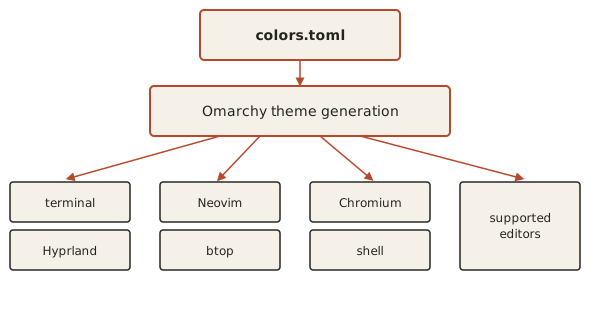
This is the core of Omarchy’s coordinated theming model.
13.28 — Semantic Theme Colors
Current Omarchy 4 has moved toward a semantic color system.
A theme defines foundational values such as:
background
foreground
accent
urgent
plus standard palette colors.
The Omarchy Shell can then map those into semantic UI roles.
This is much more maintainable than hard-coding unrelated colors in every component.
13.29 — Create a Custom Theme
Current official workflow:
1. copy an existing theme
2. place it under ~/.config/omarchy/themes
3. edit colors.toml
4. select the theme
Example:
cp -r /usr/share/omarchy/themes/catppuccin \
  ~/.config/omarchy/themes/stevinator
Then:
nvim ~/.config/omarchy/themes/stevinator/colors.tomlDo not do this unless you actually want to build a custom theme.
For most users, built-in themes are enough.
13.30 — User Themes Automatically Appear in the Theme Menu
Current official Omarchy documentation states that themes placed in:
~/.config/omarchy/themesare included in the theme selection menu.
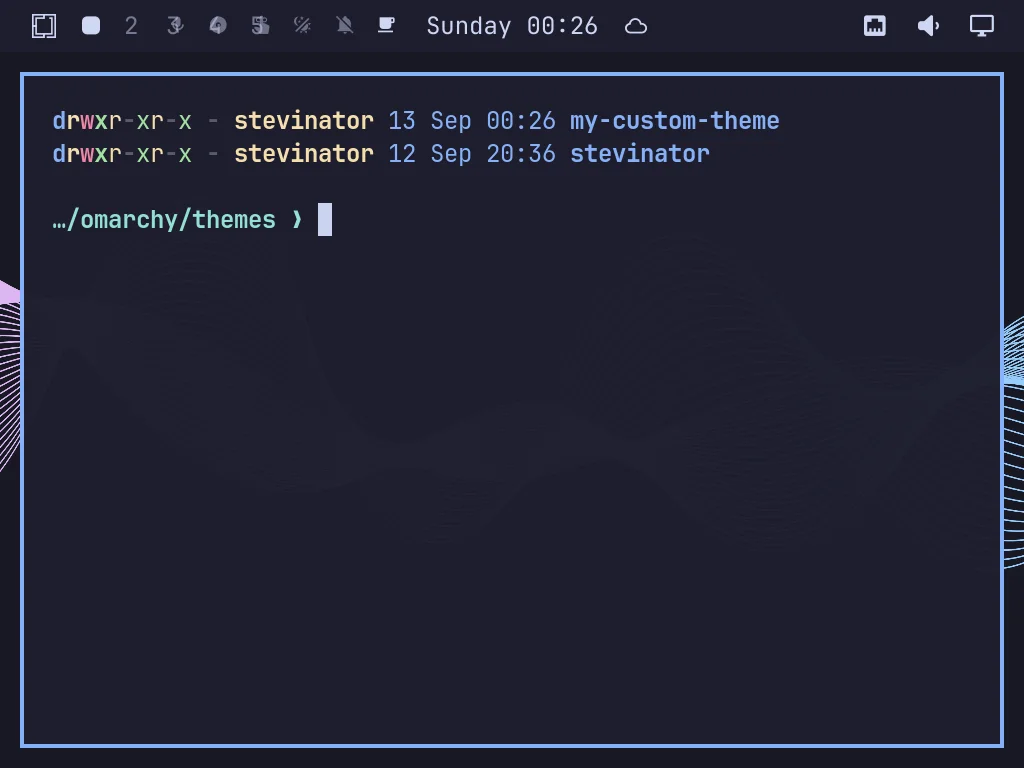
This gives you a clean user-owned customization layer.
13.31 — Aether
Current Omarchy includes an application called:
Aetherfor creating themes visually.
The current official custom-theme documentation says it can be launched from the apps menu:
Super + Alt + SpaceAether allows you to:
- experiment with theme colors;
- search for backgrounds;
- create a custom theme through a GUI workflow.
This can be easier than editing colors.toml manually.
13.32 — Light Theme Declaration
Current official Omarchy custom-theme documentation supports:
mode = "light"at the top of:
colors.tomlfor light themes.
This lets Omarchy coordinate light-mode behavior across supported applications.
13.33 — Icon Themes
Current official custom-theme documentation says a theme can include:
icons.themeto select a matching icon set.
Current built-in icon options are based around Yaru variants.
This allows file-manager icons to match the overall theme.
This is optional.
13.34 — Unlock Visuals
Current themes can include:
unlock.pngand:
preview-unlock.pngfor boot-unlock/decryption visuals.
Current Omarchy exposes these under:
Style
→ Unlock
if the theme provides them.
This is an advanced cosmetic feature.
13.35 — Theme Safety
This is an important current Omarchy 4 behavior.
A local theme you created yourself can contain whatever configuration you deliberately put into it.
But when Omarchy installs a third-party theme repository, current official documentation says it strips files that could execute code or alter executable behavior.
Examples of files removed from third-party theme installs include:
.luafiles;- terminal configs;
vscode.json.
This is a security improvement.
13.36 — Why Theme Safety Matters
A theme downloaded from the internet should ideally change:
appearancenot:
what commands your terminal launchesCurrent Omarchy therefore distinguishes visual theme assets from files that could execute or trigger code.
This is a good security principle:
Visual customization should not silently become code execution.
13.37 — Third-Party Themes Still Require Judgment
Even with filtering, treat external themes as third-party content.
Good practice:
use trusted source
inspect repository
check recent maintenance
understand what is installed
Do not assume “theme” automatically means zero risk.
13.38 — Custom Theme Templates for Unsupported Apps
Current Omarchy allows you to theme applications not handled by default.
User templates live under:
~/.config/omarchy/themed/A template filename ends with:
.tplOmarchy replaces theme placeholders when the active theme changes.
13.39 — Theme Template Variables
Current official documentation supports variables such as:
{{ background }}
{{ foreground }}
{{ accent }}
{{ red }}
{{ color0 }}
...
{{ color15 }}
The generated config then receives the active theme’s colors.
Conceptually:
template
+
active theme colors
        ↓
generated app config
13.40 — Why Templates Are Powerful
Suppose an unsupported terminal utility has a config file:
~/.config/mytool/theme.tomlYou could create an Omarchy template that regenerates it when the theme changes.
Now:
change Omarchy theme
↓
mytool changes with it
This keeps visual consistency beyond the built-in supported applications.
13.41 — Do Not Template Everything
Theme automation is useful when an app genuinely benefits from coordinated colors.
It is unnecessary for:
- apps where you already like the built-in theme;
- applications that manage themes internally;
- tools where theme generation would complicate maintenance.
Use this capability deliberately.
13.42 — Machine-Level Shell Overrides
Current Omarchy releases also include a user-level shell override file that can preserve machine-specific shell styling across theme changes.
Current release notes describe:
~/.config/omarchy/shell.tomlas a machine-level override merged over the active theme.
This can be useful for personal adjustments such as:
- font-related shell sizing;
- spacing;
- bar tweaks.
Because this is actively evolving, verify current documentation/source before relying on a specific key or schema.
13.43 — Theme vs Personal Override
A good model:
Theme
→ shared visual palette/style

Personal shell override
→ machine-specific adjustment
Example:
Catppuccin theme
+
slightly different personal bar spacing
You should not need to fork the theme just to tweak one machine-specific shell property.
13.44 — Consistency Across Development Tools
A coordinated developer theme can help:
- terminal syntax;
- Neovim;
- Git UI;
- shell;
- browser;
- notifications;
feel like one environment.
This reduces visual context switching.
But readability comes first.
13.45 — Check Contrast in the Terminal
When evaluating a theme, inspect:
normal text
comments
errors
warnings
Git diff
selected text
inactive pane
active pane
A beautiful screenshot can still be terrible for eight hours of coding.
13.46 — Check Contrast in Git Diffs
Open:
git diffor:
lazygitCheck whether:
- additions are clearly visible;
- deletions are clearly visible;
- context remains readable.
Git diff readability is especially important in AI-assisted development.
13.47 — Check Neovim
Open a real source file.
Look at:
- comments;
- strings;
- keywords;
- current line;
- search highlights;
- diagnostics.
Do not judge a developer theme only from the desktop wallpaper.
13.48 — Check btop
Open:
Super + Ctrl + TThe current official themes manual explicitly includes btop among themed applications.
Check whether graphs and labels remain readable.
13.49 — Check the Omarchy Shell
Inspect:
- top bar;
- menus;
- notifications;
- OSD;
- lock screen.
The current theme should feel coherent across all of these.
13.50 — Practical Exercise: Compare Three Themes
Choose three current built-in themes.
For each:
- switch theme;
- open terminal;
- open editor;
- open btop;
- open browser;
- inspect top bar/menu;
- evaluate readability.
Do not choose based only on wallpaper.
13.51 — Practical Exercise: Choose a Final Baseline
Pick one theme as your current workstation baseline.
Write down:
Theme:
Background:
Font:
Text size:
Monitor scale:
Example:
Theme: Catppuccin
Background: Waves
Font: JetBrainsMono Nerd Font
Text size: default
Monitor scale: 1
This becomes part of your reproducible workstation documentation.
13.52 — Practical Exercise: Change the Background Only
Keep the theme unchanged.
Press:
Super + Ctrl + SpaceChoose a different background.
Observe:
theme colors remain
wallpaper changes
This reinforces the separation between theme and background.
13.53 — Practical Exercise: Inspect Fonts
Run:
omarchy font listThen inspect:
Super + Space
→ Style
→ Font
If you want to experiment, install one alternative Nerd Font through:
Install
→ Style
→ Font
Try it temporarily.
Return to your preferred font afterward.
13.54 — Practical Exercise: Font Readability Test
Open a file containing:
0 O
1 l I
{} [] ()
!= == ===
=> ->
Compare two fonts.
Do not evaluate only the font’s personality.
Evaluate actual code readability.
13.55 — Practical Exercise: Inspect Theme Structure
Run:
ls /usr/share/omarchy/themesChoose your current theme:
ls /usr/share/omarchy/themes/YOUR_THEMEInspect:
bat /usr/share/omarchy/themes/YOUR_THEME/colors.tomlDo not edit it.
The goal is to understand what drives the theme.
13.56 — Practical Exercise: Create a Test Theme Copy
Optional.
Copy a built-in theme into your user theme directory:
mkdir -p ~/.config/omarchy/themes
cp -r /usr/share/omarchy/themes/YOUR_BASE_THEME \
  ~/.config/omarchy/themes/stevinator-test
Inspect:
bat ~/.config/omarchy/themes/stevinator-test/colors.tomlChange one harmless color.
Then select the custom theme.
If you do not want to keep it, remove the user theme afterward.
13.57 — Practical Exercise: Add a Background
Find the active theme name.
Create its user background folder if needed:
mkdir -p ~/.config/omarchy/backgrounds/YOUR_THEMECopy one appropriate image into it.
Then:
Super + Ctrl + SpaceVerify that the new background appears.
13.58 — Practical Exercise: Inspect Theme Integration
With your chosen theme active, open:
terminal
Neovim
btop
Chromium
Omarchy menu
Capture screenshots.
These become useful course assets demonstrating coordinated theme propagation.
13.59 — Common Visual Customization Mistakes
Mistake 1 — Customizing Every App Independently
You lose Omarchy’s coordinated theme advantage.
Mistake 2 — Editing /usr/share/omarchy/themes
Those are package-owned themes.
Copy to:
~/.config/omarchy/themesfirst.
Mistake 3 — Choosing a Theme Based Only on Wallpaper
Test code, diffs, terminal output, and notifications.
Mistake 4 — Installing Random Fonts Without Nerd Font Glyphs
You may break icons in terminal-oriented tools.
Mistake 5 — Fixing Tiny Text With Random Monitor Scaling
Understand:
font size
vs
text size
vs
monitor scale
Mistake 6 — Adding Huge Background Collections Everywhere
Keep your visual system intentional and manageable.
Mistake 7 — Treating Third-Party Themes as Automatically Safe
Current Omarchy filters executable theme content, but still use trusted sources and inspect external repositories.
Mistake 8 — Forking an Entire Theme to Change One Machine-Specific Shell Setting
Use user-level override mechanisms when available.
Mistake 9 — Over-Optimizing Aesthetics Before Ergonomics
This is a developer workstation.
Readability wins.
Mistake 10 — Forgetting to Document Your Chosen Visual Baseline
Theme/font/background choices are part of reproducibility.
13.60 — Checkpoint
Before moving on, you should be able to answer yes to the following.
Themes
- I know how to open the theme selector.
- I understand that Omarchy themes style multiple applications.
- I can list themes from the current system.
- I know where built-in themes live.
- I know where personal themes live.
Backgrounds
- I know how to open the background selector.
- I understand that background and theme are separate.
- I know where personal theme backgrounds live.
- I can add a personal background.
Fonts
- I know the current Omarchy default is JetBrainsMono Nerd Font.
- I understand why Nerd Fonts matter.
- I can inspect available fonts.
- I know how to install additional supported fonts.
- I understand font size vs monitor scaling.
Custom Themes
- I understand the role of
colors.toml. - I know how a user theme is created.
- I understand the purpose of Aether.
- I know how unsupported apps can be themed with templates.
- I understand the current third-party theme safety model.
Design
- I prioritize readability over novelty.
- I evaluate themes using real code and Git diffs.
- I can document my final visual baseline.
13.61 — What You Can Now Do
After completing Module 13, you can now:
- choose an Omarchy theme intelligently;
- change backgrounds without changing the theme;
- select and install developer-friendly fonts;
- understand Nerd Font requirements;
- distinguish text size from monitor scaling;
- inspect how current themes are built;
- create your own theme safely;
- extend Omarchy’s theming into unsupported applications;
- understand current third-party theme safety protections;
- create a coherent visual baseline for long development sessions.
Most importantly:
Your workstation now looks intentional without becoming visually fragile or difficult to maintain.
Module 13 Summary
Theme selector:
Super + Ctrl + Shift + SpaceBackground selector:
Super + Ctrl + SpaceTheme CLI:
omarchy theme listomarchy theme set <name>Font discovery:
omarchy font listCurrent default font:
JetBrainsMono Nerd FontBuilt-in themes:
/usr/share/omarchy/themesPersonal themes:
~/.config/omarchy/themesPersonal backgrounds:
~/.config/omarchy/backgrounds/<theme>Unsupported-app theme templates:
~/.config/omarchy/themed/*.tplCore theme file:
colors.tomlTheme model:
colors.toml
        ↓
generated coordinated configs
        ↓
shell
terminal
Hyprland
Neovim
btop
Chromium
supported editors
Visual sizing model:
whole interface too small
→ monitor scaling

text broadly too small
→ text/font sizing

one app only
→ app-specific setting
And the most important design rule:
A good development theme disappears into the background and makes your work easier to read.