Module 16: System Toggles and Runtime Controls on Omarchy
In this module — 54 sections
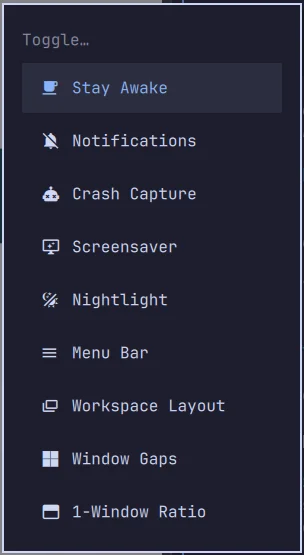
- What You Will Learn
- 16.1 — Runtime State vs Persistent Configuration
- 16.2 — Current Toggle Discovery
- 16.3 — Do Not Guess Top-Level Commands
- 16.4 — Idle Behavior
- 16.5 — Stay Awake
- 16.6 — Inspect Idle State
- 16.7 — Verify Instead of Inferring
- 16.8 — Night Light
- 16.9 — Current Night-Light Status
- 16.10 — When to Use Night Light
- 16.11 — Night Light Is Runtime State, Not Theme
- 16.12 — Do Not Hard-Code Temperature Without Checking Current Behavior
- 16.13 — Notification Silencing / Do Not Disturb
- 16.14 — Notification Silencing Can Be Silent
- 16.15 — Do Not Invent Status Syntax
- 16.16 — Bar Visibility
- 16.17 — Bar Toggle vs Fullscreen
- 16.18 — Screensaver
- 16.19 — Suspend Toggle
- 16.20 — Idle vs Suspend
- 16.21 — Touchpad Toggle
- 16.22 — Touchscreen Toggle
- 16.23 — Hybrid GPU Toggle
- 16.24 — Hybrid GPU Changes Are Higher Risk Than Night Light
- 16.25 — Crash Capture Toggle
- 16.26 — Runtime Toggle Design Principle
- 16.27 — Shell UI vs CLI
- 16.28 — Toggling From Scripts
- 16.29 — Do Not Build “Presentation Mode” Yet
- 16.30 — Inspect Before Automation
- 16.31 — Persistent State Can Differ by Toggle
- 16.32 — A Safe Toggle Testing Pattern
- 16.33 — Practical Exercise: Discover Current Toggles
- 16.34 — Practical Exercise: Idle State
- 16.35 — Practical Exercise: Toggle Stay Awake
- 16.36 — Practical Exercise: Night Light
- 16.37 — Practical Exercise: Notification Silencing
- 16.38 — Practical Exercise: Bar Toggle
- 16.39 — Practical Exercise: Suspend Control
- 16.40 — Practical Exercise: Touchpad/Touchscreen
- 16.41 — Practical Exercise: Build a Runtime State Table
- 16.42 — Runtime State and Screen Recording
- 16.43 — Runtime State and Deep Work
- 16.44 — Runtime State and Long Jobs
- 16.45 — Runtime State and Security
- 16.46 — Keep Security and Convenience Separate
- 16.47 — Use Tooltips as Signals, Not Documentation
- 16.48 — Silent Commands and Exit Codes
- 16.49 — Do Not Chain Unknown Toggles
- 16.50 — Common Runtime-Control Mistakes
- 16.51 — Checkpoint
- 16.52 — What You Can Now Do
- Module 16 Summary
About This Module
You now know how to control the major hardware subsystems.
Next we focus on runtime state: the small but important workstation behaviors that change dynamically while you work.
Examples include:
- idle/sleep behavior;
- “stay awake”;
- night light;
- Do Not Disturb;
- bar visibility;
- screensaver;
- suspend;
- touchpad/touchscreen toggles;
- hybrid GPU mode on supported laptops.
Current Omarchy 4 / Quattro exposes these through a combination of:
Shell controls
+
omarchy toggle ...
+
hotkeys
This is a different category from permanent configuration.
A useful mental model is:
configuration
→ what the workstation should normally be

runtime toggle
→ what state the workstation should be in right now
The goal of this module is:
Understand current runtime controls, inspect state before changing it, and avoid inventing commands that do not exist.
That last point matters because Omarchy’s CLI changes quickly, and several runtime controls live specifically under:
omarchy togglerather than as top-level commands.
What You Will Learn
By the end of Module 16, you will understand:
- the difference between persistent configuration and runtime toggles;
- how to discover current toggle commands;
- how idle behavior works at a high level;
- how “stay awake” relates to idle state;
- how to inspect current idle state;
- how night light works;
- how to inspect and toggle night light;
- how notification silencing / Do Not Disturb works;
- how to control bar visibility;
- how screensaver and suspend toggles fit into runtime control;
- how touchpad and touchscreen toggles work on supported hardware;
- how hybrid GPU toggles apply to supported laptops;
- why you should verify state rather than infer it from a tooltip;
- why
omarchy idleis not the correct current top-level command; - how runtime toggles complement shell panels and hotkeys.
16.1 — Runtime State vs Persistent Configuration
Compare these two tasks:
"Always run my monitor at 144 Hz."That is persistent configuration.
Use:
~/.config/hypr/monitors.luaNow compare:
"Keep the machine awake for the next hour."That is runtime state.
Use a toggle.
This distinction keeps your configuration clean.
16.2 — Current Toggle Discovery
Current Omarchy exposes runtime controls under:
omarchy toggleStart with:
omarchy toggle --helpCurrent versions include toggle families for areas such as:
idle
nightlight
notification silencing
bar
screensaver
suspend
touchpad
touchscreen
hybrid GPU
crash capture
The exact command names can evolve.
Use the installed help as the source of truth.
16.3 — Do Not Guess Top-Level Commands
A real lesson from the workstation setup:
omarchy idledoes not exist on the current system.
The current idle control is under:
omarchy toggle idleThis is a perfect example of why:
omarchy
omarchy commands
omarchy commands --all
omarchy <group> --help
matter.
16.4 — Idle Behavior
Idle behavior controls what happens after the machine receives no user input for some period.
Possible outcomes may include:
- dimming;
- locking;
- screensaver;
- suspend;
- other configured idle actions.
Current Omarchy exposes idle state through:
omarchy toggle idleInspect:
omarchy toggle idle --helpor current equivalent.
16.5 — Stay Awake
The user-facing concept:
Stay Awakemeans:
temporarily prevent normal idle behavior from triggering.
This is useful when:
- presenting;
- watching a long video;
- running a visible process you need to monitor;
- keeping a display awake temporarily.
It should not replace sane normal idle configuration.
16.6 — Inspect Idle State
On the workstation used during this course, current state inspection returned fields such as:
enabled: false
tooltip: Stay Awake
Interpret carefully.
If the toggle represents:
Stay Awakethen:
enabled = falsemeans the stay-awake override is not active.
Normal idle behavior remains allowed.
Do not confuse:
idle enabledwith:
stay-awake enabledwithout reading the current command semantics.
16.7 — Verify Instead of Inferring
Whenever a toggle has unclear naming:
1. read --help
2. inspect status output
3. observe UI tooltip
4. change once
5. inspect status again
This is safer than guessing what enabled=true refers to.
16.8 — Night Light
Night light shifts the display toward a warmer color temperature.
Typical reasons:
- evening work;
- reduced blue-heavy light;
- visual comfort.
Current Omarchy exposes night light under:
omarchy toggle nightlightInspect:
omarchy toggle nightlight --help16.9 — Current Night-Light Status
The workstation used in this course initially had night light off.
Toggling it produced state similar to:
enabled: true
temperature: 4000
This is a real current-system example.
Your current configured temperature may differ.
16.10 — When to Use Night Light
Useful:
late evening
dark room
extended reading
Less useful:
color-critical image/video work
design work requiring accurate white balance
If color accuracy matters, disable it temporarily.
16.11 — Night Light Is Runtime State, Not Theme
Changing theme:
dark → lightdoes not equal changing color temperature.
Theme controls styling.
Night light alters display color temperature.
Keep these layers separate.
16.12 — Do Not Hard-Code Temperature Without Checking Current Behavior
Different releases may expose temperature through:
- status;
- config;
- shell settings;
- current toggle implementation.
Use:
omarchy toggle nightlight --helpand current official docs.
Do not assume one old command forever.
16.13 — Notification Silencing / Do Not Disturb
Current Omarchy provides notification silencing as a runtime control.
The UI concept is similar to:
Do Not DisturbUse it when:
- presenting;
- recording;
- deep work;
- focusing during coding;
- screen sharing.
16.14 — Notification Silencing Can Be Silent
A current-system lesson:
some toggle actions may print:
nothingwhen successful.
Do not interpret no output as failure automatically.
After toggling:
- inspect status;
- observe shell UI;
- test a notification if appropriate.
Silent command success is a general Unix pattern.
16.15 — Do Not Invent Status Syntax
The exact status interface for notification silencing can differ.
Use:
omarchy toggle --helpand:
omarchy commands --all | grep -i notificationbefore using undocumented flags.
This is especially important because earlier assumptions about exact toggle subcommand syntax can easily become stale.
16.16 — Bar Visibility
Current Omarchy exposes bar state through runtime toggles.
Use cases:
- screen recording;
- distraction-free mode;
- temporary fullscreen presentation;
- testing shell layout.
Discover:
omarchy toggle --helpand current bar-related help.
16.17 — Bar Toggle vs Fullscreen
These solve different things.
Fullscreen
→ changes one window's layout

Bar toggle
→ changes shell/bar visibility
You may combine them for a clean presentation workspace.
16.18 — Screensaver
Current Omarchy includes screensaver runtime control.
The screensaver belongs to idle/runtime behavior.
Use the current:
omarchy togglecommand family to inspect it.
Do not confuse screensaver with:
- lock screen;
- suspend;
- idle override.
They can be related but are distinct.
16.19 — Suspend Toggle
Current Omarchy exposes suspend behavior as a toggle.
This can be useful when you temporarily want to prevent automatic suspend while keeping other idle behavior.
Example:
long compile
download
presentation
remote monitoring
Again:
Inspect current semantics before toggling.
16.20 — Idle vs Suspend
These are related but not identical.
idle system
→ tracks inactivity / triggers actions

suspend
→ one possible power-state transition
You may want:
screen can lock
but machine should not suspend
during a long-running task.
That is why separate controls are useful.
16.21 — Touchpad Toggle
Current Omarchy includes a touchpad toggle on supported laptops.
Useful when:
- using an external mouse;
- typing causes accidental cursor movement;
- troubleshooting trackpad behavior.
Current restart and toggle command families are separate concepts:
toggle touchpad
→ enable/disable state

restart trackpad
→ recover subsystem/device behavior
Do not confuse them.
16.22 — Touchscreen Toggle
Supported touchscreen devices can also expose a runtime toggle.
This is useful when:
- touchscreen input is unwanted;
- external monitor workflow makes touch confusing;
- you are troubleshooting ghost touches.
Desktop users without touchscreen hardware can ignore this.
16.23 — Hybrid GPU Toggle
Current Omarchy includes hybrid-GPU-related toggle behavior on supported systems.
This primarily matters for laptops with combinations such as:
integrated GPU
+
discrete GPU
Possible goals:
- battery efficiency;
- performance mode;
- GPU switching.
Hardware support varies significantly.
Do not change hybrid-GPU settings just because the command exists.
16.24 — Hybrid GPU Changes Are Higher Risk Than Night Light
Compare:
night light
→ easy reversible display tint
with:
GPU mode
→ potentially affects rendering/session behavior
Treat GPU-mode changes more cautiously.
Check current official hardware guidance first.
16.25 — Crash Capture Toggle
Current Omarchy includes crash-capture runtime control.
This relates to the crash-diagnosis flow covered earlier.
When enabled, Omarchy can observe crashes through system crash data and surface notifications/AI-assisted diagnostics.
This is useful for debugging.
It can also generate diagnostic state you may not care about during certain workflows.
16.26 — Runtime Toggle Design Principle
A good toggle should answer:
"What temporary state do I want right now?"Examples:
Stay awake
Night light on
Do Not Disturb
Bar hidden
Touchpad off
If you want the state permanently, look for the underlying persistent configuration instead.
16.27 — Shell UI vs CLI
Many runtime controls are available through the Omarchy Shell.
The CLI matters because it gives you:
- inspectable commands;
- scriptability;
- reproducibility;
- automation potential.
The shell UI matters because it gives you:
- visibility;
- quick control;
- current-state feedback.
Use both.
16.28 — Toggling From Scripts
Because runtime controls have CLI forms, they can be used from:
- keybindings;
- scripts;
- hooks;
- custom workflow helpers.
Example concept:
Presentation mode script:
→ silence notifications
→ stay awake
→ hide bar
→ maybe set brightness
This becomes possible because each behavior is exposed programmatically.
16.29 — Do Not Build “Presentation Mode” Yet
It is tempting to immediately automate several toggles together.
First understand each one independently.
Then, later:
binding
→ script
→ several verified toggle commands
becomes safe and maintainable.
16.30 — Inspect Before Automation
Before scripting a toggle:
omarchy toggle --helpThen test the exact command manually.
Only once you understand:
- command;
- resulting state;
- reversal;
should you automate it.
16.31 — Persistent State Can Differ by Toggle
Some runtime states may survive:
- session restart;
- reboot;
while others may reset.
Do not assume all toggles behave the same.
Verify current behavior if persistence matters.
16.32 — A Safe Toggle Testing Pattern
For any toggle:
1. inspect state
2. toggle once
3. inspect state again
4. observe UI behavior
5. toggle back
This gives you both semantics and reversibility.
16.33 — Practical Exercise: Discover Current Toggles
Run:
omarchy toggle --helpWrite down all current toggle categories on your system.
Compare them with the categories in this module.
If your installed version includes something new, treat your installed CLI as current reality.
16.34 — Practical Exercise: Idle State
Run the current idle help:
omarchy toggle idle --helpThen inspect current state using the supported status form.
Record:
enabled
tooltip/label
other state fields
Determine whether stay-awake is active.
Do not change it until you understand the current semantics.
16.35 — Practical Exercise: Toggle Stay Awake
Toggle the current idle/stay-awake state once.
Inspect status again.
Observe:
what changed?Then return it to your preferred normal state.
This exercise is about interpreting state, not just executing commands.
16.36 — Practical Exercise: Night Light
Inspect:
omarchy toggle nightlight --helpThen check status.
Toggle night light.
Observe the warmer display temperature.
Check status again.
Return to your preferred state.
16.37 — Practical Exercise: Notification Silencing
Discover the current notification-silencing command through:
omarchy toggle --helpToggle it.
Observe shell state.
Then restore normal notifications.
If the command prints no output, verify via state/UI rather than assuming failure.
16.38 — Practical Exercise: Bar Toggle
Discover current bar toggle syntax.
Hide the bar briefly.
Observe:
- workspace behavior;
- fullscreen behavior;
- available screen area.
Restore it.
Do not leave it hidden accidentally before the next lesson recording.
16.39 — Practical Exercise: Suspend Control
Inspect current suspend toggle help.
Do not actually suspend the machine just for the exercise.
The goal is to understand:
automatic suspend behaviorand where the runtime control lives.
16.40 — Practical Exercise: Touchpad/Touchscreen
Laptop users:
inspect current toggle help for:
touchpad
touchscreen
If safe, toggle one and restore it.
Desktop users can skip this.
16.41 — Practical Exercise: Build a Runtime State Table
Create a small note:
Idle / Stay Awake:
Night Light:
Notifications:
Bar:
Screensaver:
Suspend:
Touchpad:
Touchscreen:
Hybrid GPU:
Crash Capture:
Fill in:
- current state;
- how to inspect;
- how to toggle;
- whether you care about it.
This becomes useful for the handbook and your future workstation setup.
16.42 — Runtime State and Screen Recording
Before recording a course video, you may want:
stay awake
notification silencing
clean bar state
controlled brightness
night light off for color consistency
This is a concrete real-world reason to understand runtime toggles.
16.43 — Runtime State and Deep Work
A focused coding session might use:
notifications silenced
stay awake off unless needed
night light based on time
normal bar
The correct state depends on context.
There is no single “power user” combination.
16.44 — Runtime State and Long Jobs
For a long build or test workload:
automatic suspend offmay be useful.
But:
screen lockmay still be desirable.
This is why individual controls matter.
16.45 — Runtime State and Security
Do not disable:
- lock behavior;
- suspend;
- notification privacy;
permanently without thinking about the physical-security consequences.
A workstation that never locks is convenient until you leave it unattended.
16.46 — Keep Security and Convenience Separate
Good:
temporarily stay awake during a presentationRisky:
disable idle/locking forever because re-authentication is annoyingUse temporary controls for temporary needs.
16.47 — Use Tooltips as Signals, Not Documentation
Shell tooltips can help.
But for ambiguous state:
CLI help
+
status output
+
official docs
should decide semantics.
This prevents misunderstandings such as interpreting a label as the state itself.
16.48 — Silent Commands and Exit Codes
If a toggle prints nothing:
echo $?can help determine whether the command succeeded.
Typical Unix convention:
0
→ success

non-zero
→ failure
Then inspect state afterward.
16.49 — Do Not Chain Unknown Toggles
Bad:
toggle-a && toggle-b && toggle-c && toggle-dwhen you do not yet understand their current semantics.
First verify each command independently.
Automation comes later.
16.50 — Common Runtime-Control Mistakes
Mistake 1 — Running omarchy idle
Current idle control belongs under:
omarchy toggle idleon the workstation used for this course.
Mistake 2 — Assuming enabled=false Means Idle Is Disabled
Read what the toggle represents.
It may represent:
Stay Awakerather than raw idle capability.
Mistake 3 — Confusing Night Light With Theme
Night light changes color temperature.
Theme changes UI styling.
Mistake 4 — Assuming No Command Output Means Failure
Check state and exit code.
Mistake 5 — Hard-Coding Undocumented Toggle Flags
Use current --help.
Mistake 6 — Disabling Suspend Permanently for One Long Build
Use temporary runtime state for temporary needs.
Mistake 7 — Toggling Hybrid GPU Without a Reason
GPU state can be hardware-sensitive.
Mistake 8 — Building Complex Toggle Scripts Before Testing Each Action
Verify each component first.
Mistake 9 — Treating Tooltips as the Entire Contract
Use installed CLI and official docs for ambiguous behavior.
Mistake 10 — Forgetting to Restore Temporary State
After recording/presenting/testing, restore your normal workstation behavior.
16.51 — Checkpoint
Before moving on, you should be able to answer yes to the following.
Concepts
- I understand persistent configuration vs runtime state.
- I know current runtime controls live under
omarchy toggle. - I know not to invent top-level commands.
Idle
- I understand the concept of stay-awake.
- I know how to inspect current idle-toggle semantics.
- I understand why state labels can be ambiguous.
Night Light
- I can inspect night-light state.
- I understand temperature at a high level.
- I know when night light is inappropriate.
Notifications
- I understand notification silencing / Do Not Disturb.
- I know a successful toggle may be silent.
- I know to verify state afterward.
Other Toggles
- I understand bar visibility.
- I understand screensaver vs suspend.
- I understand touchpad/touchscreen toggles.
- I understand hybrid GPU is hardware-specific.
- I understand crash capture at a high level.
Safety
- I test one toggle at a time.
- I know how to reverse a change.
- I avoid permanently weakening security for temporary convenience.
16.52 — What You Can Now Do
After completing Module 16, you can now:
- distinguish permanent configuration from temporary runtime state;
- inspect current Omarchy toggle capabilities;
- use stay-awake intentionally;
- control night light;
- silence notifications for focus/presentation;
- hide/show shell UI when needed;
- understand screensaver/suspend controls;
- manage laptop touch input state;
- reason about hybrid-GPU toggles;
- verify ambiguous toggle state instead of guessing;
- prepare the workstation for recording, presentation, deep work, or long jobs.
Most importantly:
You now control the workstation’s temporary operating state without polluting permanent configuration.
Module 16 Summary
Discover toggles:
omarchy toggle --helpCurrent categories can include:
idle
nightlight
notification silencing
bar
screensaver
suspend
touchpad
touchscreen
hybrid GPU
crash capture
Core model:
persistent preference
→ config file

temporary state
→ runtime toggle
Stay-awake model:
normal idle allowed
vs
temporary idle suppression
Night light:
theme
≠
color temperature
Silent command verification:
COMMAND
echo $?
Then inspect state.
Safe workflow:
inspect
↓
toggle once
↓
inspect again
↓
observe
↓
restore
And the most important lesson:
Do not guess what a toggle means from its name alone. Verify the current installed behavior.