Module 17: Defaults and XDG Integration on Omarchy
In this module — 67 sections
- What You Will Learn
- 17.1 — What Is a “Default Application”?
- 17.2 — Why Defaults Matter
- 17.3 — Current Omarchy Default Categories
- 17.4 — Current Course Workstation Defaults
- 17.5 — Inspect the Default Browser
- 17.6 — Set the Default Browser
- 17.7 — Installing a Browser Does Not Automatically Make It Default
- 17.8 — Current Supported Browser Options
- 17.9 — Browser Default and XDG
- 17.10 — Test the Browser Default
- 17.11 — xdg-settings
- 17.12 — What Is a .desktop ID?
- 17.13 — Why Omarchy Can Say ghostty While XDG Says com.mitchellh.ghostty.desktop
- 17.14 — Default Terminal
- 17.15 — Inspect the Default Terminal
- 17.16 — Set the Default Terminal
- 17.17 — Current Terminal Default Uses xdg-terminal-exec
- 17.18 — Inspect the XDG Terminal Preference
- 17.19 — Inspect Through xdg-terminal-exec
- 17.20 — Test the Terminal Default
- 17.21 — Default Editor
- 17.22 — Inspect the Default Editor
- 17.23 — Set the Default Editor
- 17.24 — Default Agent
- 17.25 — XDG: What Does It Actually Mean?
- 17.26 — MIME Types
- 17.27 — URL Scheme Handlers
- 17.28 — xdg-mime
- 17.29 — Inspect the Default Directory Handler
- 17.30 — Current File-Manager Limitation in Omarchy Quattro
- 17.31 — Why Current Limitations Matter in a Course
- 17.32 — xdg-open
- 17.33 — xdg-open Is a Great Diagnostic Tool
- 17.34 — Test a File Handler
- 17.35 — Changing MIME Associations Manually
- 17.36 — Why Omarchy Defaults Are Better Than Editing Hotkeys
- 17.37 — Why Omarchy Defaults Are Better Than Editing Internal Scripts
- 17.38 — Environment Variables Are Not the Whole Story
- 17.39 — $EDITOR
- 17.40 — Git Editor vs System Editor
- 17.41 — Application-Specific Defaults Can Override System Defaults
- 17.42 — Web Apps Are a Special Case
- 17.43 — Do Not Hack Web-App Internals Just to Match the Browser
- 17.44 — Current Browser Shortcut
- 17.45 — Current Terminal Shortcut
- 17.46 — Current Editor Shortcut
- 17.47 — The Best Default-App Test Matrix
- 17.48 — Diagnosing “Wrong Browser Opens”
- 17.49 — Browser Diagnosis Outcomes
- 17.50 — Diagnosing “Wrong Terminal Opens”
- 17.51 — Special Terminal Shortcuts Can Intentionally Ignore the General Default
- 17.52 — Default vs Explicit Application Binding
- 17.53 — Reproducibility and Defaults
- 17.54 — Practical Exercise: Record Current Defaults
- 17.55 — Practical Exercise: Inspect Browser XDG State
- 17.56 — Practical Exercise: Test xdg-open
- 17.57 — Practical Exercise: Inspect Terminal XDG State
- 17.58 — Practical Exercise: Change Terminal Temporarily
- 17.59 — Practical Exercise: Query MIME Handlers
- 17.60 — Practical Exercise: Inspect a .desktop File
- 17.61 — Practical Exercise: Test Directory Handling
- 17.62 — Practical Exercise: Editor Integration
- 17.63 — Common Default/XDG Mistakes
- 17.64 — Checkpoint
- 17.65 — What You Can Now Do
- Module 17 Summary
About This Module
You now know how to:
- customize the desktop;
- control hardware;
- change runtime state;
- add automation.
The next layer is deceptively important:
What application does the system consider the default?
When you click a link, which browser opens?
When Omarchy launches a terminal, which terminal opens?
When a configuration action requests an editor, which editor is used?
When a Linux application asks the desktop to open a file or URL, how does it know which application should handle it?
This is where Omarchy’s own:
Setup → Defaultssystem meets the Linux desktop standards commonly grouped under:
XDGA correctly configured workstation should behave consistently.
Example:
Super + Shift + Return
→ preferred browser

click a URL in another application
→ same preferred browser

xdg-open https://example.com
→ same preferred browser
The goal of this module is:
Understand Omarchy’s default-app layer, understand enough XDG to diagnose inconsistencies, and avoid hard-coding application choices into random config files.
What You Will Learn
By the end of Module 17, you will understand:
- Omarchy’s current default categories;
- how to inspect current defaults;
- how to set the default browser;
- how to set the default terminal;
- how to set the default editor;
- how the default coding agent fits into the same concept;
- what XDG means in practical desktop use;
- what
.desktopapplication IDs are; - what MIME types are;
- what URL scheme handlers are;
- how
xdg-openworks conceptually; - how
xdg-settingsfits into browser selection; - how
xdg-mimecan inspect file-type associations; - how
xdg-terminal-execfits into Omarchy’s terminal default; - why Omarchy defaults are preferable to editing keybindings directly;
- how to test whether a default actually works;
- where current Omarchy still has exceptions, such as file-manager behavior;
- how to diagnose a case where one launcher ignores your chosen default.
17.1 — What Is a “Default Application”?
A default application is the program the system chooses when another program says:
"Open this thing."Examples:
Open this URL
→ browser

Open this directory
→ file manager

Edit this config
→ editor

Open a terminal
→ terminal emulator
The application requesting the action should ideally not need to know your personal preference.
It asks the desktop environment.
The desktop resolves the handler.
17.2 — Why Defaults Matter
Without a central default system:
browser shortcut
→ Chromium

Slack link
→ Firefox

terminal link
→ Chrome

GitHub CLI
→ Brave
That is inconsistent.
A good workstation aims for:
one declared default
→ many launch paths honor it
This improves:
- predictability;
- muscle memory;
- reproducibility;
- application interoperability.
17.3 — Current Omarchy Default Categories
Current Omarchy 4 / Quattro exposes first-class default selection for:
Browser
Terminal
Editor
Agent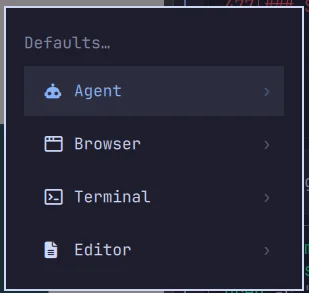
through:
Super + Space
→ Setup
→ Defaults
Current source and UI behavior treat these as explicit Omarchy default categories.
As of September 2026, the file manager is not yet an equivalent first-class Defaults category in the current Quattro source.
We will discuss that limitation later.
17.4 — Current Course Workstation Defaults
The workstation used while building this course currently uses:
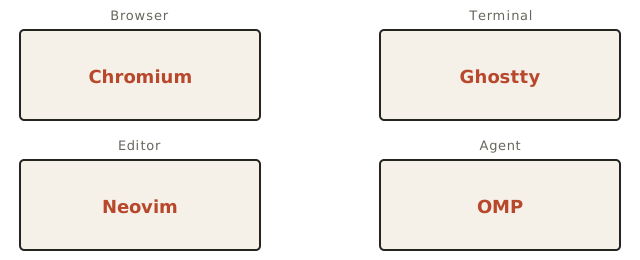
These are workstation choices.
They are not mandatory course requirements.
Notice that current official Omarchy documentation describes:
Footas the fresh-install terminal default, while this course workstation has deliberately switched to:
GhosttyThat is exactly what the defaults layer is for.
17.5 — Inspect the Default Browser
Run:
omarchy default browserCurrent official Omarchy browser documentation states that running this command with no browser argument prints the current default.
Example:
chromiumor:
firefoxdepending on your machine.
17.6 — Set the Default Browser
Current official syntax:
omarchy default browser firefox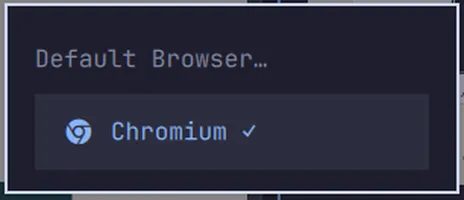
or another installed supported browser.
The UI path:
Super + Space
→ Setup
→ Defaults
→ Browser
The menu currently lists installed browsers and marks the active one.
17.7 — Installing a Browser Does Not Automatically Make It Default
This is an important current Omarchy behavior.
Suppose you install:
Firefoxthrough:
Install → BrowserThat does not necessarily replace Chromium as the active default.
Installation and default selection are separate actions.
Workflow:
install application
↓
choose default
This is a good system-design pattern.
17.8 — Current Supported Browser Options
Current official browser documentation lists install options including:
Chromium
Chrome
Edge
Brave
Brave Origin
Firefox
Zen
The exact list may evolve.
Use:
Install → Browseron the current system instead of treating a printed list as permanent.
17.9 — Browser Default and XDG
Current official Omarchy browser documentation explicitly states that:
omarchy default browser ...sets the XDG handler.
That means it is intended to affect more than:
Omarchy's browser shortcutIt should also affect applications that ask the desktop to open a web link.
Conceptually:
Omarchy default browser
        ↓
XDG handler
        ↓
xdg-open / desktop apps / links
17.10 — Test the Browser Default
After changing the browser:
omarchy default browserThen:
xdg-open https://example.comExpected:
the selected default browser opensThen test:
Super + Shift + ReturnExpected:
same preferred browser familyIf one path differs, investigate the launcher rather than assuming the default command failed.
17.11 — xdg-settings
The XDG utilities include:
xdg-settingsFor browsers, a useful inspection command is:
xdg-settings get default-web-browserThis typically returns a desktop-file ID such as:
chromium.desktopor:
firefox.desktopThis is lower-level than:
omarchy default browserbut valuable for diagnosis.
17.12 — What Is a .desktop ID?
Linux desktop applications commonly install metadata files ending in:
.desktopExamples:
firefox.desktop
chromium.desktop
com.mitchellh.ghostty.desktop
These files describe things such as:
- application name;
- executable command;
- icon;
- supported MIME types;
- desktop integration.
The filename acts as an application identifier in many XDG workflows.
17.13 — Why Omarchy Can Say ghostty While XDG Says com.mitchellh.ghostty.desktop
Omarchy gives humans a simple command:
omarchy default terminal ghosttyInternally, current Quattro maps that to the desktop ID:
com.mitchellh.ghostty.desktopThis is normal.
Think of it as:
friendly Omarchy name
→ desktop application ID
17.14 — Default Terminal
Current official Omarchy terminal documentation says fresh Omarchy uses:
Footby default.
Current supported terminal options include:
Foot
Alacritty
Ghostty
Kitty
through the Omarchy terminal installation/default workflow.
17.15 — Inspect the Default Terminal
Run:
omarchy default terminalOn the course workstation:
ghosttyshould be expected.
Your machine may show another value.
17.16 — Set the Default Terminal
Current syntax:
omarchy default terminal ghosttyor:
omarchy default terminal footor another supported terminal.
UI path:
Super + Space
→ Setup
→ Defaults
→ Terminal
17.17 — Current Terminal Default Uses xdg-terminal-exec
Current Quattro source explicitly describes:
omarchy default terminalas setting the default used by:
xdg-terminal-execCurrent implementation writes:
~/.config/xdg-terminals.listwith the selected desktop application ID.
That is a very useful example of Omarchy integrating with a desktop standard rather than hard-coding every terminal launch.
17.18 — Inspect the XDG Terminal Preference
Run:
cat ~/.config/xdg-terminals.listOn a Ghostty-based workstation, the current file may contain:
com.mitchellh.ghostty.desktopCurrent implementation comments describe the first valid entry as the preferred terminal.
17.19 — Inspect Through xdg-terminal-exec
Current Quattro terminal default code uses:
xdg-terminal-exec --print-idto discover the active terminal desktop ID.
Run:
xdg-terminal-exec --print-idif supported by your installed version.
Then compare it with:
omarchy default terminalThe values may be expressed differently but should correspond to the same application.
17.20 — Test the Terminal Default
After changing the default terminal:
Super + Returnshould open the selected terminal.
Also test a workflow that uses terminal dispatch indirectly if available.
The important question is:
Does the launcher resolve the current default dynamically?
17.21 — Default Editor
Current official Omarchy development documentation says Neovim ships as the default editor.
Alternative editor installation options currently include:
VS Code
Cursor
Zed
Sublime Text
Helix
Vim
Emacs
Current Omarchy exposes the system-wide editor choice under:
Setup
→ Defaults
→ Editor
17.22 — Inspect the Default Editor
Run:
omarchy default editorif supported by the current installed CLI.
If exact CLI behavior differs, inspect:
omarchy default --helpand:
omarchy commands --all | grep -i editorThe installed CLI is the final source of truth.
17.23 — Set the Default Editor
Use the current Omarchy UI:
Super + Space
→ Setup
→ Defaults
→ Editor
Or use the corresponding current CLI command if available.
The goal is that Omarchy’s config-edit actions can open your chosen editor without hard-coded per-feature changes.
17.24 — Default Agent
The agent default behaves conceptually like the other defaults, but it is not an XDG association.
Current Omarchy stores the chosen coding-agent name in:
~/.config/omarchy/defaults/agentSet:
omarchy default agent ompInspect:
omarchy default agentThis is an Omarchy-specific default rather than a freedesktop desktop standard.
17.25 — XDG: What Does It Actually Mean?
“XDG” is commonly used to refer to desktop interoperability standards and tools from the freedesktop ecosystem.
For this course, you mainly need to understand three practical ideas:
1. application metadata
2. content-type handlers
3. standard launch/open behavior
You do not need to study the entire XDG specification.
17.26 — MIME Types
A MIME type identifies the kind of content being opened.
Examples:
text/plain
image/png
application/pdf
inode/directory
The desktop can associate a MIME type with a default .desktop application.
Conceptually:
application/pdf
→ PDF viewer.desktop
17.27 — URL Scheme Handlers
URLs also have scheme handlers.
Common schemes:
http
https
mailto
A desktop system can associate:
x-scheme-handler/httpswith the default browser.
This is one reason browser selection affects links opened from many unrelated applications.
17.28 — xdg-mime
Use:
xdg-mime query default MIME_TYPEExample:
xdg-mime query default text/plainor:
xdg-mime query default inode/directoryThis reveals the currently associated .desktop application.
17.29 — Inspect the Default Directory Handler
Run:
xdg-mime query default inode/directoryYou may see a file-manager desktop ID.
This tells you the XDG association for directories.
However, current Omarchy has an important exception here.
17.30 — Current File-Manager Limitation in Omarchy Quattro
As of September 2026, current Omarchy Quattro does not yet expose:
File Manageras a first-class:
Setup → Defaultscategory equivalent to browser, terminal, editor, and agent.
A current open Omarchy issue documents that the default file-manager launcher still resolves directly to Nautilus rather than dynamically honoring the XDG directory handler in all Omarchy launch paths.
This means:
xdg-mime default org.kde.dolphin.desktop inode/directorymay successfully change the XDG directory handler while an Omarchy file-manager hotkey can still open Nautilus.
This is a current implementation limitation, not a general XDG rule.
17.31 — Why Current Limitations Matter in a Course
A bad handbook would say:
"Set XDG default and everything will always follow it."That would be too broad.
A better handbook says:
XDG defines the association
but an application can bypass it by hard-coding a launcher
That distinction is extremely useful for troubleshooting.
17.32 — xdg-open
xdg-open asks the desktop environment to open a resource using its associated application.
Examples:
xdg-open https://example.comxdg-open README.mdxdg-open .Conceptually:
resource
→ determine type/scheme
→ resolve default handler
→ launch application
17.33 — xdg-open Is a Great Diagnostic Tool
Suppose:
clicking a URL in App A opens the wrong browserTest:
xdg-open https://example.comIf xdg-open uses the correct browser:
XDG default is probably correctThe problematic application may be:
- using its own browser preference;
- hard-coding a browser;
- launching through another mechanism.
17.34 — Test a File Handler
Create:
echo "hello" > /tmp/xdg-test.txtThen:
xdg-open /tmp/xdg-test.txtObserve which application opens the file.
Query:
xdg-mime query default text/plainThe two should normally align.
17.35 — Changing MIME Associations Manually
Low-level syntax:
xdg-mime default APPLICATION.desktop MIME_TYPEExample:
xdg-mime default some-editor.desktop text/plainBut:
Prefer Omarchy’s own Defaults UI/CLI when Omarchy already exposes that category.
Use raw XDG commands primarily when:
- diagnosing;
- handling unsupported categories;
- following upstream application guidance.
17.36 — Why Omarchy Defaults Are Better Than Editing Hotkeys
Suppose you dislike Chromium.
Bad approach:
edit browser hotkey
→ hard-code firefox
Now:
Super + Shift + Return
→ Firefox

but xdg-open
→ Chromium
You created inconsistency.
Better:
omarchy default browser firefoxNow Omarchy updates the intended system-level browser default integration.
17.37 — Why Omarchy Defaults Are Better Than Editing Internal Scripts
Do not edit:
/usr/share/omarchy/bin/...just to change your default application.
Those files are package-owned.
Updates may replace them.
Use:
Setup → Defaultsor the public CLI.
17.38 — Environment Variables Are Not the Whole Story
Linux applications may sometimes inspect variables such as:
EDITOR
VISUAL
BROWSER
But modern graphical desktop default handling also uses XDG associations and .desktop metadata.
Do not assume:
export BROWSER=firefoxis universally sufficient.
Current Omarchy explicitly uses proper browser/XDG integration for its supported default workflow.
17.39 — $EDITOR
Command-line tools often use:
$EDITORto determine which editor to open.
Examples can include:
- Git;
- CLI configuration tools;
- text-mode programs.
Inspect:
echo "$EDITOR"Also inspect:
echo "$VISUAL"These are separate from MIME associations.
17.40 — Git Editor vs System Editor
Git can have its own configured editor.
Inspect:
git config --global core.editorIf empty, Git may fall back to environment/default behavior.
A system-wide Omarchy editor preference and a Git-specific override are not necessarily the same layer.
Understand which one you are changing.
17.41 — Application-Specific Defaults Can Override System Defaults
Some applications maintain their own preferences.
Example:
App setting:
"Open links in internal browser"
or:
terminal configured explicitly inside an IDEIn such cases:
system defaultmay be correct while the application intentionally overrides it.
This is not a desktop bug.
17.42 — Web Apps Are a Special Case
Current Omarchy uses Chromium-family browser integration for web-app behavior.
Current official browser documentation says Chromium-family browsers receive Omarchy-specific integration, and Omarchy web apps are designed around that system.
Therefore:
default browserand:
web-app runtimeshould not always be assumed to be identical concepts.
This is particularly relevant if you prefer Firefox or another non-Chromium browser for normal browsing.
17.43 — Do Not Hack Web-App Internals Just to Match the Browser
If current Omarchy’s web-app launcher does not behave exactly like your preferred default browser:
do not immediately overwrite internal scriptsFirst determine:
- whether this is intended current behavior;
- whether the official implementation supports your browser;
- whether there is a current upstream solution.
Package-owned script modifications create maintenance debt.
17.44 — Current Browser Shortcut
Current official hotkeys include:
Super + Shift + Return
→ Browser
The browser launcher is intended to follow the chosen default browser.
Test it after changing defaults.
17.45 — Current Terminal Shortcut
Current official hotkeys include:
Super + Return
→ Terminal
Current official terminal docs say the binding dynamically follows the selected default terminal.
That means:
switch Foot → Ghosttyshould not require rewriting the keybinding.
17.46 — Current Editor Shortcut
Current official hotkeys include:
Super + Shift + N
→ Editor
The selected default editor should be used by Omarchy’s editor integration.
Again:
choose defaultis better than:
rewrite hotkey17.47 — The Best Default-App Test Matrix
When you change a default, test multiple paths.
Browser
omarchy default browser
xdg-settings get default-web-browser
xdg-open https://example.com
Super + Shift + Return
Terminal
omarchy default terminal
xdg-terminal-exec --print-id
Super + Return
Editor
Omarchy default/editor command
Super + Shift + N
Setup → Config
This catches inconsistent launchers.
17.48 — Diagnosing “Wrong Browser Opens”
Use:
1. omarchy default browser
2. xdg-settings get default-web-browser
3. xdg-open https://example.com
4. test Omarchy browser hotkey
5. test the specific problematic application
Now classify the problem.
17.49 — Browser Diagnosis Outcomes
Case A
Omarchy default wrong
XDG wrong
Fix the default.
Case B
Omarchy default correct
XDG correct
xdg-open correct
specific app wrong
The application likely has its own behavior.
Case C
Omarchy browser shortcut wrong
xdg-open correct
Investigate the current Omarchy launcher/config, not XDG itself.
17.50 — Diagnosing “Wrong Terminal Opens”
Run:
omarchy default terminalThen:
xdg-terminal-exec --print-idThen:
Super + ReturnIf the selected app differs, inspect:
~/.config/xdg-terminals.listand current Omarchy terminal documentation/source.
Do not hard-code the terminal inside personal keybindings unless you intentionally want a special non-default shortcut.
17.51 — Special Terminal Shortcuts Can Intentionally Ignore the General Default
Example:
Super + Return
→ default terminal

Super + Alt + Return
→ terminal + Tmux workflow
The second shortcut is a specific workflow rather than merely “open any terminal.”
This is a valid distinction.
17.52 — Default vs Explicit Application Binding
Understand the difference:
"Open my default browser"vs:
"Open Firefox specifically"Both are valid.
Use default-resolution when your intention is generic.
Use an explicit app only when the application identity itself matters.
17.53 — Reproducibility and Defaults
Your workstation setup documentation should record:
browser
terminal
editor
agent
Example:
Browser: Chromium
Terminal: Ghostty
Editor: Neovim
Agent: OMP
Later, Module 22 will incorporate these into your reproducible workstation process.
17.54 — Practical Exercise: Record Current Defaults
Run:
omarchy default browseromarchy default terminalomarchy default agentInspect the current editor through the appropriate default command/menu.
Create:
Browser:
Terminal:
Editor:
Agent:
and fill it in.
17.55 — Practical Exercise: Inspect Browser XDG State
Run:
xdg-settings get default-web-browserCompare with:
omarchy default browserExample relationship:
Omarchy:
chromium

XDG:
chromium.desktop
The names differ in representation but refer to the same application.
17.56 — Practical Exercise: Test xdg-open
Run:
xdg-open https://example.comVerify the selected browser.
Then:
Super + Shift + ReturnVerify the normal Omarchy browser launcher.
Both should make sense relative to your chosen browser.
17.57 — Practical Exercise: Inspect Terminal XDG State
Run:
cat ~/.config/xdg-terminals.listThen:
xdg-terminal-exec --print-idif supported.
Compare with:
omarchy default terminalUnderstand the friendly name vs .desktop ID relationship.
17.58 — Practical Exercise: Change Terminal Temporarily
If you have two supported terminals installed, switch:
omarchy default terminal OTHER_TERMINALPress:
Super + ReturnConfirm.
Then switch back to your preferred terminal.
If only one terminal is installed, skip the change.
17.59 — Practical Exercise: Query MIME Handlers
Run:
xdg-mime query default text/plainThen:
xdg-mime query default inode/directoryRecord the returned desktop IDs.
You do not need to change them.
17.60 — Practical Exercise: Inspect a .desktop File
Suppose:
xdg-settings get default-web-browserreturns:
chromium.desktopFind it:
fd chromium.desktop /usr/share/applications ~/.local/share/applications 2>/dev/nullThen inspect:
bat /usr/share/applications/chromium.desktopif that is the resolved path.
Look for:
Name=
Exec=
MimeType=
Do not edit package-owned desktop files.
17.61 — Practical Exercise: Test Directory Handling
Run:
xdg-mime query default inode/directoryThen:
xdg-open ~Observe the file manager.
Then test Omarchy’s file-manager hotkey.
If they differ on a current release:
you have observed a launcher/XDG mismatchrather than a mysterious Linux failure.
17.62 — Practical Exercise: Editor Integration
Open:
Super + Space
→ Setup
→ Defaults
→ Editor
Verify the selected editor.
Then launch:
Super + Shift + NFinally open an Omarchy config through:
Setup → ConfigConfirm that the default editor integration behaves consistently.
17.63 — Common Default/XDG Mistakes
Mistake 1 — Editing a Keybinding to Change the Default Browser
Use:
omarchy default browser ...instead.
Mistake 2 — Assuming Installing an App Makes It Default
Installation and default selection are separate.
Mistake 3 — Confusing Omarchy Names with .desktop IDs
Example:
ghosttyvs:
com.mitchellh.ghostty.desktopMistake 4 — Assuming $BROWSER Controls Every Graphical Link
Modern desktop integration uses XDG handlers as well.
Mistake 5 — Assuming Every App Honors XDG
Applications can override or hard-code behavior.
Mistake 6 — Assuming File Manager Is Currently a First-Class Omarchy Default
As of September 2026, current Quattro still has a documented gap here.
Mistake 7 — Editing /usr/share/applications/*.desktop Directly
Package updates can replace those files.
Mistake 8 — Editing Omarchy Internal Launch Scripts
Use public defaults/configuration interfaces first.
Mistake 9 — Assuming Web Apps Must Use the Same Runtime as Your Normal Browser
Current Omarchy web-app integration has its own browser constraints.
Mistake 10 — Testing Only One Launch Path
A default is only useful if the launch paths you care about actually honor it.
17.64 — Checkpoint
Before moving on, you should be able to answer yes to the following.
Omarchy Defaults
- I know the current first-class default categories.
- I can inspect the default browser.
- I can inspect the default terminal.
- I know where to change the default editor.
- I can inspect/change the default agent.
- I understand installation does not automatically imply default selection.
XDG Concepts
- I understand what a
.desktopID is. - I understand MIME types at a practical level.
- I understand URL scheme handlers.
- I know what
xdg-opendoes conceptually. - I can inspect the default browser with
xdg-settings. - I can inspect MIME associations with
xdg-mime.
Terminal Integration
- I understand
xdg-terminal-execat a high level. - I know Omarchy writes
~/.config/xdg-terminals.list. - I understand the friendly-name vs desktop-ID mapping.
Troubleshooting
- I test more than one launch path.
- I understand that applications can override system defaults.
- I know current file-manager behavior is an Omarchy exception/limitation.
- I do not edit package-owned launchers merely to change a preference.
17.65 — What You Can Now Do
After completing Module 17, you can now:
- set Omarchy defaults cleanly;
- understand why links open in a particular browser;
- verify browser integration with XDG;
- understand terminal-default resolution;
- distinguish friendly application names from
.desktopIDs; - inspect MIME and directory handlers;
- diagnose applications that ignore defaults;
- avoid unnecessary keybinding hacks;
- understand current Omarchy file-manager limitations;
- document your preferred application stack reproducibly.
Most importantly:
You now understand the difference between “I bound a key to this app” and “the workstation considers this app the system default.”
Module 17 Summary
Current first-class Omarchy default categories:
Browser
Terminal
Editor
Agent
Browser:
omarchy default browser
omarchy default browser firefox
XDG browser check:
xdg-settings get default-web-browserOpen through desktop association:
xdg-open https://example.comTerminal:
omarchy default terminal
omarchy default terminal ghostty
Current terminal preference file:
~/.config/xdg-terminals.listInspect:
xdg-terminal-exec --print-idMIME handler inspection:
xdg-mime query default text/plain
xdg-mime query default inode/directory
Core model:
Omarchy preference
        ↓
desktop/XDG integration where applicable
        ↓
launcher/app
Current exception:
file manager
→ not yet equivalent first-class Defaults category
→ some Omarchy launch paths can still be hard-coded to Nautilus
And the most important rule:
Change a default at the default layer. Do not patch every launcher individually.