Module 18: Updates and Maintenance on Omarchy
In this module — 77 sections
- What You Will Learn
- 18.1 — The Supported Update Command
- 18.2 — Why Omarchy Wraps the Update
- 18.3 — Do Not Use pacman -Syu as Your Normal Omarchy Update
- 18.4 — Why the Guard Exists
- 18.5 — The High-Level Update Pipeline
- 18.6 — Check the Current Version
- 18.7 — Version Verification After an Update
- 18.8 — The Update Indicator
- 18.9 — You Do Not Need to Update Every Five Minutes
- 18.10 — Free-Space Protection
- 18.11 — Do Not Force Past Low Disk Space Casually
- 18.12 — Package Cache Maintenance
- 18.13 — Why Keeping Some Old Packages Is Useful
- 18.14 — Automatic Update Snapshots
- 18.15 — Manual Snapshot Creation
- 18.16 — Snapshots Are Not Backups of Your Personal Files
- 18.17 — Why ~/.config Is Not Rolled Back
- 18.18 — Snapshot vs Dotfiles vs Backup
- 18.19 — Booting a Snapshot
- 18.20 — Direct Boot Changes Snapshot Access
- 18.21 — Snapshot Support Depends on the Boot Setup
- 18.22 — Restoring a Snapshot
- 18.23 — Omarchy Migrations
- 18.24 — Migrations Run Per User
- 18.25 — Normal Migration Command
- 18.26 — Why Direct Pacman Updates Can Leave Pending Migrations
- 18.27 — Mise Is Part of the Blessed Update Path
- 18.28 — Project Runtime Pinning Still Protects Projects
- 18.29 — Post-Update Hooks
- 18.30 — Keep Post-Update Hooks Lightweight
- 18.31 — Update Log
- 18.32 — Update Log Analysis
- 18.33 — Keep the Update Terminal Open When Something Fails
- 18.34 — Update Sleep Inhibition
- 18.35 — Restart Handling After Updates
- 18.36 — Do Not Reboot in the Middle of the Update Pipeline
- 18.37 — Kernel Updates
- 18.38 — Firmware Updates Are Separate
- 18.39 — What Firmware Can Cover
- 18.40 — Firmware Capability Does Not Mean an Update Is Available
- 18.41 — Firmware May Require Reboot
- 18.42 — Update Channels
- 18.43 — Stable
- 18.44 — RC
- 18.45 — Edge
- 18.46 — Dev
- 18.47 — Change Channels Through Omarchy
- 18.48 — Do Not Channel-Hop Casually
- 18.49 — Orphan Packages
- 18.50 — Do Not Delete Packages Just Because They Are Called Orphans
- 18.51 — Pacnew and Pacsave
- 18.52 — A Sensible Maintenance Rhythm
- 18.53 — Maintenance Is Not Constant Tinkering
- 18.54 — Pre-Update Checklist for Important Machines
- 18.55 — Post-Update Check
- 18.56 — Minimal Developer Verification
- 18.57 — If an Update Fails Before Package Changes
- 18.58 — If Package Update Fails
- 18.59 — If the System Boots but Something Is Broken
- 18.60 — If the System Does Not Boot After an Update
- 18.61 — omarchy reinstall
- 18.62 — Reinstall Is Not Routine Maintenance
- 18.63 — Personal Config Before Reinstall
- 18.64 — Practical Exercise: Inspect Version and Update Commands
- 18.65 — Practical Exercise: Check Update Indicator
- 18.66 — Practical Exercise: Inspect Snapshot Support
- 18.67 — Practical Exercise: Create a Manual Snapshot
- 18.68 — Practical Exercise: Inspect Migration State
- 18.69 — Practical Exercise: Inspect Update Log Location
- 18.70 — Practical Exercise: Check Firmware Through the Menu
- 18.71 — Practical Exercise: Inspect the Current Channel
- 18.72 — Practical Exercise: Build Your Maintenance Checklist
- 18.73 — Common Update and Maintenance Mistakes
- 18.74 — Checkpoint
- 18.75 — What You Can Now Do
- Module 18 Summary
About This Module
You now have a customized, AI-native development workstation.
The next challenge is keeping it healthy.
Omarchy is Arch-based, but current Omarchy 4 / Quattro deliberately does not treat system maintenance as:
sudo pacman -Syuand nothing else.
Current Omarchy wraps system updates in its own update pipeline because an Omarchy update can involve more than package replacement.
The current official update process includes:
- package updates;
- Omarchy updates;
- per-user migrations;
- pre-update snapshot creation;
- update hooks;
- mise-managed development-tool updates;
- restart/reboot checks;
- update-log analysis;
- update-state refresh.
The blessed update command is:
omarchy updateThe goal of this module is:
Update the workstation through the supported path, understand what Omarchy is protecting for you, recover safely when an update goes wrong, and develop a sensible maintenance routine without turning the machine into a full-time Arch maintenance hobby.
What You Will Learn
By the end of Module 18, you will understand:
- the supported Omarchy update path;
- why direct
pacman -Syuis guarded; - what happens during
omarchy update; - what Omarchy migrations are;
- why update snapshots matter;
- what snapshots do and do not protect;
- how the shell update indicator works;
- how to inspect your Omarchy version;
- the difference between stable, RC, edge, and dev channels;
- why most users should remain on stable;
- how firmware updates differ from normal package updates;
- what happens to mise-managed tools during an Omarchy update;
- why the update process checks free disk space;
- where update logs are written;
- when rebooting after an update is appropriate;
- how to think about orphan-package cleanup;
- how to handle a failed update without immediately reinstalling the machine;
- how to build a practical weekly/monthly maintenance routine.
18.1 — The Supported Update Command
Current official Omarchy CLI:
omarchy updateThis is the primary supported system-update path.
You can also launch it from:
Super + Space
→ Update
→ Omarchy
or by clicking the current Omarchy update indicator in the top bar when an update is waiting.
18.2 — Why Omarchy Wraps the Update
On plain Arch, you may be used to:
sudo pacman -SyuBut Omarchy adds system-level behavior around the package transaction.
Current official Omarchy update documentation says the update flow owns:
package transaction
+
migrations
+
post-update hooks
+
update-state refresh
+
restart checks
That means bypassing Omarchy’s updater can leave the package state updated while Omarchy-specific follow-up steps remain incomplete.
18.3 — Do Not Use pacman -Syu as Your Normal Omarchy Update
Current Omarchy actively guards direct full-system pacman upgrades.
If you run:
sudo pacman -Syuthe current update guard normally stops the transaction and tells you to use:
omarchy updateinstead.
This is intentional.
18.4 — Why the Guard Exists
The guard protects you from accidentally skipping:
- the pre-update snapshot;
- Omarchy migrations;
- configuration transitions;
- post-update hooks;
- restart handling;
- other Omarchy update coordination.
The important lesson is:
Arch knowledge is useful on Omarchy, but Omarchy’s supported maintenance workflow still comes first.
18.5 — The High-Level Update Pipeline
Current official update-process documentation describes a flow conceptually like:
omarchy update
        ↓
check free disk space
        ↓
confirm update
        ↓
prune old package-cache versions
        ↓
create system snapshot
        ↓
temporarily inhibit sleep
        ↓
update packages
        ↓
run Omarchy migrations
        ↓
update mise-managed tools
        ↓
run post-update hook
        ↓
analyze update log
        ↓
refresh update status
        ↓
restore normal idle behavior
        ↓
restart/reboot checks
You do not need to memorize every internal helper.
You should understand what the wrapper is doing for you.
18.6 — Check the Current Version
Use:
omarchy versionThis is the correct current public CLI form.
Do not assume:
omarchy --versionworks.
That was one of the real mistakes encountered during the course setup.
18.7 — Version Verification After an Update
After updating:
omarchy versionThen, if a kernel update occurred:
uname -rYou may also check your core working state:
git --version
mise --version
and the specific runtimes you depend on.
You do not need to inventory the whole machine after every update.
18.8 — The Update Indicator
Current Omarchy Shell includes an update indicator near the clock.
The current official update-process documentation says the shell checks for Omarchy updates:
on shell startup
+
approximately every six hours
When an update is available, the update badge appears.
Clicking it launches the update flow in a terminal.
18.9 — You Do Not Need to Update Every Five Minutes
Omarchy is built on a rolling Linux base, but compulsive update checking adds little value.
A sensible workstation rhythm is:
when the shell shows an update
or
periodically when convenient
For a development machine, update when you have enough time to:
- let the update finish;
- reboot if required;
- validate your core workflow.
Do not start a major update two minutes before an important meeting.
18.10 — Free-Space Protection
Current official update-process documentation says:
omarchy updatechecks free space on:
/before proceeding.
The current threshold is:
10 GiBIf available root space is below that threshold, the updater aborts before the package transaction.
This helps prevent update failures caused by a nearly full system filesystem.
18.11 — Do Not Force Past Low Disk Space Casually
Current internals provide a force mechanism for exceptional cases.
That does not mean you should use it as the normal answer.
If the updater says:
not enough disk spacethe correct response is:
investigate disk usagenot:
force the updateWe will cover deeper storage troubleshooting later.
18.12 — Package Cache Maintenance
Current update logic trims the pacman package cache before creating the snapshot.
The current official process keeps:
two cached versions per packagethrough the package-cache pruning step.
This provides a balance:
retain downgrade options
+
avoid unlimited cache growth
You generally do not need to manually purge the whole pacman cache.
18.13 — Why Keeping Some Old Packages Is Useful
Suppose:
new package version
→ regression
Having an older package version cached can help with diagnosis or downgrade.
Deleting the entire cache after every update removes that safety net.
Omarchy’s current maintenance process intentionally keeps a small history.
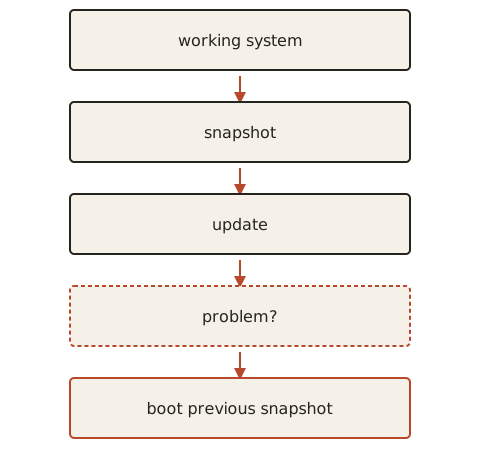
18.14 — Automatic Update Snapshots
Current official Omarchy snapshot documentation states that Omarchy creates a system snapshot automatically on every normal Omarchy update.
This gives you a rollback point from immediately before the update.
Conceptually:
This is one of the strongest recovery features in Omarchy.
18.15 — Manual Snapshot Creation
Current official snapshot command is:
omarchy-snapshot createUse this before a risky system-level experiment when you want an additional manual recovery point.
Examples:
- boot configuration changes;
- low-level graphics changes;
- risky package experiments;
- significant system modifications.
18.16 — Snapshots Are Not Backups of Your Personal Files
This distinction is critical.
Current official Omarchy documentation says snapshot restoration restores the:
root filesystembut not your:
/homeThat means snapshots are excellent for:
broken system updatebut not for:
deleted project
lost documents
corrupted personal config
18.17 — Why ~/.config Is Not Rolled Back
Your personal configuration normally lives under:
/home/YOUR_USER/.configSince /home is not restored by the system snapshot:
~/.configstays at its current state.
This can matter when rolling the system backward.
Example:
new app version
→ writes new config format

system snapshot restore
→ old app version returns

~/.config
→ still contains newer config
You may need to resolve that manually.
18.18 — Snapshot vs Dotfiles vs Backup
Use the correct recovery tool for the correct layer.
System snapshot
→ recover root/system update state

Dotfiles Git repository
→ recover intentional personal configuration

Project Git repositories
→ recover source-code history

Real file backup
→ recover personal data/files
No single one replaces the others.
18.19 — Booting a Snapshot
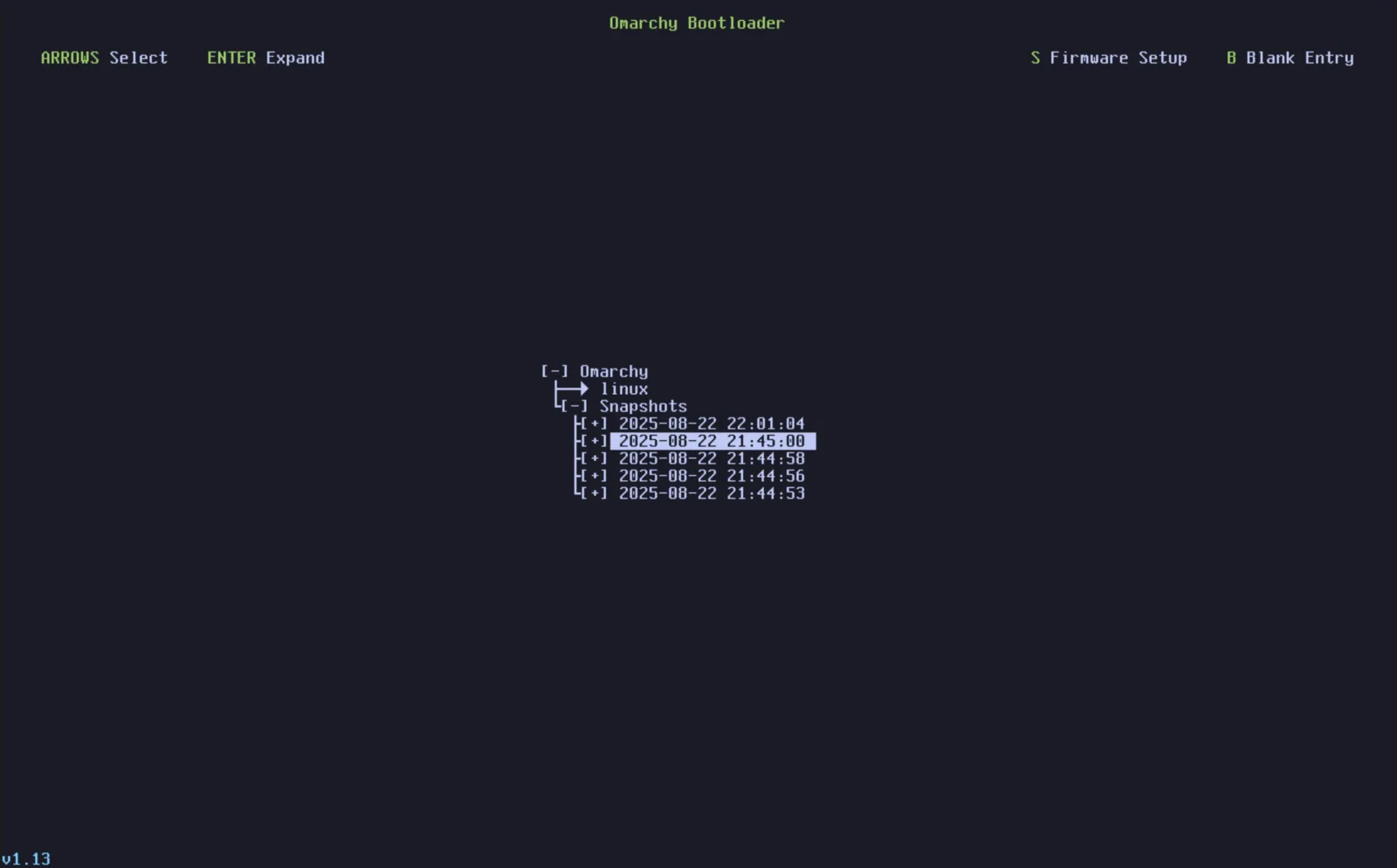
Current official Omarchy snapshot documentation says snapshots are bootable through:
LimineOn a normal Limine boot:
restart
→ select the appropriate snapshot
→ boot it
Snapshots are identified by date/version in the boot interface.
18.20 — Direct Boot Changes Snapshot Access
Current Omarchy can be configured to boot directly into Omarchy rather than showing Limine.
If direct boot is enabled, getting to a snapshot requires entering the firmware/BIOS boot menu and choosing Limine.
This is a convenience/recovery trade-off.
18.21 — Snapshot Support Depends on the Boot Setup
Current official snapshot documentation says this bootable-snapshot feature is supported on Omarchy installations using:
Limineand is not available in the same way on:
GRUB
systemd-boot
The course workstation uses Limine, so snapshot rollback is part of our expected recovery plan.
18.22 — Restoring a Snapshot
After booting a snapshot, current Omarchy can offer a notification to begin restoration.
The current manual also documents the restore helper:
omarchy-snapshot restoreDo not restore blindly.
First confirm:
- you booted the intended snapshot;
- the problem truly began after the later update;
- your personal
/homestate is understood.
18.23 — Omarchy Migrations
Current Omarchy updates can include:
migrationsA migration is a one-time transition that changes state package installation alone cannot safely own.
Examples can involve:
- user config;
- user systemd state;
- application preferences;
- session state;
- machine-level repair coordinated from the user update.
18.24 — Migrations Run Per User
Current official migration design stores completion state under:
~/.local/state/omarchy/migrations/That means migration completion is tracked per user.
This is important on shared machines.
Each user gets the required user-level transitions.
18.25 — Normal Migration Command
The normal supported path is simply:
omarchy updatewhich runs pending migrations.
You normally do not need to run the migration engine manually.
For diagnosis, the current public migration helper is:
omarchy-migrateand pending-state inspection supports:
omarchy-migrate --pendingUse this mainly when the official update flow or notification tells you migrations remain pending.
18.26 — Why Direct Pacman Updates Can Leave Pending Migrations
If a user deliberately bypasses the Omarchy pacman guard, package files may update without that user’s normal Omarchy migration flow.
Current Quattro can detect pending per-user migrations at graphical login and notify the user.
The system does not silently run those migrations in the background.
That is a deliberate safety/design choice.
18.27 — Mise Is Part of the Blessed Update Path
Current official update-process documentation says:
mise-managed toolsare updated as part of the normal Omarchy update pipeline.
The current internal step uses:
mise upwith Omarchy’s intended update policy.
This means your globally mise-managed development tools are part of routine workstation maintenance.
18.28 — Project Runtime Pinning Still Protects Projects
Suppose your global Node updates.
A project with:
mise.tomlrequesting a specific version still has an explicit project environment.
This is another reason project-level version declarations matter.
System/workstation updates and project reproducibility are separate layers.
18.29 — Post-Update Hooks
Current Omarchy update flow runs:
post-updatehooks after package/migration work.
Your user hooks live under:
~/.config/omarchy/hooks/post-update.d/as covered in Module 14.
This is where safe, non-destructive personal maintenance automation can plug into the update lifecycle.
18.30 — Keep Post-Update Hooks Lightweight
Good:
record version
run a quick status check
update harmless metadata
Risky:
rewrite boot config
delete large amounts of data
push repositories
modify unrelated system state
An update is already a complex event.
Do not turn it into an uncontrolled chain of personal scripts.
18.31 — Update Log
Current official update-process documentation says the update transcript is written to:
/tmp/omarchy-update.logIf an update fails:
less /tmp/omarchy-update.logor:
bat /tmp/omarchy-update.logcan be useful.
This gives you real evidence instead of trying to remember terminal output.
18.32 — Update Log Analysis
Current Omarchy includes an internal update-log analysis step that checks for high-signal known failure patterns.
Current documentation specifically mentions initramfs-generation failures as one current class of analysis.
This is useful, but it does not replace reading the visible error when something goes wrong.
18.33 — Keep the Update Terminal Open When Something Fails
If the update reports an error:
do not immediately close the terminalCapture:
- the visible error;
- the stage where it happened;
- whether packages finished;
- whether migrations ran;
- whether a reboot was requested.
Then inspect:
/tmp/omarchy-update.log18.34 — Update Sleep Inhibition
Current Omarchy temporarily inhibits idle/sleep behavior during the update pipeline.
This reduces the chance that the workstation suspends halfway through a package transaction.
After the update, Omarchy restores the idle state it changed.
This connects directly to Module 16’s runtime-control model.
18.35 — Restart Handling After Updates
Current official update process has a final restart/reboot stage.
The updater can detect when components require restart.
Current design includes:
- component restart markers;
- shell restart after every update;
- reboot prompting after important updates such as kernel/Hyprland cases.
Follow the updater’s guidance.
18.36 — Do Not Reboot in the Middle of the Update Pipeline
Wait until:
package transaction
+
migrations
+
hooks
+
restart checks
finish.
If the updater asks for a reboot at the end:
reboot thenInterrupting package installation can create a much harder recovery problem.
18.37 — Kernel Updates
When the kernel updates, a reboot is generally required before the running system actually uses the new kernel.
Check before reboot:
uname -rAfter reboot:
uname -rYou can compare if diagnosing whether the new kernel is active.
Normally, simply following Omarchy’s restart prompt is enough.
18.38 — Firmware Updates Are Separate
Current official Omarchy update documentation explicitly keeps firmware updates separate from normal:
omarchy updateUse:
Super + Space
→ Update
→ Firmware
when you want to check hardware firmware.
The current firmware updater uses:
fwupdand installs it if necessary.
18.39 — What Firmware Can Cover
Depending on hardware vendor support, LVFS/fwupd may provide firmware for:
- system BIOS/UEFI;
- SSDs;
- docks;
- peripherals;
- other supported hardware.
Not every device/vendor publishes firmware through Linux Vendor Firmware Service.
18.40 — Firmware Capability Does Not Mean an Update Is Available
A machine can support:
fwupdwhile currently having:
no firmware update waitingThese are different facts.
This was another practical lesson from the course workstation.
Do not interpret:
firmware supportedas:
firmware outdated18.41 — Firmware May Require Reboot
Many firmware updates are staged and applied during reboot.
That is normal.
Plan firmware maintenance when you can tolerate:
- a restart;
- potentially longer boot time;
- firmware update screens;
- temporary device unavailability.
Do not power off halfway through a firmware flash.
18.42 — Update Channels
Current Omarchy has four update channels:
stable
RC
edge
dev
They represent different levels of freshness and risk.
18.43 — Stable
Current official documentation says new installations begin on:
stableStable tracks official Omarchy releases.
Current Omarchy’s stable Arch mirror intentionally lags the newest Arch packages by approximately:
one monthso Omarchy can catch incompatibilities/config-transition issues before those packages reach stable users.
For most users:
Stable is the correct channel.
18.44 — RC
The:
RCchannel is used for release-candidate testing before a major Omarchy release.
Use it when:
- you intentionally want to help test upcoming releases;
- you are comfortable reporting issues;
- you can recover from breakage.
Do not use RC merely because the name sounds newer.
18.45 — Edge
The:
edgechannel tracks more current Omarchy development packages and the newest Arch packages sooner.
Current official docs explicitly recommend it only for experienced Linux users who know how to recover from problems.
Edge means:
more freshness
+
more risk
18.46 — Dev
The:
devchannel is for users working directly on Omarchy.
Current official docs describe it as linking the runtime to a Git checkout, typically in:
~/omarchyand combining that with edge-style packages.
This is not a normal end-user channel.
18.47 — Change Channels Through Omarchy
Current menu path:
Super + Space
→ Update
→ Channel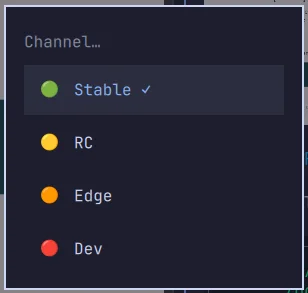
Current official docs also reference the underlying channel helper:
omarchy-channel-set <stable|rc|edge|dev>For normal workstation use, the menu is preferable.
18.48 — Do Not Channel-Hop Casually
Changing channels changes more than a label.
It can change:
- package repository selection;
- Omarchy package type;
- development checkout behavior;
- Arch package freshness.
Stay on stable unless you have a clear reason to participate in testing/development.
18.49 — Orphan Packages
An orphan package is generally a package that was installed as a dependency and is no longer required by another installed package.
Current Omarchy’s update pipeline can identify orphan packages and prompt before removal.
Current unattended updates do not silently remove them.
That is a conservative and sensible design.
18.50 — Do Not Delete Packages Just Because They Are Called Orphans
Review the list.
Ask:
Do I recognize any of these?
Do I intentionally use one directly?
Was it manually installed in an unusual way?
Package metadata is useful, but human review still matters.
18.51 — Pacnew and Pacsave
Arch package management can create files such as:
.pacnew
.pacsave
when packaged configuration and local configuration differ.
Current Omarchy update-process documentation notes that broader handling of these still remains an area of concern.
For now, advanced users should understand the concept and inspect them when relevant.
We will revisit config-recovery/troubleshooting later rather than making beginners manually reconcile every package config after every update.
18.52 — A Sensible Maintenance Rhythm
For a normal stable-channel development workstation:
Regularly
- install Omarchy updates when indicated and convenient;
- reboot when the update requests it;
- verify your normal development workflow afterward.
Occasionally
- check firmware;
- review disk usage if root space becomes low;
- inspect orphan prompts during updates;
- verify snapshots/dotfiles/backups still form a coherent recovery plan.
Before Risky System Work
- create an extra manual snapshot;
- ensure personal data is backed up;
- commit important dotfile/project changes.
18.53 — Maintenance Is Not Constant Tinkering
A healthy maintenance philosophy is:
keep current
+
observe
+
recover cleanly
not:
run random cleanup commands
every day
Avoid maintenance cargo cults such as:
- constant cache deletion;
- forced package upgrades outside Omarchy;
- routine reinstalling;
- deleting logs because logs exist;
- rebooting after every small change.
18.54 — Pre-Update Checklist for Important Machines
Before a significant update:
1. finish/commit important work
2. ensure no critical long-running task is in progress
3. confirm adequate disk space
4. update when you have time to reboot/test
5. let Omarchy create its snapshot
You do not need this ceremony for every tiny update.
Use it when the machine is important and downtime matters.
18.55 — Post-Update Check
After update/reboot:
omarchy versionThen verify what you actually use:
terminal opens
network works
audio works
editor opens
Git works
agent launches
main project runtime works
Do not run a 200-command health audit unless something is wrong.
18.56 — Minimal Developer Verification
A practical quick check:
omarchy version
git --version
mise --version
Then:
cd ~/Projects/YOUR_MAIN_PROJECT
mise ls --current
git status
Launch your editor/agent and make sure your normal workflow is intact.
18.57 — If an Update Fails Before Package Changes
If the updater stops because of:
- insufficient free space;
- confirmation;
- a preflight issue;
the system may still be untouched.
Read the exact output.
Fix the cause.
Then rerun:
omarchy updateDo not escalate to snapshot recovery when nothing was changed.
18.58 — If Package Update Fails
Do not immediately:
reinstall OmarchyInstead:
1. keep terminal output
2. inspect /tmp/omarchy-update.log
3. identify the package/error
4. check whether the updater provided a recovery action
5. consult current official docs/issues if necessary
Only then decide whether rollback is appropriate.
18.59 — If the System Boots but Something Is Broken
Use the smallest recovery scope.
Example:
audio broken
→ restart audio

shell broken
→ restart shell

one config broken
→ repair config

whole system broke after update
→ consider snapshot
Do not use the largest recovery tool first.
18.60 — If the System Does Not Boot After an Update
This is where the automatic pre-update snapshot becomes especially valuable.
Recovery concept:
firmware boot menu if necessary
↓
Limine
↓
select pre-update snapshot
↓
boot snapshot
↓
verify system
↓
restore if appropriate
Module 20 will go much deeper into boot/UKI/Limine recovery.
18.61 — omarchy reinstall
Current official update manual documents:
omarchy reinstallas a broad recovery path if configuration/system state has become severely corrupted.
The current docs warn that reinstalling:
- reinstalls default Omarchy packages;
- returns the system to stable;
- can downgrade packages that are too new;
- resets Omarchy configuration.
This is destructive to custom Omarchy config.
18.62 — Reinstall Is Not Routine Maintenance
Do not use:
omarchy reinstallas:
"maybe this will fix it"for ordinary issues.
It is a broad recovery action.
Your hierarchy should be:
diagnose
↓
repair component
↓
repair specific config
↓
snapshot rollback if system update broke system
↓
reinstall only when justified
18.63 — Personal Config Before Reinstall
Because reinstall can reset Omarchy configuration, make sure intentional personal config is preserved elsewhere.
Examples:
dotfiles Git repo
backup
manual copy
This is another reason Module 22 matters.
18.64 — Practical Exercise: Inspect Version and Update Commands
Run:
omarchy versionThen:
omarchy update --helpif the installed CLI exposes help for it.
Also inspect:
omarchy commands --all | grep -i updateRecord the current update-related public command surface.
18.65 — Practical Exercise: Check Update Indicator
Inspect the top bar.
If the update icon is visible:
an update is waitingIf it is not:
that does not mean the shell is brokenThe indicator is intentionally conditional.
Do not force an update just for the exercise.
18.66 — Practical Exercise: Inspect Snapshot Support
Run:
command -v omarchy-snapshotThen inspect current help if available:
omarchy-snapshot --helpConfirm that your system uses Limine:
bootctl statusmay provide UEFI/boot context, but the actual bootloader should be verified from your installed system rather than assumed.
The course workstation has already verified Limine separately.
18.67 — Practical Exercise: Create a Manual Snapshot
If your system has the current snapshot setup configured:
omarchy-snapshot createRecord the created snapshot.
Do this once so snapshot creation is familiar before you ever need recovery.
If the command reports snapshot support is unavailable/unconfigured, do not improvise — investigate current official setup guidance.
18.68 — Practical Exercise: Inspect Migration State
Run:
omarchy-migrate --pendingInterpret correctly:
output
→ pending migrations exist

no output + non-zero exit
→ none pending
Check:
echo $?immediately afterward if you want to inspect the exit status.
18.69 — Practical Exercise: Inspect Update Log Location
If you have run an update recently and the log still exists:
ls -lh /tmp/omarchy-update.logThen:
less /tmp/omarchy-update.logDo not worry if /tmp was cleared after reboot.
It is temporary storage.
18.70 — Practical Exercise: Check Firmware Through the Menu
Open:
Super + Space
→ Update
→ Firmware
Observe whether updates are available.
Do not install firmware in the middle of the lesson if you cannot safely reboot.
18.71 — Practical Exercise: Inspect the Current Channel
Open:
Super + Space
→ Update
→ Channel
Identify the active channel.
For this course baseline, use:
stableunless you deliberately chose another channel for testing.
Do not switch channels merely to see what happens.
18.72 — Practical Exercise: Build Your Maintenance Checklist
Create a personal checklist:
Regular:
- Omarchy update when available/convenient
- reboot when requested
- verify main dev workflow

Monthly/occasional:
- firmware check
- root disk-space awareness
- backup/dotfiles sanity check

Before risky system changes:
- commit config
- manual snapshot
- confirm backup
Keep it simple enough that you will actually use it.
18.73 — Common Update and Maintenance Mistakes
Mistake 1 — Using sudo pacman -Syu as the Normal Update
Use:
omarchy updateMistake 2 — Using omarchy --version
Current public command:
omarchy versionMistake 3 — Assuming Snapshot Restores /home
It does not.
Use backups/Git for personal data and config.
Mistake 4 — Updating Immediately Before Important Work
Leave time for reboot and verification.
Mistake 5 — Ignoring Low-Disk-Space Protection
Fix storage pressure rather than forcing through it.
Mistake 6 — Clearing the Entire Package Cache Constantly
Omarchy already maintains a bounded cache and preserves downgrade usefulness.
Mistake 7 — Treating Firmware Capability as Pending Firmware
Check whether an actual update exists.
Mistake 8 — Switching to Edge Because “Newer Is Better”
Stable is the correct default for most users.
Mistake 9 — Reinstalling for a Single Broken Component
Use component-level repair first.
Mistake 10 — Forgetting Personal Config Before Broad Recovery
Snapshots/reinstall do not substitute for a dotfiles/backup strategy.
18.74 — Checkpoint
Before moving on, you should be able to answer yes to the following.
Updates
- I know
omarchy updateis the supported update path. - I understand why direct full-system pacman updates are guarded.
- I understand the high-level update pipeline.
- I know how to check the current Omarchy version.
- I understand the update indicator.
Snapshots
- I understand automatic pre-update snapshots.
- I know the manual snapshot command.
- I understand snapshot recovery through Limine.
- I know snapshots restore root, not
/home. - I understand snapshots do not replace backups or dotfiles Git.
Migrations
- I understand what Omarchy migrations are.
- I know they are tracked per user.
- I know the normal update runs them automatically.
- I can inspect pending migration state when needed.
Maintenance
- I understand the root free-space check.
- I know Omarchy manages the package cache.
- I know mise-managed tools are included in the update flow.
- I understand restart/reboot handling.
- I know firmware updates are separate.
Channels
- I understand stable, RC, edge, and dev.
- I know stable is the normal recommendation.
- I understand why channel switching changes risk.
Recovery
- I know where the update log is written.
- I use targeted repair before broad recovery.
- I understand when a snapshot is appropriate.
- I understand that
omarchy reinstallis destructive to custom config.
18.75 — What You Can Now Do
After completing Module 18, you can now:
- update Omarchy through the supported pipeline;
- understand what happens during an update;
- avoid bypassing important Omarchy migrations/snapshots;
- verify the installed version;
- recover from a bad system update with snapshots;
- understand the limits of snapshot recovery;
- inspect pending migrations;
- maintain sensible disk/package-cache hygiene;
- update firmware deliberately;
- choose the appropriate release channel;
- diagnose failed updates from real logs;
- apply the smallest appropriate recovery action;
- maintain the workstation without turning maintenance into a hobby.
Most importantly:
You now understand that a reliable rolling-release workstation is not one that never changes — it is one that updates through a controlled path and has a tested recovery path when change goes wrong.
Module 18 Summary
Supported update:
omarchy updateVersion:
omarchy versionDo not use direct full-system pacman upgrades as the routine Omarchy update path.
Current update flow includes:
free-space check
↓
package-cache prune
↓
snapshot
↓
package updates
↓
migrations
↓
mise updates
↓
post-update hooks
↓
log analysis
↓
restart/reboot checks
Automatic snapshots:
before normal Omarchy updatesManual snapshot:
omarchy-snapshot createRestore path:
Limine
→ boot snapshot
→ verify
→ restore
Important limitation:
root filesystem
→ snapshot recovery

/home
→ not restored
Pending migrations:
omarchy-migrate --pendingUpdate log:
/tmp/omarchy-update.logChannels:
stable
RC
edge
dev
Firmware:
Update
→ Firmware
Maintenance principle:
update through Omarchy
+
keep recovery ready
+
verify the workflow you actually use
And the most important rule:
Never bypass a maintenance wrapper until you understand what the wrapper is doing for you.