Module 21: Security and Hardening on Omarchy
In this module — 96 sections
- What You Will Learn
- 21.1 — Security Is About Layers
- 21.2 — Omarchy’s Current Default Security Baseline
- 21.3 — Full-Disk Encryption
- 21.4 — What Disk Encryption Protects
- 21.5 — What Disk Encryption Does Not Protect
- 21.6 — Two Important Passwords
- 21.7 — Change Passwords Through Omarchy
- 21.8 — Strong Password Strategy
- 21.9 — Firewall
- 21.10 — Why a Default-Deny Firewall Helps
- 21.11 — Inspect Listening Services
- 21.12 — 127.0.0.1 vs 0.0.0.0
- 21.13 — Dev Servers Are Part of Your Attack Surface
- 21.14 — SSH Is Disabled by Default
- 21.15 — Enable SSH Intentionally
- 21.16 — Enabling SSH Changes the Threat Model
- 21.17 — SSH Keys
- 21.18 — SSH Private Keys Are Credentials
- 21.19 — Passphrases on SSH Keys
- 21.20 — authorized_keys
- 21.21 — Current Omarchy Unattended Install SSH Behavior
- 21.22 — Fingerprint Authentication
- 21.23 — Fingerprint Is Convenience + Security
- 21.24 — Laptop Lid Behavior
- 21.25 — Fingerprint and sudo
- 21.26 — FIDO2 Authentication
- 21.27 — FIDO2 Security Keys
- 21.28 — Do Not Lose Your Only Authentication Path
- 21.29 — Hardware Auth Can Have Current-Version Bugs
- 21.30 — Docker and Privilege
- 21.31 — Current Omarchy Docker Default
- 21.32 — “Sudoless Docker”
- 21.33 — Should You Enable Sudoless Docker?
- 21.34 — AI Agents Make Docker Privilege More Important
- 21.35 — sudo Is a Security Boundary
- 21.36 — Never Use sudo for Personal Config Files
- 21.37 — Check File Ownership
- 21.38 — Plugins Are Executable Code
- 21.39 — Plugin Trust Checklist
- 21.40 — Current Plugin Security Improvements Do Not Remove Trust
- 21.41 — Hooks Are Executable Code Too
- 21.42 — Autostart Is Another Trust Boundary
- 21.43 — AI Coding Agents Are Powerful Local Programs
- 21.44 — Agent Permission Modes Matter
- 21.45 — Natural-Language Instructions Are Not a Sandbox
- 21.46 — Project Dependencies Are Code
- 21.47 — Clone First, Inspect Second, Execute Third
- 21.48 — Lockfiles Help Reproducibility, Not Trust
- 21.49 — AUR Packages
- 21.50 — curl | sh
- 21.51 — Secrets
- 21.52 — Never Commit Secrets
- 21.53 — .gitignore Does Not Remove Existing Secrets
- 21.54 — Environment Variables
- 21.55 — .env Files
- 21.56 — Shell History
- 21.57 — Browser Security
- 21.58 — Browser Extensions Are Code
- 21.59 — Password Managers
- 21.60 — MFA for Developer Accounts
- 21.61 — GitHub Authentication
- 21.62 — Principle of Least Privilege
- 21.63 — Security vs Convenience
- 21.64 — Lock the Workstation
- 21.65 — Suspend Is Not the Same as Power-Off Protection
- 21.66 — Secure Boot
- 21.67 — TPM
- 21.68 — Security Updates
- 21.69 — Stable Channel and Security
- 21.70 — Check for Unexpected Services
- 21.71 — Check Network Exposure
- 21.72 — Localhost Development
- 21.73 — Remote Development
- 21.74 — Tailscale/VPN-Like Private Networking
- 21.75 — Security Review After Installing New Software
- 21.76 — Security Review After AI Tool Installation
- 21.77 — Plugins, Connectors, and External Integrations
- 21.78 — Backups Are Security
- 21.79 — Snapshots Are Not Backups
- 21.80 — Security Hardening Should Be Threat-Driven
- 21.81 — Practical Exercise: Verify Encryption
- 21.82 — Practical Exercise: Inspect Listening Ports
- 21.83 — Practical Exercise: Check SSH State
- 21.84 — Practical Exercise: Inspect SSH Keys
- 21.85 — Practical Exercise: Docker Privilege Check
- 21.86 — Practical Exercise: Fingerprint/FIDO2 Discovery
- 21.87 — Practical Exercise: Plugin Review
- 21.88 — Practical Exercise: Autostart Review
- 21.89 — Practical Exercise: Hook Review
- 21.90 — Practical Exercise: Secret Scan Before Commit
- 21.91 — Practical Exercise: Build Your Security Baseline
- 21.92 — Common Security Mistakes
- 21.93 — Checkpoint
- 21.94 — What You Can Now Do
- Module 21 Summary
About This Module
You now understand the boot chain, updates, recovery, hardware, runtime controls, and the development stack.
The next question is:
How do we keep this workstation secure without turning it into an unusable fortress?
Current Omarchy 4 / Quattro already makes several strong security choices by default.
The current official security documentation says the platform is designed around:
- mandatory full-disk encryption;
- a firewall enabled by default;
- SSH disabled until explicitly enabled;
- rate-limited SSH exposure when enabled;
- Docker firewall hardening;
- controlled package sources;
- frequent security updates through the rolling Arch base.
Omarchy also includes first-class setup paths for:
- fingerprint authentication;
- FIDO2 hardware authentication;
- SSHD;
- Docker privilege mode;
- password changes.
This module is deliberately practical.
We are not going to create a generic “Linux hardening checklist” full of cargo-cult commands.
The goal is:
Understand the trust boundaries of the workstation, preserve the protections Omarchy already gives you, and tighten the system where your real risk justifies it.
What You Will Learn
By the end of Module 21, you will understand:
- Omarchy’s default security model;
- why full-disk encryption matters;
- what LUKS protects and what it does not;
- the difference between the disk-unlock password and user/sudo password;
- how the firewall behaves by default;
- why SSH is disabled by default;
- how to enable SSH intentionally;
- why SSH exposure changes your attack surface;
- password vs key-based SSH at a practical level;
- how FIDO2 authentication fits into sudo/polkit;
- how fingerprint authentication fits into lock screen and sudo;
- why Docker’s
dockergroup is effectively root-equivalent; - why Omarchy defaults to sudo-controlled Docker access;
- how “Sudoless Docker” changes the security model;
- why plugins are executable code;
- why hooks and personal scripts are trust boundaries;
- why AI coding agents deserve the same security scrutiny as shell scripts;
- how project dependencies can become an attack vector;
- how browser extensions and third-party applications fit into workstation trust;
- why least privilege matters;
- how to inspect listening services;
- how to think about secrets;
- how to maintain a practical security checklist.
21.1 — Security Is About Layers
A useful workstation security model is:
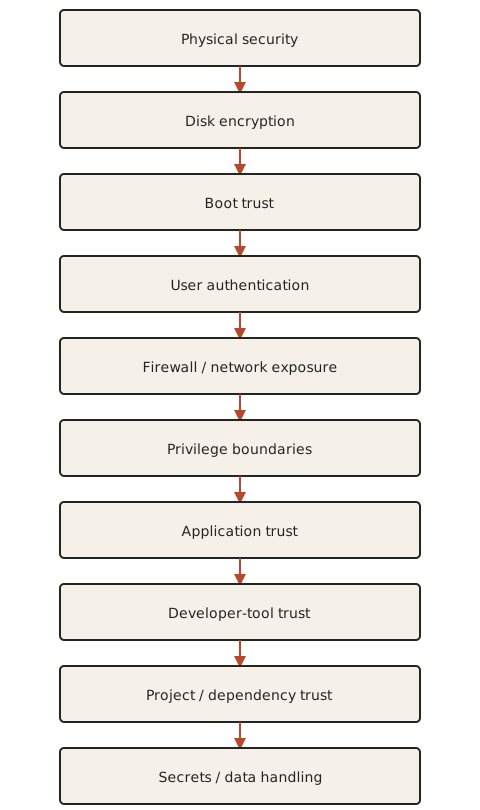
No single security feature solves everything.
For example:
LUKS
→ protects stolen powered-off storage
but it does not stop:
malicious code running while you are logged inLikewise:
firewall
→ reduces network exposure
but does not stop:
a malicious plugin reading your home directorySecurity must be layered.
21.2 — Omarchy’s Current Default Security Baseline
Current official Omarchy security documentation says the default system includes:
mandatory full-disk encryption
firewall enabled
incoming traffic blocked by default
SSHD disabled
LocalSend exception
Docker firewall integration
current package updates
controlled default package sources
This is already a strong baseline.
Do not undo those protections casually.
21.3 — Full-Disk Encryption
Current Omarchy installs use:
LUKSfor full-disk encryption.
This protects data at rest when the computer is powered off.
If a laptop is stolen:
attacker removes drive
↓
reads raw storage
↓
encrypted data
without the unlock secret.
That is the main physical-data protection.
21.4 — What Disk Encryption Protects
LUKS helps protect:
- source code;
- SSH keys;
- browser profiles;
- documents;
- API credentials stored on disk;
- local databases;
- project history;
- personal configuration;
when the drive is not unlocked.
This is especially important for laptops.
21.5 — What Disk Encryption Does Not Protect
Once the machine is:
booted
+
unlocked
+
user logged in
the operating system must be able to read your data.
Therefore disk encryption does not stop:
- malicious software running as you;
- compromised browser extensions;
- untrusted shell plugins;
- rogue development dependencies;
- commands you intentionally run;
- someone using an already-unlocked workstation.
This distinction is essential.
21.6 — Two Important Passwords
Current official Omarchy security documentation distinguishes:
drive encryption passwordand:
user/login/sudo passwordThey protect different layers.
Drive Encryption Password
Used at boot to unlock encrypted storage.
User Password
Used for:
- login;
- sudo;
- system authorization.
Do not assume changing one changes the other.
21.7 — Change Passwords Through Omarchy
Current official workflow:
Super + Space
→ Update
→ Password
Current categories include:
Drive Encryption
User
Use the supported UI/workflow rather than manually editing low-level authentication files unless you know exactly why.
21.8 — Strong Password Strategy
A useful local workstation password should be:
- long enough;
- difficult to guess;
- unique;
- memorable enough that you do not disable security out of frustration.
A passphrase is often easier to remember than a short complex password.
Do not reuse:
- GitHub password;
- email password;
- banking password;
as your local workstation password.
21.9 — Firewall
Current official Omarchy security documentation says the firewall is:
enabled by defaultand incoming traffic is blocked except for intended exceptions.
The current documented default includes LocalSend on:
port 53317SSHD is not exposed until you enable it.
This is a strong default.
21.10 — Why a Default-Deny Firewall Helps
A developer workstation can run many processes:
- dev servers;
- databases;
- containers;
- test services;
- local APIs.
Without care, some may listen on:
0.0.0.0instead of:
127.0.0.1A firewall reduces the chance that a local experiment becomes a network-exposed service.
21.11 — Inspect Listening Services
Use:
ss -tulpnor for TCP:
ss -ltnpThis helps you see which programs are listening.
You may need appropriate permissions for some process details.
Ask:
What is listening?
On which address?
On which port?
Do I expect it?
21.12 — 127.0.0.1 vs 0.0.0.0
This matters greatly.
127.0.0.1:3000means:
local machine onlywhile:
0.0.0.0:3000means:
all IPv4 interfacessubject to firewall rules.
When running local dev servers, prefer local-only binding unless remote access is intentional.
21.13 — Dev Servers Are Part of Your Attack Surface
Examples:
npm run devpython -m http.serveruvicorn ...may bind differently depending on the tool/config.
Do not assume:
"development server"means:
"only accessible from my machine"Inspect the actual bind address.
21.14 — SSH Is Disabled by Default
Current official Omarchy security documentation states that:
SSHD is off by defaultThis is good.
If you do not need remote shell access:
Leave it off.
An unavailable network service has a very small attack surface.
21.15 — Enable SSH Intentionally
Current official menu path:
Super + Space
→ Setup
→ Security
→ SSHD
Current documentation says enabling SSH:
- enables the SSH daemon;
- opens port 22 in the firewall;
- applies rate limiting against brute-force attempts.
This is much better than enabling the service and forgetting firewall state.
21.16 — Enabling SSH Changes the Threat Model
Before SSH:
network attacker
→ port closed
After SSH:
network attacker
→ can reach SSH authentication
That does not mean SSH is unsafe.
It means:
You deliberately created a remote login surface.
Treat it accordingly.
21.17 — SSH Keys
For remote administration, SSH keys are generally preferable to repeatedly typing remote account passwords.
A typical key workflow:
ssh-keygenthen install the public key on the remote machine.
Private key:
keep secretPublic key:
safe to distribute to servers you authorizeDo not upload private SSH keys to repositories.
21.18 — SSH Private Keys Are Credentials
Files under:
~/.sshcan include extremely sensitive material.
Examples:
id_ed25519
config
known_hosts
authorized_keys
The private key is equivalent to a credential.
Protect it like a password.
21.19 — Passphrases on SSH Keys
A passphrase can protect a private SSH key if the key file is stolen.
The trade-off:
more security
vs
more interaction
An SSH agent can reduce repeated prompting while preserving key encryption.
For high-value accounts/servers, passphrases are strongly worth considering.
21.20 — authorized_keys
On a machine accepting SSH:
~/.ssh/authorized_keysdefines which public keys may log in under that account.
Review it periodically if you use SSH.
Unknown key:
potential unauthorized accessDo not leave old temporary keys forever.
21.21 — Current Omarchy Unattended Install SSH Behavior
Current official unattended-install documentation says that when:
authorized_keysis supplied during imaging, Omarchy:
- installs those keys for the user;
- enables SSHD;
- opens the firewall appropriately.
Otherwise, stock Omarchy leaves SSH disabled and port 22 closed.
This shows the security model is explicit-access-first.
21.22 — Fingerprint Authentication
Current official Omarchy hardware-authentication workflow:
Super + Space
→ Setup
→ Security
→ Fingerprint
The setup installs required support, enrolls the fingerprint, verifies it, and integrates it with authentication.
Current documentation says fingerprints can be used for:
- lock-screen unlock;
- sudo;
- system authorization prompts.
21.23 — Fingerprint Is Convenience + Security
A fingerprint can make secure workflows more convenient.
That matters because:
security that is too annoying
→ users disable it
But remember:
fingerprint
≠
secret you can change
Biometrics have different security properties from passwords.
Use them as part of a layered authentication setup.
21.24 — Laptop Lid Behavior
Current official docs say that when the laptop lid is closed:
fingerprint prompt is skippedso the system does not wait for an inaccessible sensor.
This is a good example of security integrated with usability.
21.25 — Fingerprint and sudo
If a fingerprint prompt appears during sudo but you cannot/want not to use the sensor, current official docs say:
Ctrl + Ccan move you to the password path in relevant situations.
This is useful with external keyboards/docks.
21.26 — FIDO2 Authentication
Current official workflow:
Super + Space
→ Setup
→ Security
→ Fido2
FIDO2 hardware tokens can be configured for:
- sudo authentication;
- system authorization prompts.
Current documentation says FIDO2 does not currently replace lock-screen unlock in the same way fingerprint authentication can.
21.27 — FIDO2 Security Keys
Examples include hardware devices such as:
- YubiKey;
- compatible FIDO2 security keys.
The key proves possession of a hardware authenticator.
This can significantly strengthen privileged authentication.
21.28 — Do Not Lose Your Only Authentication Path
Before enabling hardware authentication:
make sure password fallback worksDo not design a system where losing one hardware token makes local administration impossible.
For important machines, maintain a deliberate recovery path.
21.29 — Hardware Auth Can Have Current-Version Bugs
Authentication stacks involve:
- PAM;
- polkit;
- fingerprint services;
- FIDO2;
- shell dialogs.
These integrations evolve.
Current Omarchy has had active work around combined fingerprint/FIDO2/polkit UX.
Therefore:
Test your real authentication flows after enabling hardware auth.
Test:
- sudo;
- lock screen;
- system authorization prompt;
- external keyboard/docked usage.
21.30 — Docker and Privilege
Docker is one of the most commonly misunderstood workstation security boundaries.
Current official Omarchy development-tool documentation explicitly states:
Membership in the
dockergroup is effectively passwordless root.
Why?
Because a user who controls Docker can start a privileged-enough container and mount the host filesystem.
Conceptually:
docker access
→ mount /
→ modify host
→ root-equivalent control
21.31 — Current Omarchy Docker Default
Current Omarchy deliberately keeps the user:
out of the docker groupby default.
Therefore Docker CLI use normally requires authorization such as:
sudo docker psCurrent graphical Docker tooling asks for authorization when necessary.
This preserves a privilege boundary.
21.32 — “Sudoless Docker”
Current Omarchy provides:
Setup
→ Security
→ Sudoless Docker
for users who intentionally prefer convenience.
Current CLI helper:
omarchy-setup-security-sudoless-dockeradds the user to the Docker group after warning about the security trade-off.
21.33 — Should You Enable Sudoless Docker?
Ask:
Do I use Docker constantly?
Do I understand Docker-group root equivalence?
Do I run untrusted project scripts/dependencies?
Do AI coding agents execute commands unattended?
If you frequently run unknown code:
keeping Docker behind sudocreates an additional barrier.
For this course baseline:
Keep the default unless you have a concrete reason to change it.
21.34 — AI Agents Make Docker Privilege More Important
Consider:
AI agent
→ runs project command
→ project command invokes docker
If your user has unrestricted Docker access:
agent-controlled process
→ potentially root-equivalent Docker control
This is one reason security boundaries matter more on AI-native workstations.
21.35 — sudo Is a Security Boundary
sudo means:
run command with elevated privilegesDo not treat:
sudoas a magical prefix that fixes permission errors.
Before using sudo, ask:
Why does this command need root?If the answer is unclear:
stop and inspect21.36 — Never Use sudo for Personal Config Files
Your files under:
~/.config
~/Projects
~/.local
normally belong to your user.
If you repeatedly need sudo to edit your own project/config:
ownership may be wrongFix the ownership cause rather than normalizing root-owned user files.
21.37 — Check File Ownership
Use:
ls -l FILEor:
stat FILEIf a file in your home directory is unexpectedly owned by:
rootask how it became root-owned.
Do not blindly sudo around the problem forever.
21.38 — Plugins Are Executable Code
Current official Omarchy Shell documentation states that third-party shell plugins run as:
unsandboxed user-level codeinside the shell environment.
They can have the same user-level file/process access as your account.
This means:
Installing a plugin is closer to installing software than installing a wallpaper.
21.39 — Plugin Trust Checklist
Before enabling a third-party plugin:
[ ] repository is the intended one
[ ] maintainer/source is credible enough
[ ] manifest inspected
[ ] QML/JS/helper code inspected
[ ] shell/process execution understood
[ ] update diff reviewed
[ ] no unexplained credential access
Validation checks structure.
It does not prove benign behavior.
21.40 — Current Plugin Security Improvements Do Not Remove Trust
Current Quattro provides scoped interfaces and restricts direct access to some sensitive shell services.
That is good hardening.
But current official docs still state plugins retain user-level code execution capabilities.
Therefore:
reduced ambient API access
≠
sandboxed untrusted code
The trust boundary remains.
21.41 — Hooks Are Executable Code Too
User hooks under:
~/.config/omarchy/hooksrun automatically when events occur.
Examples:
post-update
post-boot
theme-set
A malicious or broken hook can repeatedly run without you manually starting it.
Therefore:
- version your hooks;
- keep them simple;
- avoid unnecessary sudo;
- inspect scripts before installing them.
21.42 — Autostart Is Another Trust Boundary
Anything in:
~/.config/hypr/autostart.luacan run every graphical session.
That makes autostart a persistence mechanism.
When troubleshooting suspicious behavior:
review autostartalong with systemd user services and shell plugins.
21.43 — AI Coding Agents Are Powerful Local Programs
An AI agent may have permission to:
- read files;
- write files;
- execute commands;
- use network access;
- call Git;
- install dependencies;
- modify config.
That makes agent permissions part of workstation security.
Do not think of an agent as:
a chat boxThink of it as:
a programmable local operatorwith whatever permissions you grant.
21.44 — Agent Permission Modes Matter
Different agents expose different approval modes.
The stable principle is:
more automation
→ larger blast radius
Use broad unattended/yolo modes only when:
- repository is trusted;
- task is scoped;
- Git is clean;
- secrets are protected;
- system-level commands are not expected.
21.45 — Natural-Language Instructions Are Not a Sandbox
Prompt:
"Do not read secrets."is useful guidance.
It is not technical isolation.
If the agent process can read:
~/.ssh
~/.config
.env
then it technically has access unless the tool/runtime prevents it.
Security should not depend only on a sentence in the prompt.
21.46 — Project Dependencies Are Code
Running:
npm installpip installcargo buildcan execute code through:
- install scripts;
- build scripts;
- package hooks;
- compiled dependencies.
Do not assume:
dependency declarationis passive data.
Untrusted repositories deserve caution.
21.47 — Clone First, Inspect Second, Execute Third
For unfamiliar repositories:
clone
↓
inspect README
↓
inspect package manifests
↓
inspect install scripts
↓
inspect mise.toml
↓
then install/run
This is why Module 6 taught:
Review project configuration before
mise install.
21.48 — Lockfiles Help Reproducibility, Not Trust
A lockfile helps ensure:
same dependency versionsIt does not prove those dependencies are safe.
Security still requires:
- trusted sources;
- dependency review;
- updates;
- vulnerability awareness.
21.49 — AUR Packages
Current official Omarchy security documentation says the base installation relies primarily on:
- Arch core/extra/multilib;
- Omarchy’s own repository.
Optional software may use the AUR.
AUR packages are community build recipes.
Treat them as third-party code.
Before installing:
- inspect package source/build instructions;
- understand origin;
- verify you actually need it.
21.50 — curl | sh
A command like:
curl https://example.com/install.sh | shdownloads code and immediately executes it.
That is convenient.
It also removes the inspection step.
Prefer:
download
inspect
execute
for untrusted or high-impact scripts.
21.51 — Secrets
Developer workstations often contain:
- API keys;
- cloud credentials;
- database passwords;
- SSH keys;
- GitHub tokens;
.envfiles;- browser sessions.
The biggest practical security risk may not be someone “hacking Linux.”
It may be:
accidentally exposing a secret21.52 — Never Commit Secrets
Before committing:
git statusgit diff --stagedLook for:
.env;- credentials;
- private keys;
- config files with tokens;
- copied production data.
Add appropriate entries to:
.gitignorebefore the secret reaches Git history.
21.53 — .gitignore Does Not Remove Existing Secrets
If a secret was already committed:
adding it to .gitignore laterdoes not remove it from history.
Treat the secret as compromised.
Typical response:
rotate/revoke secret
↓
clean repository history if required
Do not rely on deletion alone.
21.54 — Environment Variables
Environment variables are convenient for secrets.
But remember:
- child processes may inherit them;
- crash logs may expose them in some cases;
- shell history can expose assignment commands;
- agent-run processes may inherit them.
Use environment-based secrets thoughtfully.
21.55 — .env Files
.env files are convenient for local development.
Good practice:
.env
→ ignored

.env.example
→ safe template
Do not put real production credentials in public examples.
21.56 — Shell History
Commands can contain secrets.
Bad:
curl -H "Authorization: Bearer SUPER_SECRET_TOKEN" ...That may remain in shell history.
Prefer tools that read secrets from:
- environment;
- credential store;
- protected config;
- standard input;
rather than embedding them directly into commands.
21.57 — Browser Security
The browser is one of the highest-value applications on the workstation.
It may contain:
- logged-in email;
- cloud consoles;
- GitHub;
- password manager;
- banking;
- developer SaaS.
Use:
- automatic browser updates;
- minimal extensions;
- trusted extension sources;
- separate profiles where useful.
21.58 — Browser Extensions Are Code
A browser extension may have permission to:
- read page contents;
- modify pages;
- access tabs;
- read browsing activity.
Do not install random extensions because a blog recommended them.
Review permissions.
Remove extensions you no longer use.
21.59 — Password Managers
A dedicated password manager is generally preferable to password reuse or plain-text notes.
Your exact choice is personal.
Important goals:
- unique passwords;
- protected vault;
- strong account recovery;
- MFA where appropriate.
The course does not mandate one vendor.
21.60 — MFA for Developer Accounts
High-value accounts include:
- GitHub;
- email;
- cloud providers;
- package registries;
- domain registrars;
- production platforms.
Enable strong MFA.
Hardware security keys are especially valuable for high-impact accounts where supported.
21.61 — GitHub Authentication
GitHub CLI authentication can provide repository access.
Inspect:
gh auth statusTreat GitHub credentials as sensitive.
A compromised GitHub token/account can expose:
- private source code;
- actions/secrets;
- packages;
- organization resources.
21.62 — Principle of Least Privilege
Least privilege means:
Give a program/user only the access needed for the task.
Examples:
Docker behind sudo
→ better privilege separation

SSHD off when unused
→ smaller attack surface

agent read-only during analysis
→ smaller blast radius

plugin disabled until reviewed
→ no execution before trust
This principle appears throughout Omarchy’s current design.
21.63 — Security vs Convenience
Many security decisions are trade-offs.
Examples:
fingerprint
→ faster auth

FIDO2
→ stronger privileged auth

Sudoless Docker
→ faster Docker commands, weaker privilege boundary

SSHD
→ remote access, larger network surface

yolo agent mode
→ faster automation, larger blast radius
A good workstation makes those trade-offs consciously.
21.64 — Lock the Workstation
Current official hotkey:
Super + Ctrl + Llocks the workstation.
Use it whenever leaving the machine unattended.
Full-disk encryption does not help if:
the machine is already unlockedand someone can walk up to it.
21.65 — Suspend Is Not the Same as Power-Off Protection
Depending on system state and threat model, a suspended machine may retain sensitive state in memory.
For ordinary users, screen lock + encrypted storage is still a strong baseline.
For very high-risk environments, shutdown/hibernate/advanced boot security may deserve separate consideration.
This course remains focused on practical developer-workstation security.
21.66 — Secure Boot
Module 20 covered Secure Boot architecture.
Security takeaway:
Secure Boot
→ strengthens boot-chain trust
but it must be configured correctly for the current Omarchy boot stack.
Do not enable it blindly.
Use the current supported procedure.
21.67 — TPM
TPM can support:
- key protection;
- measured boot;
- OS security features.
But:
TPM presentdoes not automatically harden every part of the workstation.
It is one building block.
21.68 — Security Updates
Current official Omarchy security docs emphasize that Arch’s rolling base provides rapid access to security fixes.
On Omarchy, use:
omarchy updaterather than bypassing the supported update pipeline.
A secure workstation that never receives updates eventually stops being secure.
21.69 — Stable Channel and Security
Current Omarchy stable intentionally trades some package freshness for tested integration.
Do not assume:
edge
→ automatically more secure
because it is newer.
Security also includes:
- reliability;
- correct configuration;
- tested migrations.
For most users, stable remains the sensible security/operability balance.
21.70 — Check for Unexpected Services
Occasionally inspect:
systemctl --type=service --state=runningand:
systemctl --user --type=service --state=runningDo not try to disable everything unfamiliar.
Instead ask:
Do I recognize the service?
Why is it running?
Does it listen on the network?
Is it expected?
21.71 — Check Network Exposure
Useful:
ss -ltnupThen correlate with firewall state/current services.
If you see:
0.0.0.0:PORTask whether that service is intentionally reachable.
This is especially important for:
- dev servers;
- databases;
- container ports.
21.72 — Localhost Development
For normal local development, prefer services to bind to:
127.0.0.1or:
localhostunless LAN/remote access is intentional.
Examples:
Postgres
Redis
local APIs
debug servers
A database intended only for local development usually does not need LAN exposure.
21.73 — Remote Development
Module 10 covered SSH port forwarding.
This is often safer than exposing dev services directly.
Instead of:
remote app listening publicly on port 3000use:
SSH
→ forward remote 3000
→ localhost:3000
This keeps the service behind SSH authentication.
21.74 — Tailscale/VPN-Like Private Networking
Current unattended-install documentation supports Tailscale onboarding.
Private overlay networks can reduce the need to expose services publicly.
But:
private network
≠
no security needed
Devices inside the private network still need appropriate trust boundaries.
21.75 — Security Review After Installing New Software
After adding a major tool, ask:
Did it start a service?
Did it open a port?
Did it add autostart?
Did it add my user to a privileged group?
Did it install a browser extension?
Did it modify shell config?
This is a better hardening habit than running generic scanners blindly.
21.76 — Security Review After AI Tool Installation
For coding agents specifically, review:
- credential storage;
- API keys;
- file access;
- command execution;
- network access;
- MCP/plugin integrations;
- approval modes;
- shell integration.
An AI-native workstation has a broader automation surface than a traditional development laptop.
21.77 — Plugins, Connectors, and External Integrations
Anything connected to:
- GitHub;
- cloud accounts;
- Slack;
- databases;
- browsers;
- local filesystem;
inherits some trust.
Review:
what can it read?
what can it write?
what can it execute?
what credential does it use?
Do not grant broad scopes when narrow scopes work.
21.78 — Backups Are Security
Security is not only:
prevent unauthorized accessIt also includes:
availability
+
recovery
Ransomware, hardware failure, accidental deletion, and bad automation all threaten data.
Your recovery layers:
Git
dotfiles
system snapshots
personal-data backup
are part of security.
21.79 — Snapshots Are Not Backups
Again:
Omarchy snapshot
→ root filesystem recovery

/home
→ not restored
Therefore backups for:
- personal files;
- source repositories not pushed;
- documents;
- local-only data;
still matter.
21.80 — Security Hardening Should Be Threat-Driven
Ask:
What am I protecting?
From whom?
What is the likely attack?
What is the impact?
Example:
Laptop Developer
High concern:
- theft;
- credential theft;
- browser compromise;
- malicious dependency;
- public Wi-Fi;
- accidental secret leak.
Useful controls:
- LUKS;
- lock screen;
- MFA;
- firewall;
- minimal SSH;
- safe Docker boundary;
- trusted dependencies;
- backups.
This is more valuable than random kernel-hardening flags you do not understand.
21.81 — Practical Exercise: Verify Encryption
Do not modify encryption.
Inspect current block devices with:
lsblk -fIdentify the encrypted/LUKS-backed structure.
The exact layout varies.
Goal:
understand that root storage is encryptednot to reconfigure it.
21.82 — Practical Exercise: Inspect Listening Ports
Run:
ss -ltnupIdentify:
- localhost-only services;
- all-interface listeners;
- ports you recognize.
If process names require additional privileges, inspect carefully rather than immediately using sudo for every command.
21.83 — Practical Exercise: Check SSH State
Use the current Omarchy menu:
Setup
→ Security
→ SSHD
Determine whether SSH is enabled.
If you do not need SSH:
leave it disabledIf you do need it:
verify why and document the reason.
21.84 — Practical Exercise: Inspect SSH Keys
Run:
ls -la ~/.sshIf you have keys:
ssh-keygen -lf ~/.ssh/id_ed25519.pubor the appropriate public key.
Do not print private-key contents.
21.85 — Practical Exercise: Docker Privilege Check
If Docker is installed:
groupsLook for:
dockerIf absent:
Omarchy's safer default privilege boundary remainsIf present:
understand that your user is effectively Docker-root capableDo not remove yourself impulsively if active workflows depend on it; plan the change.
21.86 — Practical Exercise: Fingerprint/FIDO2 Discovery
Open:
Super + Space
→ Setup
→ Security
Identify current options:
Fingerprint
Fido2
SSHD
Sudoless Docker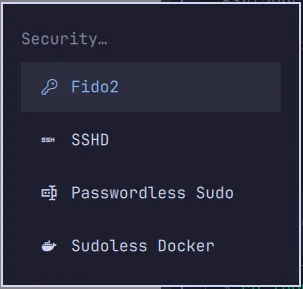
Your hardware may not support every option.
Do not enable hardware auth just to complete the exercise.
21.87 — Practical Exercise: Plugin Review
Run:
omarchy plugin listIdentify third-party plugins.
For each:
Do I still use it?
Do I trust the source?
When was it last updated?
Remove or disable anything you no longer need.
21.88 — Practical Exercise: Autostart Review
Inspect:
bat ~/.config/hypr/autostart.luaAsk:
Do I recognize every command?
Does each one need to start every session?
This is both performance maintenance and security review.
21.89 — Practical Exercise: Hook Review
Run:
fd -H . ~/.config/omarchy/hooksInspect executable personal hooks.
Ask:
What event triggers this?
What command does it run?
Does it use sudo?
Does it access secrets?
21.90 — Practical Exercise: Secret Scan Before Commit
From a project:
git statusThen:
git diff --stagedLook specifically for:
.env
token
secret
password
private_key
api_key
Do not rely only on automated secret scanners.
Human review remains valuable.
21.91 — Practical Exercise: Build Your Security Baseline
Write:
Disk encryption:
Firewall:
SSHD:
Docker group:
Fingerprint:
FIDO2:
Secure Boot:
TPM:
Main browser:
MFA enabled on GitHub:
Backups:
Third-party plugins:
Fill in your current state.
This creates a reproducible security baseline.
Do not put secrets themselves into the document.
21.92 — Common Security Mistakes
Mistake 1 — Disabling Security Because It Is Slightly Inconvenient
Use convenience tools like fingerprint/FIDO2 instead of removing boundaries blindly.
Mistake 2 — Enabling SSH “Just in Case”
If you do not use it, leave it off.
Mistake 3 — Joining the Docker Group Without Understanding Root Equivalence
Convenience changes privilege boundaries.
Mistake 4 — Treating Plugins as Visual Assets
They execute code.
Mistake 5 — Trusting AI Agent Instructions as a Security Sandbox
Natural language is not access control.
Mistake 6 — Running curl | sh From Unknown Sources
Inspect before executing.
Mistake 7 — Committing .env or Private Keys
Treat exposed credentials as compromised and rotate them.
Mistake 8 — Binding Dev Servers to 0.0.0.0 Without Intending Remote Access
Prefer localhost for local development.
Mistake 9 — Using sudo to Fix Every Permission Problem
Understand ownership and privilege first.
Mistake 10 — Hardening Random Things While Ignoring MFA, Backups, and Updates
Focus on realistic threats first.
21.93 — Checkpoint
Before moving on, you should be able to answer yes to the following.
Physical/Data Security
- I understand what LUKS protects.
- I understand what LUKS does not protect.
- I know drive and user passwords are separate.
- I lock the workstation when unattended.
Network Security
- I understand the firewall is enabled by default.
- I know SSH is disabled by default.
- I understand enabling SSH changes the attack surface.
- I can inspect listening services.
- I understand localhost vs all-interface binding.
Authentication
- I understand fingerprint integration.
- I understand FIDO2 integration.
- I know hardware auth needs a recovery path.
- I understand TPM and Secure Boot are separate.
Privilege
- I understand why the Docker group is root-equivalent.
- I know Omarchy’s safer default keeps Docker behind authorization.
- I understand
sudois a privilege boundary. - I avoid root-owned personal files.
Code Trust
- I treat plugins as executable code.
- I treat hooks/autostart as persistence.
- I understand AI agents can have broad local authority.
- I inspect untrusted projects before running install/build scripts.
- I treat AUR packages as third-party code.
Secrets
- I do not commit secrets.
- I understand
.gitignoredoes not erase Git history. - I know shell history can expose secrets.
- I use strong MFA on important developer accounts.
Recovery
- I understand backups are part of security.
- I know snapshots do not replace backups.
- I can describe my current workstation security baseline.
21.94 — What You Can Now Do
After completing Module 21, you can now:
- reason about Omarchy security as layered trust boundaries;
- preserve the strong security defaults already provided;
- understand full-disk encryption;
- expose SSH only when needed;
- manage local authentication intelligently;
- use fingerprint/FIDO2 deliberately;
- understand Docker privilege risk;
- review third-party plugins and hooks as code;
- constrain AI agents more appropriately;
- inspect network exposure;
- protect developer secrets;
- reduce dependency/install-script risk;
- prioritize realistic security controls over random hardening.
Most importantly:
You can now make security decisions based on actual privileges and attack surfaces rather than vague “Linux is secure” assumptions.
Module 21 Summary
Current Omarchy security baseline:
mandatory LUKS encryption
+
firewall enabled
+
incoming traffic blocked by default
+
SSHD off until enabled
+
Docker firewall hardening
+
controlled package sources
+
regular security updates
Authentication:
Drive password
→ unlock encrypted storage

User password
→ login / sudo / authorization

Fingerprint
→ lock screen / sudo / authorization

FIDO2
→ sudo / authorization
SSH:
unused
→ keep off

needed
→ Setup → Security → SSHD
→ firewall opened intentionally
→ rate limiting applied
Docker:
default
→ user not in docker group

docker group
→ effectively passwordless root
Code trust:
plugin
hook
autostart
AI agent
dependency install script
AUR package
are all executable-code trust decisions.
Network inspection:
ss -ltnupLocal-only development:
127.0.0.1preferred unless remote exposure is intentional.
Secret hygiene:
never commit secrets
review staged diff
rotate leaked credentials
And the most important rule:
Security hardening is not “disable everything.” It is understanding which privileges and exposures your workflow actually needs.