Module 23: Troubleshooting Omarchy Like a Developer
In this module — 100 sections
- What You Will Learn
- 23.1 — The Troubleshooting Mindset
- 23.2 — The Developer Debug Loop
- 23.3 — Define the Symptom Precisely
- 23.4 — Ask: What Changed?
- 23.5 — One Change at a Time
- 23.6 — Capture Before Repair
- 23.7 — The Layer Model
- 23.8 — Layer 1: Firmware / Boot
- 23.9 — Layer 2: Kernel / systemd
- 23.10 — Layer 3: Hardware Services
- 23.11 — Layer 4: Hyprland
- 23.12 — Layer 5: Omarchy Shell
- 23.13 — Layer 6: Terminal / Tmux
- 23.14 — Layer 7: Development Environment
- 23.15 — Layer 8: Application / Project
- 23.16 — Layer 9: Network / Remote Service
- 23.17 — Current Official Troubleshooting Escalation
- 23.18 — omarchy-debug
- 23.19 — Read Debug Output Before Sharing
- 23.20 — Failed Services
- 23.21 — Log Triage
- 23.22 — Crash vs Config Failure
- 23.23 — AI-Assisted Troubleshooting
- 23.24 — Do Not Let AI Troubleshooting Become AI Chaos
- 23.25 — Troubleshooting Keyboard Shortcuts
- 23.26 — Common Mistake: Wrong Keybinding Assumptions
- 23.27 — Current Correct Shortcut Discovery
- 23.28 — Troubleshooting Clipboard
- 23.29 — Troubleshooting Scratchpad
- 23.30 — Troubleshooting Monitor Problems
- 23.31 — Apps Too Large
- 23.32 — Caps Lock “Not Working”
- 23.33 — wev Is the Hardware Truth
- 23.34 — Troubleshooting Window Rules
- 23.35 — Troubleshooting Hyprland Config
- 23.36 — omarchy refresh hyprland Warning
- 23.37 — omarchy reinstall configs Warning
- 23.38 — Troubleshooting Terminal Defaults
- 23.39 — Real Course Mistake: Assumed Foot
- 23.40 — Troubleshooting Tmux
- 23.41 — Do Not Confuse Tmux Prefix Documentation
- 23.42 — Tmux Layout Helpers
- 23.43 — Troubleshooting tds
- 23.44 — Real Course Mistake: Installing Hunk Through the Wrong Layer
- 23.45 — Troubleshooting mise
- 23.46 — Real Course Mistake: .mise.toml
- 23.47 — Project Runtime vs System Runtime
- 23.48 — Troubleshooting PATH
- 23.49 — Troubleshooting Git
- 23.50 — Troubleshooting GitHub CLI
- 23.51 — HTTPS vs SSH Git Remotes
- 23.52 — Troubleshooting AI Agent Launch
- 23.53 — Real Course Mistake: omarchy agent --pick
- 23.54 — Troubleshooting Agent Permissions
- 23.55 — Troubleshooting Agent Working Directory
- 23.56 — AI Agent Changed Too Much
- 23.57 — Troubleshooting Audio
- 23.58 — Laptop Speakers Sound Wrong
- 23.59 — Troubleshooting Bluetooth
- 23.60 — Troubleshooting Wi-Fi
- 23.61 — Troubleshooting Update Problems
- 23.62 — Pending Migrations
- 23.63 — Real Course Mistake: omarchy --version
- 23.64 — Command Discovery Is a Troubleshooting Tool
- 23.65 — Real Course Mistake: omarchy idle
- 23.66 — Runtime Toggle Ambiguity
- 23.67 — Silent Commands
- 23.68 — Troubleshooting Defaults / XDG
- 23.69 — Current File-Manager Exception
- 23.70 — Troubleshooting Security Lockout
- 23.71 — Check Keyboard Layout Before Password Panic
- 23.72 — 1Password Authorization Prompt Issues
- 23.73 — Troubleshooting Plugins
- 23.74 — Troubleshooting Hooks
- 23.75 — Troubleshooting Autostart
- 23.76 — Troubleshooting Personal Config vs Omarchy Defaults
- 23.77 — Refresh One Config Before Reinstalling Everything
- 23.78 — Snapshot Rollback Decision
- 23.79 — Snapshot Did Not Fix the Problem
- 23.80 — When Reinstall Is Appropriate
- 23.81 — The “Do Not Panic” Rule for Logs
- 23.82 — Troubleshooting Checklist: Shortcut
- 23.83 — Troubleshooting Checklist: Monitor
- 23.84 — Troubleshooting Checklist: Terminal/Tmux
- 23.85 — Troubleshooting Checklist: Runtime
- 23.86 — Troubleshooting Checklist: Git/GitHub
- 23.87 — Troubleshooting Checklist: AI Agent
- 23.88 — Troubleshooting Checklist: Hardware
- 23.89 — Troubleshooting Checklist: Update
- 23.90 — Practical Exercise: Create a Diagnostic Snapshot of the Workstation
- 23.91 — Practical Exercise: Diagnose a Fake Shortcut Failure
- 23.92 — Practical Exercise: Diagnose a Fake Runtime Failure
- 23.93 — Practical Exercise: Diagnose a Fake Update Failure
- 23.94 — Practical Exercise: Build Your Own Troubleshooting Template
- 23.95 — Common Troubleshooting Mistakes
- 23.96 — Omarchy “Verify, Don’t Assume” FAQ
- 23.97 — Checkpoint
- 23.98 — What You Can Now Do
- Module 23 Summary
About This Module
This is the troubleshooting module.
Everything you have learned so far now comes together here.
A weak troubleshooting process looks like:
something feels wrong
→ guess
→ change three unrelated settings
→ restart random services
→ reboot
→ maybe reinstall
A strong troubleshooting process looks like:
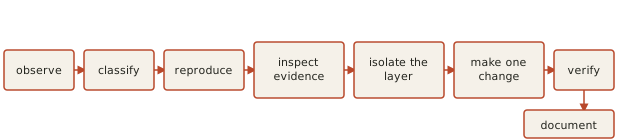
This is especially important on Omarchy because the workstation spans several layers:
UEFI / Limine / UKI
systemd / services
Hyprland
Omarchy Shell
terminal / Tmux
mise
Git
AI agents
network/audio/Bluetooth
user config
Many problems that look similar belong to completely different layers.
For example:
"terminal shortcut does nothing"could be:
- keyboard firmware;
wevinput mismatch;- Hyprland binding collision;
- wrong terminal default;
- command missing from PATH;
- a stale Tmux/session state issue.
Likewise:
"Omarchy broke after an update"could mean:
- package update failure;
- pending migration;
- user config mismatch;
- one failed shell plugin;
- kernel/boot problem;
- hardware service glitch.
The goal of this module is:
Teach a repeatable debugging method that works across the whole Omarchy workstation.
What You Will Learn
By the end of Module 23, you will be able to:
- troubleshoot from evidence instead of guesses;
- classify a failure by layer;
- use Omarchy’s current troubleshooting/recovery tools correctly;
- inspect failed services;
- inspect logs without overreacting;
- use
hyprctl configerrors; - use
wev; - inspect window classes and monitor state;
- diagnose terminal/Tmux issues;
- diagnose mise/runtime issues;
- diagnose Git/GitHub issues;
- diagnose AI-agent launch/config issues;
- diagnose audio/Bluetooth/Wi-Fi issues;
- diagnose update/migration problems;
- distinguish user-config failure from system failure;
- know when to restart, refresh, rollback, or reinstall;
- use
omarchy-debug; - preserve useful evidence before changing the system;
- avoid common Omarchy-specific mistakes documented throughout this course.
23.1 — The Troubleshooting Mindset
The most important rule:
Do not solve the symptom before you understand the layer.
Example:
browser opens wrongCould be:
Omarchy default
XDG handler
application-specific override
hard-coded launcher
If you edit a keybinding before checking the default handler, you may “fix” the wrong layer.
23.2 — The Developer Debug Loop
Use this sequence:
1. What exactly is wrong?
2. Can I reproduce it?
3. What changed recently?
4. Which layer owns this behavior?
5. What evidence can confirm that?
6. What is the smallest reversible test?
7. Did the result match the hypothesis?
8. What did I learn?
This is normal software debugging applied to the workstation itself.
23.3 — Define the Symptom Precisely
Bad:
"Omarchy is broken."Better:
"Super+Return produces no terminal window after switching the default terminal."Even better:
"Super+Return does nothing, but `ghostty` launches normally from an existing terminal, and `hyprctl configerrors` is empty."The third version already eliminates several possibilities.
23.4 — Ask: What Changed?
Before debugging, identify recent changes.
Examples:
Omarchy update
kernel update
new plugin
new Hyprland binding
new monitor
new keyboard firmware
new mise.toml
new AI-agent config
new browser default
Recent change does not always equal root cause.
But it is a strong clue.
23.5 — One Change at a Time
Do not do this:
edit bindings.lua
change terminal default
restart shell
delete config
reinstall terminal
Then test.
You have destroyed the ability to learn which action mattered.
Instead:
one hypothesis
→ one change
→ one test
23.6 — Capture Before Repair
Useful evidence can include:
omarchy versiongit diffhyprctl configerrorssystemctl --failedsystemctl --user --failedjournalctl -bjournalctl --user -bomarchy-debugUse only what is relevant.
Do not produce huge log dumps by default.
23.7 — The Layer Model
Use this troubleshooting map:
Layer 1 — Firmware / Boot
Layer 2 — Kernel / systemd
Layer 3 — Hardware services
Layer 4 — Hyprland
Layer 5 — Omarchy Shell
Layer 6 — Terminal / Tmux
Layer 7 — Development environment
Layer 8 — Application / project
Layer 9 — Network / remote service
Each layer has different tools.
23.8 — Layer 1: Firmware / Boot
Typical symptoms:
wrong OS boots
Limine missing
no boot entry
Secure Boot rejects image
kernel never starts
Useful evidence:
bootctl statusefibootmgrls -lh /boot/EFI/LinuxRecovery may involve:
- firmware boot menu;
- Limine;
- bootable snapshot;
- current official boot documentation.
Do not troubleshoot this layer with Hyprland commands.
23.9 — Layer 2: Kernel / systemd
Typical symptoms:
boot reaches Linux but service fails
TTY works but graphical session does not
user service repeatedly crashes
Useful:
systemctl --failedsystemctl --user --failedjournalctl -bjournalctl --user -bIf TTY works:
firmware + bootloader + kernel progressed significantlyFocus later in the boot chain.
23.10 — Layer 3: Hardware Services
Typical symptoms:
audio vanished
Bluetooth stopped reconnecting
Wi-Fi disappeared
trackpad died after suspend
Current official Omarchy troubleshooting guidance explicitly recommends restarting the offending subsystem before rebooting.
Use:
Super + Space
→ Update
→ Hardware
for:
- Wi-Fi;
- Bluetooth;
- Audio;
- Trackpad.
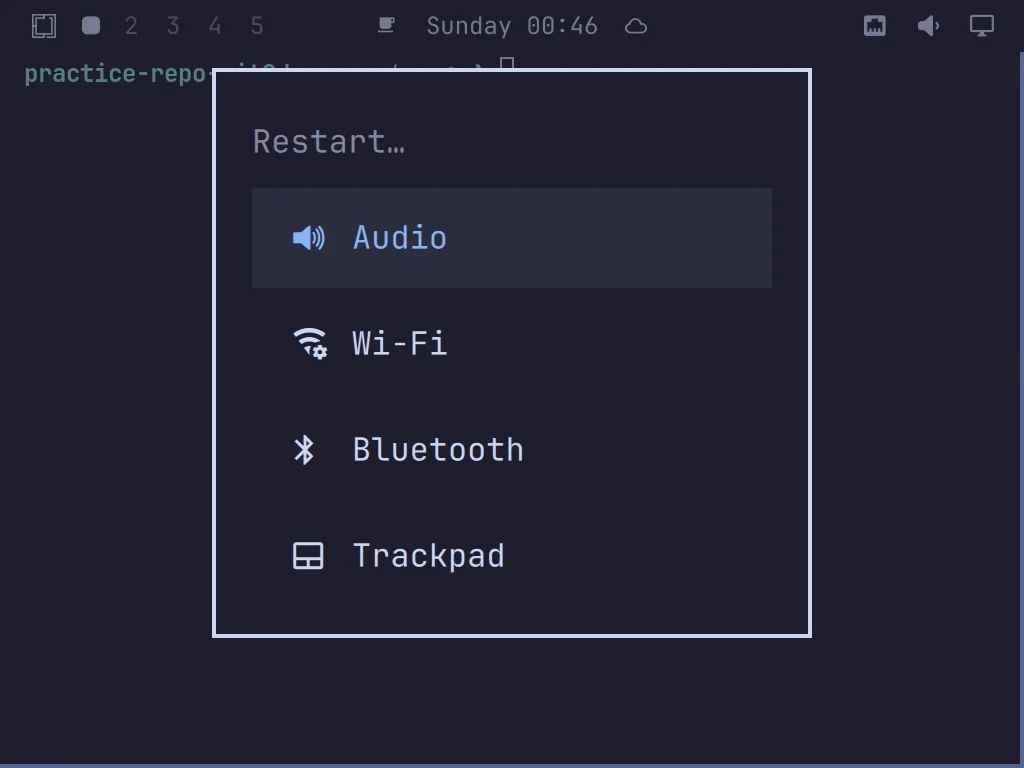
This is a high-value first action.
23.11 — Layer 4: Hyprland
Typical symptoms:
keybinding fails
window rule wrong
monitor mode wrong
input behavior wrong
layout strange
Core tools:
hyprctl configerrorshyprctl monitors allhyprctl activewindowhyprctl workspaceswevThese should be second nature by now.
23.12 — Layer 5: Omarchy Shell
Typical symptoms:
bar missing
panel does not open
plugin stale
menu not responding
notification layer broken
Check:
omarchy-shell shell pingThen restart the shell if appropriate:
omarchy-restart-shellor the current routed restart command.
Do not restart the entire graphical session first.
23.13 — Layer 6: Terminal / Tmux
Typical symptoms:
wrong terminal opens
Tmux session in wrong directory
old config still active
pane layout unexpected
session persists after closing terminal
Remember:
terminal
≠
shell
≠
Tmux
Persistent Tmux state is often the reason “new settings” appear ignored.
23.14 — Layer 7: Development Environment
Typical symptoms:
wrong Node version
wrong Python version
command exists globally but not project
mise configuration ignored
PATH confusion
Core tools:
mise ls --currentmise config lstype COMMANDcommand -v COMMANDpwdProject environment problems are often simpler than they look.
23.15 — Layer 8: Application / Project
Typical symptoms:
tests fail
app crashes
Git diff strange
browser app behaves differently from system default
AI agent changed too much
Use project evidence:
git status
git diff
git log --oneline
and application-specific logs.
Do not blame Omarchy automatically.
23.16 — Layer 9: Network / Remote Service
Typical symptoms:
internet unavailable
GitHub push fails
API unreachable
remote server offline
First distinguish:
local network failure
vs
DNS
vs
remote service outage
vs
credentials
Use:
omarchy network status --verboseand appropriate network tests.
23.17 — Current Official Troubleshooting Escalation
Current Omarchy troubleshooting guidance for a broken update is:
1. rollback the system to the previous version
2. if that fails, run `omarchy-debug`
3. if all else fails, reinstall default configs/packages
The current broad reinstall helper is:
omarchy-reinstallThis is a last resort.
Do not skip straight to step 3.
23.18 — omarchy-debug
Use:
omarchy-debugwhen:
- the problem is system-wide;
- basic diagnosis is inconclusive;
- you need to share structured evidence;
- a rollback did not solve it.
This is better than posting random screenshots of terminal errors.
23.19 — Read Debug Output Before Sharing
Before posting diagnostics publicly:
check for:
- usernames;
- hostnames;
- network information;
- private repository paths;
- credentials;
- tokens.
Troubleshooting output can contain sensitive context.
23.20 — Failed Services
Run:
systemctl --failedand:
systemctl --user --failedA clean list is nice.
A non-empty list is not automatically an emergency.
Ask:
Is this failed service related to the symptom?
Did it fail once during boot and recover?
Is it an optional service?
Interpretation matters.
23.21 — Log Triage
Use a narrow time/context window.
Better:
journalctl --user -u SOME_SERVICE -bthan:
journalctlfor everything.
Useful patterns:
current boot
specific unit
recent timestamp
repeatable error
Noise is not evidence.
23.22 — Crash vs Config Failure
A process crash may produce:
coredumpA config error may produce:
parse/load errorThese need different tools.
Config:
hyprctl configerrorsCrash:
systemd-coredump / journal evidenceCurrent Omarchy can also surface crash diagnostics to the configured AI agent.
23.23 — AI-Assisted Troubleshooting
A useful prompt:
Do not modify anything.

Inspect the current system state relevant to this problem.

I want:
1. likely layer
2. supporting evidence
3. one smallest next diagnostic step
4. no changes yet
This keeps the AI in analysis mode.
23.24 — Do Not Let AI Troubleshooting Become AI Chaos
Bad:
"Fix Omarchy."Better:
"Inspect why Super+Return no longer launches the current default terminal. Do not edit files."Scope is security and quality control.
23.25 — Troubleshooting Keyboard Shortcuts
If a shortcut fails:
1. Does the physical key produce the expected event?
2. Is the combination already bound?
3. Did bindings.lua load?
4. Is the target command available?
5. Does the target work manually?
Tools:
wevSuper + Khyprctl configerrorstype COMMANDThis is the complete chain.
23.26 — Common Mistake: Wrong Keybinding Assumptions
During the course, several shortcut assumptions were wrong before checking the real config.
Examples included:
- incorrect resize shortcuts;
- initially wrong clipboard shortcut;
- guessed scratchpad bindings;
- unverified equal-split reset.
Lesson:
Never invent Omarchy hotkeys from memory. Check
Super + Kor the current official hotkey docs.
23.27 — Current Correct Shortcut Discovery
Use:
Super + Kand current CLI/manual.
This matters because Omarchy evolves quickly.
A shortcut from an old version can be completely valid historically and wrong today.
23.28 — Troubleshooting Clipboard
If clipboard manager behavior differs from expectation:
verify:
Super + V
→ paste

Super + Ctrl + V
→ clipboard manager
on the course workstation/current documented baseline.
Do not confuse direct paste with history UI.
23.29 — Troubleshooting Scratchpad
Current course workstation baseline:
Super + S
→ toggle scratchpad

Super + Alt + S
→ send to scratchpad
Verify with:
Super + Kbefore assuming current-release consistency.
23.30 — Troubleshooting Monitor Problems
Run:
hyprctl monitors allConfirm:
- output name;
- resolution;
- refresh;
- scale;
- position.
Then inspect:
bat ~/.config/hypr/monitors.luaCommon real issue:
monitor supports 144 Hz
but system runs 60 Hz
A working image does not prove correct mode.
23.31 — Apps Too Large
Current official Omarchy troubleshooting documentation specifically addresses oversized apps.
Current guidance says Omarchy assumes a high-resolution scaling baseline and points to:
~/.config/hypr/monitors.luafor GDK scaling adjustment when using a 1x display.
The lesson is:
one scale layer can affect some GUI apps differently from Hyprland monitor scaleDo not randomly resize every application individually before checking the system scaling model.
23.32 — Caps Lock “Not Working”
Current official Omarchy troubleshooting documentation explains that Caps Lock may be assigned to XCompose behavior by default.
If you want normal Caps Lock, inspect:
~/.config/hypr/input.luaCurrent course machine chose to clear the inherited keyboard options with:
kb_options = ""because normal Caps Lock was preferred.
Your setup may differ.
23.33 — wev Is the Hardware Truth
If:
Fn + keydoes not trigger expected behavior:
wevtells you what the compositor actually receives.
This was important with the NuPhy compact keyboard in the course workstation.
If the keyboard firmware sends the wrong event, Hyprland cannot bind the label printed on the key.
23.34 — Troubleshooting Window Rules
Focus the target app:
hyprctl activewindowInspect:
class
title
workspace
Do not guess from app name.
Real course example:
Ghostty class
→ com.mitchellh.ghostty
23.35 — Troubleshooting Hyprland Config
First:
hyprctl configerrorsIf there is an error:
fix that error before doing anything elseThen inspect recent edits.
Do not reset all Hyprland config for one syntax mistake.
23.36 — omarchy refresh hyprland Warning
Current official source shows:
omarchy refresh hyprlandoverwrites the user’s current Hyprland Lua files including:
autostart.lua
bindings.lua
input.lua
looknfeel.lua
hyprland.lua
monitors.lua
Use it only as intentional broad recovery.
23.37 — omarchy reinstall configs Warning
Current source labels:
omarchy-reinstall-configsas destructive.
It replays shipped user defaults over the home directory config surface.
This is not a normal first troubleshooting step.
23.38 — Troubleshooting Terminal Defaults
If the wrong terminal opens:
omarchy default terminalThen:
cat ~/.config/xdg-terminals.listThen:
xdg-terminal-exec --print-idif available.
Then test:
Super + ReturnDo not hard-code Ghostty into unrelated bindings to hide a default-resolution problem.
23.39 — Real Course Mistake: Assumed Foot
Earlier, Foot was assumed as the active terminal.
The actual workstation used:
GhosttyLesson:
official default
≠
current user's selected default
Inspect the machine.
23.40 — Troubleshooting Tmux
If the terminal opens in the correct directory but Tmux shows an old directory:
existing Tmux session preserved stateCheck:
tmux lsPersistent sessions retain pane working directories.
Create/restart the session if you intentionally want new initial state.
23.41 — Do Not Confuse Tmux Prefix Documentation
Tmux configuration can differ from generic Tmux tutorials.
Earlier course work used generic:
Ctrl+Bassumptions.
Current official Omarchy documentation has described a custom primary prefix such as:
Ctrl+Spacewith compatibility behavior.
Always inspect the current Omarchy Tmux setup before teaching shortcuts.
23.42 — Tmux Layout Helpers
Current Omarchy documentation includes helpers such as:
tdl
tds
tdlm
tsl
If one fails:
type tdltype tdsThen inspect required dependency commands.
Do not assume the layout helper itself is broken.
23.43 — Troubleshooting tds
Current docs describe tds as depending on:
hunk diff --watchIf one pane says:
command not foundcheck:
type hunkThe issue may simply be a missing dependency.
23.44 — Real Course Mistake: Installing Hunk Through the Wrong Layer
Earlier assumption:
omarchy pkg add hunkwas wrong for the intended current setup.
The course resolved Hunk through:
miseLesson:
missing command
→ first determine the correct installation layer
Do not reflexively install every CLI with pacman.
23.45 — Troubleshooting mise
Start:
mise --versionThen:
mise ls --currentThen:
mise config lsThen inspect:
mise.tomlfor the project.
Common problem:
wrong file name23.46 — Real Course Mistake: .mise.toml
Earlier we incorrectly used:
.mise.tomlThe current course/project workflow uses:
mise.tomlLesson:
Do not let old tool conventions override current documented behavior.
23.47 — Project Runtime vs System Runtime
Example:
system Python
→ 3.14

mise global Python
→ 3.13

project Python
→ another version
This is not necessarily a conflict.
Ask:
which layer is this command running in?Use:
which python
python --version
mise ls --current
23.48 — Troubleshooting PATH
If:
command exists
but shell says not found
check:
type COMMANDcommand -v COMMANDecho "$PATH"Then ask:
Is it installed?
Is the runtime activated?
Is this interactive shell different from Hyprland launch environment?
23.49 — Troubleshooting Git
Start with:
git statusThen:
git remote -vThen:
git branch --show-currentThen:
git log --oneline -5This answers:
where am I?
what branch?
what changes?
what remote?
before blaming GitHub.
23.50 — Troubleshooting GitHub CLI
Run:
gh auth statusThen:
git remote -vRemember:
Git authentication
GitHub CLI authentication
remote URL method
can interact but are not identical concepts.
23.51 — HTTPS vs SSH Git Remotes
If push fails:
git remote -vCheck whether the remote uses:
https://or:
git@github.com:Troubleshoot the authentication method actually in use.
Do not debug SSH keys for an HTTPS remote.
23.52 — Troubleshooting AI Agent Launch
Current Omarchy agents can be lazy-installed/managed.
If the default agent fails:
omarchy default agentThen:
type AGENT_COMMANDThen:
command -v AGENT_COMMANDThen launch it directly.
This distinguishes:
default mapping problem
vs
agent installation problem
vs
agent runtime problem
23.53 — Real Course Mistake: omarchy agent --pick
Earlier expectation:
chooser opensdid not match the real workstation; it launched OMP.
Lesson:
CLI name that sounds obvious
≠
guaranteed semantics
Use:
omarchy agent --helpand current official docs.
23.54 — Troubleshooting Agent Permissions
If an agent behaves more aggressively than expected:
verify the actual agent’s permission mode.
Real course correction for OMP:
always-ask
→ reads auto, writes+exec prompt

write
→ reads+writes auto, exec prompt

yolo
→ everything auto
Earlier assumptions about write were wrong.
Lesson:
Security-critical permission semantics must be verified from the actual tool, not guessed from a mode name.
23.55 — Troubleshooting Agent Working Directory
Current Omarchy AI docs have documented a home-launch fallback into:
~/Workwhen launching from $HOME.
But your project workflow may use:
~/ProjectsAlways verify:
pwdbefore asking an agent to modify a project.
Wrong working directory can become a serious mistake.
23.56 — AI Agent Changed Too Much
First:
git statusThen:
git diffDo not ask the agent:
"What did you change?"before inspecting Git.
The diff is the ground truth.
23.57 — Troubleshooting Audio
Current official flow:
1. check master mute
2. check output device
3. check per-app volume
4. switch output
5. restart audio
6. deeper diagnostics
Current official troubleshooting docs specifically say external speakers are often simply not selected as the primary output.
23.58 — Laptop Speakers Sound Wrong
Current official current command:
omarchy audio tuning statusIf tuning is active and you intentionally want raw output:
omarchy audio tuning offDo not turn it off merely because you found the command.
23.59 — Troubleshooting Bluetooth
Flow:
radio on?
↓
device paired?
↓
disconnect/reconnect
↓
restart Bluetooth
↓
forget/re-pair only if necessary
Avoid re-pairing as the first response.
23.60 — Troubleshooting Wi-Fi
Start:
omarchy network status --verboseThen inspect:
- SSID;
- signal;
- interface;
- connectivity.
Ask:
radio problem?
association problem?
DNS?
remote site?
Do not change DNS because signal is weak.
23.61 — Troubleshooting Update Problems
Current supported update command:
omarchy updateIf it fails:
keep terminal openInspect:
/tmp/omarchy-update.logCurrent update architecture records the transcript there.
23.62 — Pending Migrations
Current migration state:
~/.local/state/omarchy/migrations/Current diagnostic:
omarchy-migrate --pendingIf it prints pending names:
migration state is incompleteDo not mark them complete manually unless you are following current official migration guidance.
23.63 — Real Course Mistake: omarchy --version
Incorrect:
omarchy --versionCurrent correct public command:
omarchy versionThis belongs in the course FAQ because it illustrates a general pattern:
don't assume conventional CLI flagsUse Omarchy command discovery.
23.64 — Command Discovery Is a Troubleshooting Tool
Use:
omarchyomarchy commandsomarchy commands --allomarchy GROUP --helpBefore saying:
"Omarchy doesn't support this."or:
"this command should work."discover the current command surface.
23.65 — Real Course Mistake: omarchy idle
There is no current top-level:
omarchy idleon the course workstation.
Current idle control lives under:
omarchy toggle idleLesson:
correct concept
+
wrong command path
=
still wrong
23.66 — Runtime Toggle Ambiguity
If status says:
enabled: falseyou must know what is being enabled.
Example:
Stay Awake overriderather than:
idle system itselfVerify:
help
status
UI
before/after change
Do not infer semantics from one boolean.
23.67 — Silent Commands
Some current runtime toggle commands may print no output on success.
Use:
echo $?then inspect state.
No stdout does not mean failure.
23.68 — Troubleshooting Defaults / XDG
Wrong browser:
omarchy default browser
xdg-settings get default-web-browser
xdg-open https://example.com
Wrong terminal:
omarchy default terminal
cat ~/.config/xdg-terminals.list
xdg-terminal-exec --print-id
Test the problematic application last.
23.69 — Current File-Manager Exception
A system XDG directory handler may differ from an Omarchy file-manager launcher.
If:
xdg-open ~opens one file manager but the Omarchy file-manager hotkey opens another:
do not assume XDG failedThe launcher may currently be hard-coded.
This is a good example of layer isolation.
23.70 — Troubleshooting Security Lockout
Current official Omarchy troubleshooting docs say repeated failed authentication can trigger:
faillockIf locked out on the graphical screen:
Ctrl + Alt + F2Then, with appropriate root access:
faillock --reset --user YOUR_USERNAMEThis resets lockout state.
It does not recover a forgotten password.
23.71 — Check Keyboard Layout Before Password Panic
If password suddenly “stops working”:
check:
- Caps Lock;
- keyboard layout;
- Fn layer;
- physical keyboard.
The wrong layout can make a correct password appear wrong.
23.72 — 1Password Authorization Prompt Issues
Current official troubleshooting documentation specifically notes that 1Password authorization prompts may fail to appear if:
- hardware acceleration is disabled in 1Password;
- 1Password has not been launched since boot.
This is application-specific.
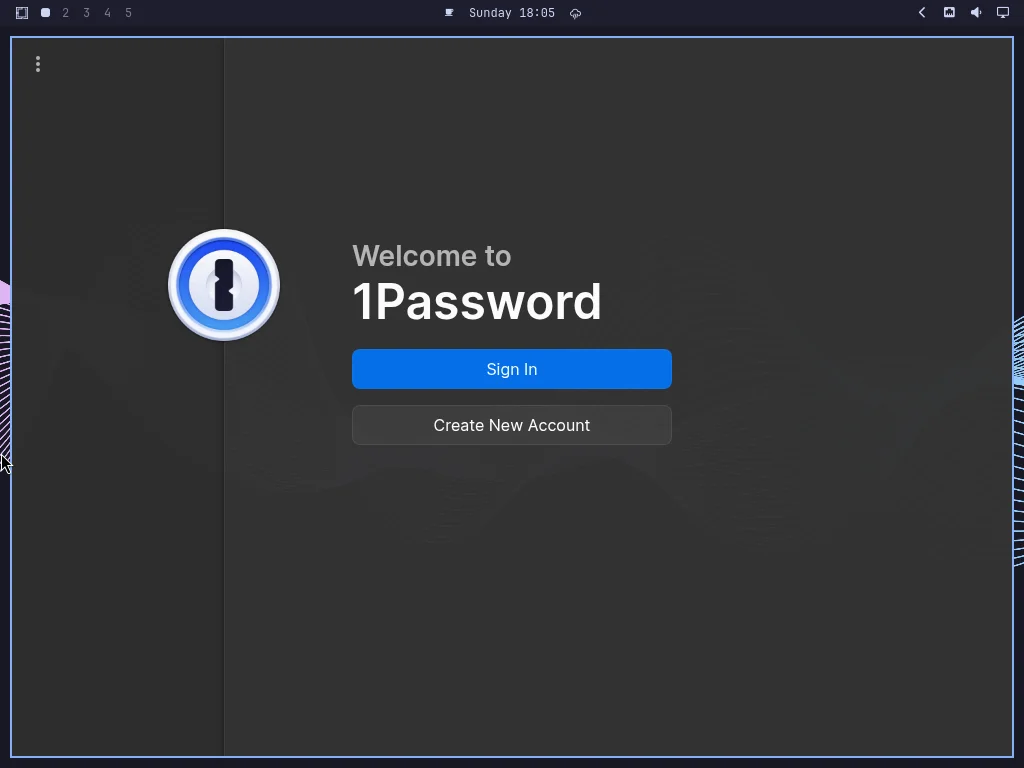
Use the official current troubleshooting note rather than debugging polkit blindly.
23.73 — Troubleshooting Plugins
If shell behavior changed after adding a plugin:
omarchy plugin listIdentify third-party plugins.
Then:
disable suspect plugin
restart shell
test
Plugin validation does not guarantee runtime correctness.
23.74 — Troubleshooting Hooks
If a problem occurs after every:
boot
update
theme change
inspect:
fd -H . ~/.config/omarchy/hooksA hook may be repeatedly reintroducing the state.
Automatic code deserves suspicion when failures are event-triggered.
23.75 — Troubleshooting Autostart
If an app/service appears every login:
bat ~/.config/hypr/autostart.luaCheck systemd user services too.
Do not assume Omarchy itself launched it.
23.76 — Troubleshooting Personal Config vs Omarchy Defaults
Ask:
Does the problem disappear with current shipped config?Before replacing anything:
compareRead Omarchy defaults under:
/usr/share/omarchyDo not edit them.
Use them as a reference.
23.77 — Refresh One Config Before Reinstalling Everything
If a user config is truly unrecoverable, use a targeted refresh.
Broad hierarchy:
edit/undo
↓
Git restore
↓
targeted refresh config
↓
refresh subsystem config
↓
reinstall configs
This preserves as much intentional customization as possible.
23.78 — Snapshot Rollback Decision
Use snapshot rollback when:
system update changed root stateDo not use it for:
~/.config problembecause current Omarchy snapshots do not restore /home.
This distinction prevents useless rollback attempts.
23.79 — Snapshot Did Not Fix the Problem
If rollback does not fix it, ask:
Was the problem in /home?
Was it a hardware issue?
Was it firmware?
Was it external?
Then run:
omarchy-debugif the system-level cause remains unclear.
23.80 — When Reinstall Is Appropriate
Broad reinstall is appropriate when:
- default configs/packages are severely corrupted;
- rollback is insufficient/inapplicable;
- you intentionally want a clean current baseline.
It is not appropriate because:
one panel did not open once23.81 — The “Do Not Panic” Rule for Logs
Logs can contain:
errors
warnings
coredumps
failed transient services
on an otherwise functional machine.
Ask:
Is this current?
Is this related?
Is it repeatable?
Does the service remain failed?
The course workstation had historical errors/coredumps while core services remained healthy.
Context matters.
23.82 — Troubleshooting Checklist: Shortcut
[ ] Super+K current binding
[ ] wev expected key event
[ ] hyprctl configerrors
[ ] command exists
[ ] command runs manually
[ ] environment/PATH correct
23.83 — Troubleshooting Checklist: Monitor
[ ] hyprctl monitors all
[ ] real output name
[ ] resolution
[ ] refresh
[ ] scale
[ ] monitors.lua
[ ] configerrors
23.84 — Troubleshooting Checklist: Terminal/Tmux
[ ] default terminal
[ ] terminal executable
[ ] xdg-terminal-exec mapping
[ ] terminal launches manually
[ ] tmux ls
[ ] current session cwd
[ ] helper exists with type
23.85 — Troubleshooting Checklist: Runtime
[ ] pwd
[ ] mise --version
[ ] mise ls --current
[ ] mise config ls
[ ] mise.toml
[ ] command -v runtime
[ ] runtime --version
23.86 — Troubleshooting Checklist: Git/GitHub
[ ] git status
[ ] branch
[ ] remote -v
[ ] gh auth status
[ ] HTTPS vs SSH
[ ] exact push error
23.87 — Troubleshooting Checklist: AI Agent
[ ] default agent
[ ] command exists
[ ] direct launch works
[ ] current directory
[ ] permission mode
[ ] Git clean state
[ ] exact agent error
23.88 — Troubleshooting Checklist: Hardware
[ ] current panel state
[ ] correct device selected
[ ] subsystem restart
[ ] retry
[ ] deeper logs only if still failing
23.89 — Troubleshooting Checklist: Update
[ ] exact update stage
[ ] /tmp/omarchy-update.log
[ ] pending migrations
[ ] reboot requested?
[ ] system still boots?
[ ] pre-update snapshot available?
23.90 — Practical Exercise: Create a Diagnostic Snapshot of the Workstation
Run:
omarchy versionsystemctl --failedsystemctl --user --failedhyprctl configerrorsomarchy network status --verbosegit --version
mise --versionRecord only the important results.
This becomes your known-good baseline.
23.91 — Practical Exercise: Diagnose a Fake Shortcut Failure
Imagine:
Super + Alt + P does nothingWalk the chain:
Super+K
↓
wev
↓
bindings.lua
↓
configerrors
↓
type target-command
↓
manual target-command
Write down which step would identify each possible fault.
23.92 — Practical Exercise: Diagnose a Fake Runtime Failure
Scenario:
Project expects Node 24
but `node --version` returns 26
Run:
pwd
mise ls --current
mise config ls
bat mise.toml
which node
node --version
Determine whether:
- project config is missing;
- project config is not trusted/loaded;
- you are in the wrong directory;
- command resolution is wrong.
23.93 — Practical Exercise: Diagnose a Fake Update Failure
Scenario:
Omarchy update failedDo not reinstall.
Use:
visible terminal error
↓
/tmp/omarchy-update.log
↓
omarchy-migrate --pending
↓
system boot state
↓
snapshot availability
Build a written recovery plan.
23.94 — Practical Exercise: Build Your Own Troubleshooting Template
Create:
TROUBLESHOOTING.mdwith:
### Symptom

### Reproduction

### Recent Changes

### Layer

### Evidence

### Hypothesis

### Smallest Test

### Result

### Fix

### Verification

### Lesson
This is how developers debug systems professionally.
23.95 — Common Troubleshooting Mistakes
Mistake 1 — Guessing Current Omarchy Behavior
Use current docs and installed commands.
Mistake 2 — Fixing Multiple Layers at Once
Change one variable.
Mistake 3 — Rebooting Before Learning Anything
Restart the smallest affected component.
Mistake 4 — Using Broad Config Refresh for One Typo
Repair the specific file.
Mistake 5 — Treating Every Log Error as Relevant
Correlate with symptom/time.
Mistake 6 — Assuming “Default” Means “Current User Choice”
Inspect current configured defaults.
Mistake 7 — Assuming Generic Linux Tutorial Commands Match Omarchy
Omarchy wraps many workflows.
Mistake 8 — Assuming an Agent’s Explanation Is Evidence
Verify with system/Git output.
Mistake 9 — Treating Snapshot as /home Backup
It is not.
Mistake 10 — Failing to Document the Fix
A solved problem without a recorded lesson becomes a repeated problem.
23.96 — Omarchy “Verify, Don’t Assume” FAQ
This section preserves the most useful mistakes encountered during the real course build.
omarchy --version Does Not Work
Use:
omarchy versionThe Course Initially Assumed Foot
Actual course workstation:
GhosttyCheck:
omarchy default terminalResize Shortcut Guess Was Wrong
Do not rely on remembered/generic Hyprland shortcuts.
Use:
Super + KClipboard Shortcut Was Initially Misidentified
Current course baseline:
Super + V
→ paste

Super + Ctrl + V
→ clipboard manager
Verify current release.
Scratchpad Shortcuts Were Initially Guessed
Current course baseline:
Super + S
→ toggle scratchpad

Super + Alt + S
→ send to scratchpad
Verify current release.
omarchy pkg add hunk Was the Wrong Layer
Current course setup uses:
misefor Hunk.
.mise.toml Was Wrong for the Current Course Workflow
Use:
mise.tomlomarchy agent --pick Did Not Behave as Expected
It launched the current agent rather than presenting the assumed chooser.
Read:
omarchy agent --helpEqual-Split Reset Was Guessed and Failed
Do not publish an unverified shortcut merely because generic Tmux/Hyprland conventions suggest one.
OMP write Permission Semantics Were Initially Misstated
Current verified course semantics:
always-ask
→ reads auto, writes+exec prompt

write
→ reads+writes auto, exec prompt

yolo
→ all auto
Permission modes are security-sensitive. Verify them.
omarchy idle Does Not Exist on the Course Workstation
Use the current:
omarchy toggle idlefamily.
GRUB Was Assumed but the System Actually Used Limine
Verify:
bootloader
UKI
EFI entries
Never assume.
23.97 — Checkpoint
Before moving on, you should be able to answer yes to the following.
Method
- I define symptoms precisely.
- I identify recent changes.
- I classify the owning layer.
- I preserve evidence.
- I make one change at a time.
- I verify the result.
System
- I can inspect failed system/user services.
- I understand log triage.
- I understand
omarchy-debug. - I know when snapshot rollback fits.
Desktop
- I can diagnose Hyprland config errors.
- I can inspect monitor/window state.
- I can verify actual key events with
wev. - I know how to recover shell/plugins.
Development
- I can diagnose terminal/Tmux state.
- I can diagnose mise/runtime issues.
- I can diagnose Git/GitHub auth/remotes.
- I can diagnose AI-agent launch/permission/directory issues.
Hardware
- I restart audio/Bluetooth/Wi-Fi/trackpad before reboot.
- I distinguish device selection from subsystem failure.
Recovery
- I understand targeted config repair.
- I understand broad refresh/reinstall is destructive.
- I understand snapshots do not restore
/home. - I know when TTY recovery is appropriate.
Philosophy
- I verify current Omarchy behavior instead of assuming generic Linux behavior.
- I document solved problems for future use.
23.98 — What You Can Now Do
After completing Module 23, you can now:
- debug Omarchy like a software system;
- classify failures by layer;
- use evidence instead of guesses;
- recover common desktop/hardware issues quickly;
- distinguish shell, compositor, terminal, runtime, and application failures;
- diagnose current Omarchy CLI mismatches;
- diagnose development-environment issues;
- diagnose agent/Git/project state safely;
- decide between restart, refresh, rollback, and reinstall;
- preserve useful troubleshooting evidence;
- build your own troubleshooting knowledge base;
- avoid repeating the exact mistakes discovered during this course.
Most importantly:
You now know how to solve workstation problems without making the workstation harder to understand.
Module 23 Summary
Troubleshooting loop:
observe
↓
classify
↓
reproduce
↓
inspect
↓
hypothesize
↓
smallest test
↓
verify
↓
document
Core system tools:
omarchy version
systemctl --failed
systemctl --user --failed
journalctl
omarchy-debug
Hyprland:
hyprctl configerrors
hyprctl monitors all
hyprctl activewindow
wev
Development:
pwd
type COMMAND
command -v COMMAND
mise ls --current
git status
git diff
gh auth status
Update diagnosis:
/tmp/omarchy-update.log
omarchy-migrate --pending
snapshot
Current recovery hierarchy:
restart component
↓
repair file
↓
targeted refresh
↓
session/reboot
↓
snapshot rollback
↓
broad reinstall
And the most important rule:
If you do not know which layer is broken, you are not ready to apply a broad fix.